
Use SCORM when your LMS imports course packages. Honen supports SCORM 1.2 and 2004. A package connects learners to the live Honen course, keeping course content current from one place.
1. Review workspace defaults
- Open Organization → Integrations → Your LMS and select the SCORM path.
- Review Export defaults: learner audience, version, completion trigger, pass/fail status, and score source.
- Check Report time spent and Save resume position.
- Review the tenant and group intended for this LMS.
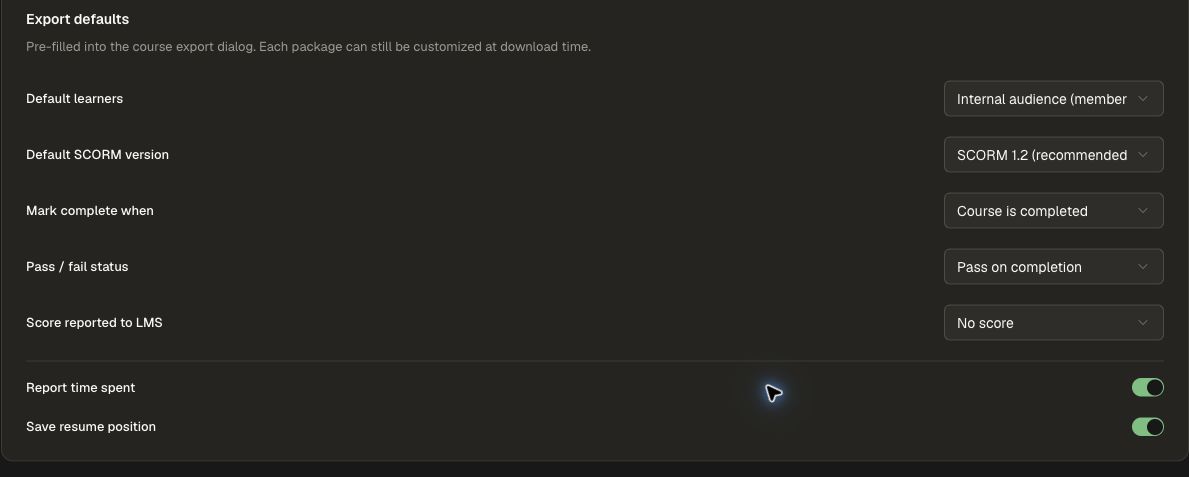
The default is SCORM 1.2; choose the version accepted by your target LMS. Internal delivery provisions workspace members. External delivery requires selecting a Site in the same workspace and uses its external-learner provisioning; the export does not require that Site to be published.
Choose reporting for your program
| Setting | Choices and purpose |
|---|---|
| Mark complete when | Course is completed, Progress reaches threshold, or Learner launches |
| Pass or fail status | Use Pass on completion to report success when the selected completion rule is met, or Don't report for completion-only reporting |
| Score reported | Use Progress % for the course progress percentage, Pass/fail for 1 out of 1 on completion, or No score |
| Report time spent | Send the learning session duration to the LMS |
| Save resume position | Let the LMS retain the learner's position between launches |
Choose a completion trigger that reflects the required work. Use Pass on completion when finishing that work should count as success, and review quiz and test results in Honen Analytics. Use Learner launches for material where opening the resource is the intended completion event.
Organize LMS tenants
A tenant gives an LMS its own launch subdomain and optional group enrollment. This keeps launch sessions distinct and helps you report on each audience.
- In the SCORM integration settings, find the tenant controls and choose to add a tenant.
- Enter its Name and Subdomain label. The label uses lowercase letters, numbers, and hyphens, with a maximum of 31 characters.
- Optionally choose Auto-enroll into groups for that LMS audience.
- Choose Create tenant and check its domain status. Use Recheck domain status when confirming the domain is ready.
- Select the tenant when exporting a course. The selector appears when there is more than the default tenant to choose from.
Create your groups before assigning tenant enrollment. A default tenant can also be provisioned by the first package export.
2. Export from the course
- In an organization workspace, open the manage screen of a course you can edit.
- Open Export and choose SCORM package.
- Confirm the package audience, tenant, reporting options, and version.
- Download the ZIP and keep it intact.
- In your LMS, import the ZIP as a SCORM course or activity using that LMS's import workflow.
A default tenant can be created as part of the first export. Its isolated launch subdomain keeps the LMS learner session separate from your Honen administration session.
3. Validate as a learner
- Launch the imported activity from the LMS using a test learner.
- Confirm the intended course and learner identity.
- Complete enough work to trigger the reporting policy you selected.
- Exit through the LMS player, then check its gradebook and completion status.
- Relaunch and check the saved position when resume reporting is enabled.
SCORM reports through the browser's LMS API. Review the completion and grade in your LMS after the learner finishes. Choose Progress % to report the course progress percentage, or Pass/fail to report a score of 1 out of 1 on completion. No score reports without a numeric grade. For pass/fail status, choose the course-completion policy when completion should count as a pass.
Update or revoke
The course is loaded live, so ordinary content updates do not require distributing a new ZIP. Re-export when the package's audience, group, reporting settings, or secret change.
In the integration's package list:
- Use Download to retrieve the current package again.
- Use the package's enable switch to pause or resume that package's launches.
- Use Revoke existing downloads to rotate its launch secret. Download the replacement package and update it in your LMS so learners use the new version.
- Use Delete when retiring the package entirely, after removing its LMS activity from the learner rollout.
Use the workspace SCORM switch when you intend to pause SCORM delivery for the whole workspace. Individual package controls let you manage one program at a time.
Use LMS Integrations to compare SCORM with other delivery options, or Export a cmi5 package for a compatible LMS that uses xAPI learning records.
Export from an organization workspace with SCORM enabled.