
Put developer reference material and guided answers beside your academy documentation. Import an OpenAPI specification for a browsable reference, then connect an Agent to help visitors find answers from the knowledge you select.
Import an API specification
- Open the Site in Default mode.
- Select the right-hand API tab.
- Choose Upload specification for a JSON or YAML file smaller than 2 MB, or enter an OpenAPI specification URL and choose Import.
- Review the imported specification title and its new documentation category.
- Edit Category name to use a clear navigation label.
- Choose Choose endpoints and select the operations to include. Operations are grouped by tag and labeled with their HTTP method and path.
- Choose Preview category to inspect the reference, then save the Site draft.
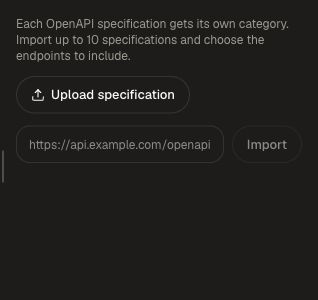
A Site supports up to ten specifications. Use Layout → Documentation categories to arrange their categories beside your how-to guides. Use Remove API specification to remove a reference from the Site configuration, then save your changes.
Keep the specification's descriptions, parameters, schemas, and examples current at the source. When replacing a reference, import the intended specification and review its selected endpoints before publishing. For Honen's own API and authentication guidance, see API and OpenAPI.
Connect a visitor assistant
- Open the right-hand Assistant tab.
- Under Attach an existing agent, select an active public website embed, or choose Set up an existing agent to prepare one in Agents.
- If you are creating a new assistant and have the required permissions, choose Create an agent, enter its name, and complete the creation flow.
- Use Manage knowledge & behavior to configure the Agent's selected knowledge, instructions, and allowed origins.
- Enable Show assistant on this site.
An existing Agent keeps its knowledge, permissions, and allowed origins. Select sources suitable for the Site's audience and include the Site's intended origin in the embed setup. See Embedding on your own site for the complete Agent configuration.
Choose where visitors can ask
- Set Button & page name, such as “Ask Northstar.”
- In Show the sidebar on, choose Overview and documentation or Every page.
- Decide whether to Open the sidebar by default.
- Choose Citation links → Site pages to send readers to published pages on this Site, or Internal Knowledge Base for an audience with permission to open the original records.
- Enable Include a full-page chat if the academy should also offer a dedicated
/assistantpage. - Choose whether to Show full-page chat header, then use Preview assistant page.
- Save and include these settings in the next Site publication.
Select the source pages in the Site as well as the Agent when you want citations to open publicly readable documentation. Internal Knowledge Base links require the visitor's source permissions.
Review the visitor experience
- Ask a question answered by a selected guide.
- Follow its citation and confirm it opens the intended published page.
- Ask a follow-up to confirm the answer uses the right product context.
- Check the sidebar and full-page chat at desktop and mobile widths.
- Revisit Manage knowledge & behavior when changing the assistant's audience or source collection.
Continue with Site design and navigation and publishing the academy.