
Use manual registration when your LMS asks you to exchange platform and tool settings directly. This guide covers the Honen fields shared by compatible LTI 1.3 platforms, including the generic setup used for Blackboard and D2L Brightspace, and Skilljar's lesson-launch setup.
1. Select the platform
- Open Organization → Integrations → Your LMS.
- Select Blackboard, D2L Brightspace, Another LMS with LTI 1.3, or Skilljar as appropriate.
- For Blackboard, Brightspace, or another general LTI platform, use Manual setup when you are configuring the connection by hand.
- Review LTI app branding and the launch and landing options before registering the tool.
2. Copy Honen's tool settings into the LMS
Use the exact URLs in the Honen Manual LMS fields panel:
| LMS tool setting | Honen value on the production host |
|---|---|
| Login / OIDC initiation URL | https://honen.com/api/lti/login |
| Launch / redirect URL | https://honen.com/api/lti/launch |
| JWKS / public keyset URL | https://honen.com/api/lti/jwks |
| Redirect URI | https://honen.com/api/lti/launch |
Create an LTI 1.3 tool/deployment in the LMS using its administrator workflow. Enable the services you intend to use, then obtain the platform values for the next step.
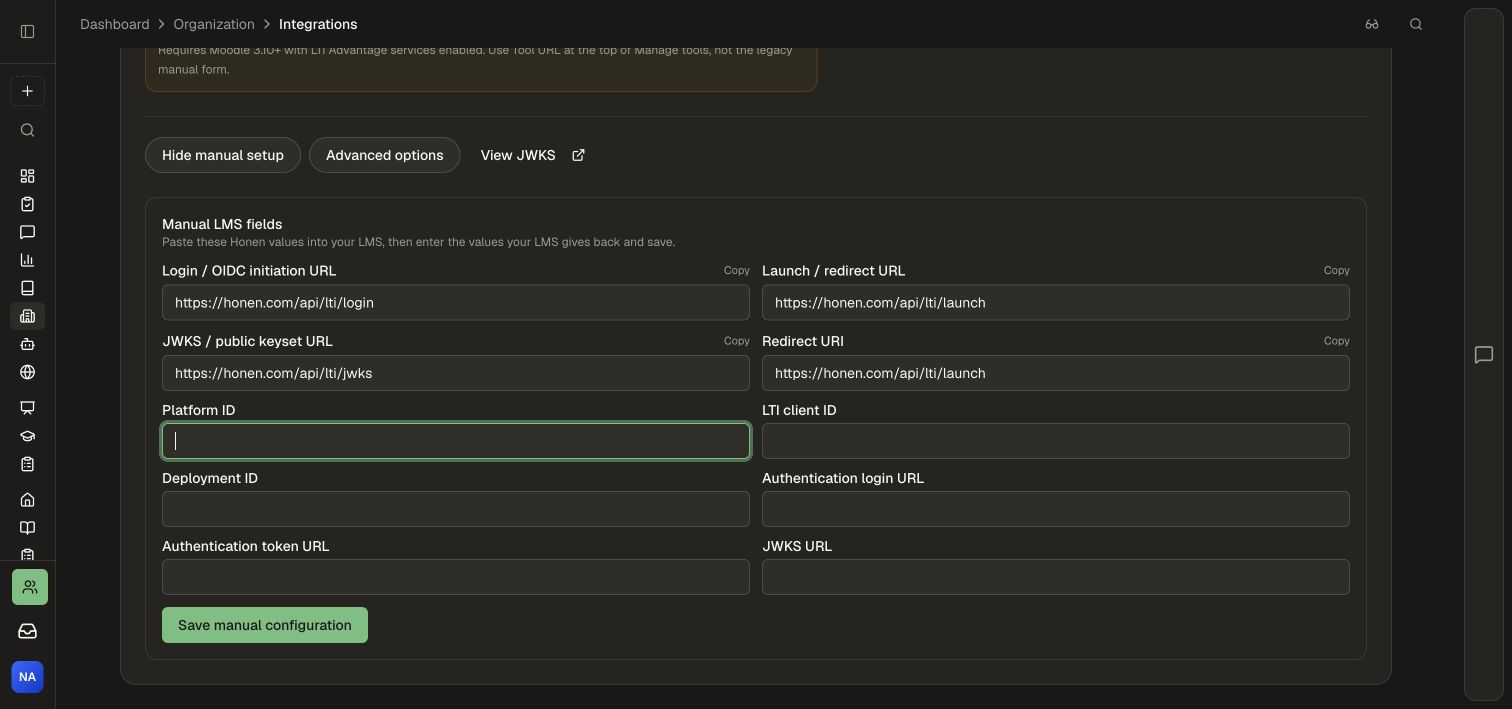
3. Enter the LMS values in Honen
| Honen field | Supply from your LMS |
|---|---|
| Platform ID | The platform issuer identifier |
| LTI client ID | The registered application's client identifier |
| Deployment ID | The installed deployment identifier |
| Authentication login URL | The platform authorization endpoint |
| Authentication token URL | The service-token endpoint |
| JWKS URL | The platform's public keyset endpoint |
Choose Save manual configuration. Confirm the new entry in Your LMS connections, then use Edit settings when updating the learner experience.
Blackboard and D2L Brightspace
Use the LTI 1.3 setup shown by Honen for these platforms. Complete the tool registration, deployment, and placement in the LMS administration area. Enable Deep Linking for the instructor content picker, AGS for graded assignment passback, and NRPS for roster synchronization when those services are part of your deployment.
Create an instructor placement, select the intended Honen content, and test with both an instructor and learner. Confirm the LMS gradebook and mapped Honen group for the services you enabled.
Skilljar
- In Skilljar, create an LTI 1.3 lesson under Course Management.
- Copy Honen's manual tool values into Skilljar, then enter the supplied platform values back in Honen.
- Choose a full-browser-window launch. Honen's Always show button option provides the Open in Honen handoff.
- Save the configuration and add the lesson to the intended course.
- Launch it with a test learner and confirm the intended Honen destination.
The Skilljar workflow is a lesson launch. Use the SCORM guide when your delivery plan calls for package-based completion and score reporting, and confirm the chosen standard with your LMS administrator.
Validate and maintain
Check the exact issuer, client, deployment, and URLs on both sides. For graded placements, inspect the selected grade passback policy and the grade produced by a test completion. Test roster sync separately when enabled.
Use Edit settings → Save settings for supported connection changes. Review a planned disconnect with the course owner so live learner placements have a replacement route.