
Configure the parts your course needs, then walk through the experience as a learner before releasing the settings.
The experience you are setting up
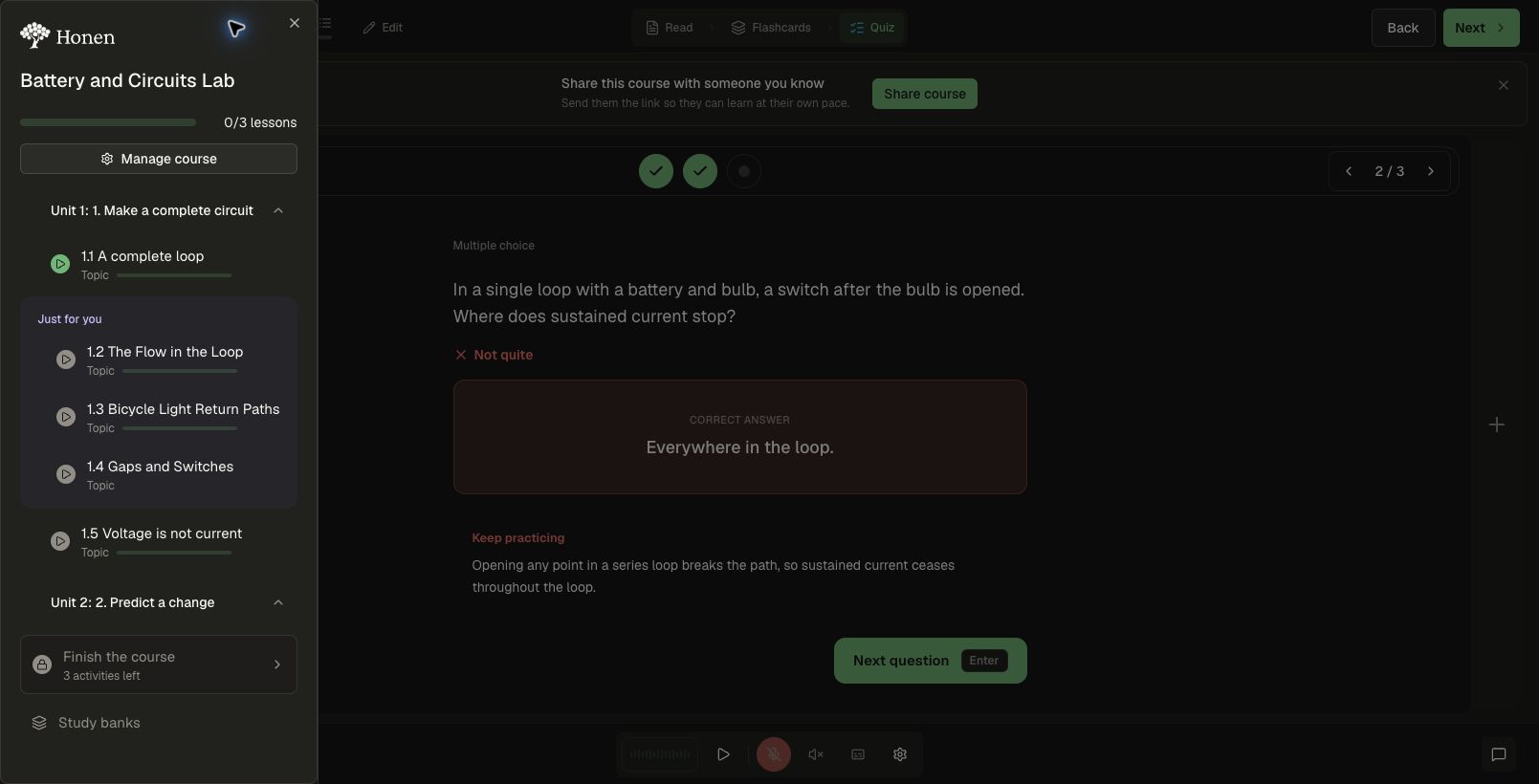
A learner shares a goal, reads a relevant example, receives optional support when useful, and can accept extra topics into the normal lesson plan. Each capability has its own controls, so use the combination that serves your course.
| Outcome you want | Enable | Learner result |
|---|---|---|
| Relevant reading examples | Course personalization and Personalized content | Existing readings can use the learner’s answers. |
| Timely help or encouragement | Proactive Tutor and selected interventions | Bubbles and permitted tutor conversations during learning. |
| Extra teaching on a gap | Adaptive Courses and Remediation | Learner-approved topics within the course goals. |
| Learning beyond the core scope | Adaptive Courses and Curiosity & exploration | Learner-approved additions tied to interests. |
| Revisit earlier course material | Retention → Keep sharp | Configured refresher stops and follow-up checks. |
Before you enable it
Use an authored course with clear goals, useful readings, and correct assessment answers. Choose a concrete learner use case for review. Decide whether the course permits exploration beyond its scope and which interruptions are appropriate.
These features are intended to support relevance, timely assistance, and practice. Evaluate their usefulness through learner work and feedback; switching them on does not establish a learning benefit.
1. Set up course personalization
In the course editor, open Settings → Course personalization.
- Choose whether to enable Personalized content for upcoming readings.
- Select Chat with Honen or Course-specific questions.
- For questions, write the prompts and add blanks or dropdowns.
- Enable Course-start questions if learners should answer when entering the course.
- Select Save Changes when available.
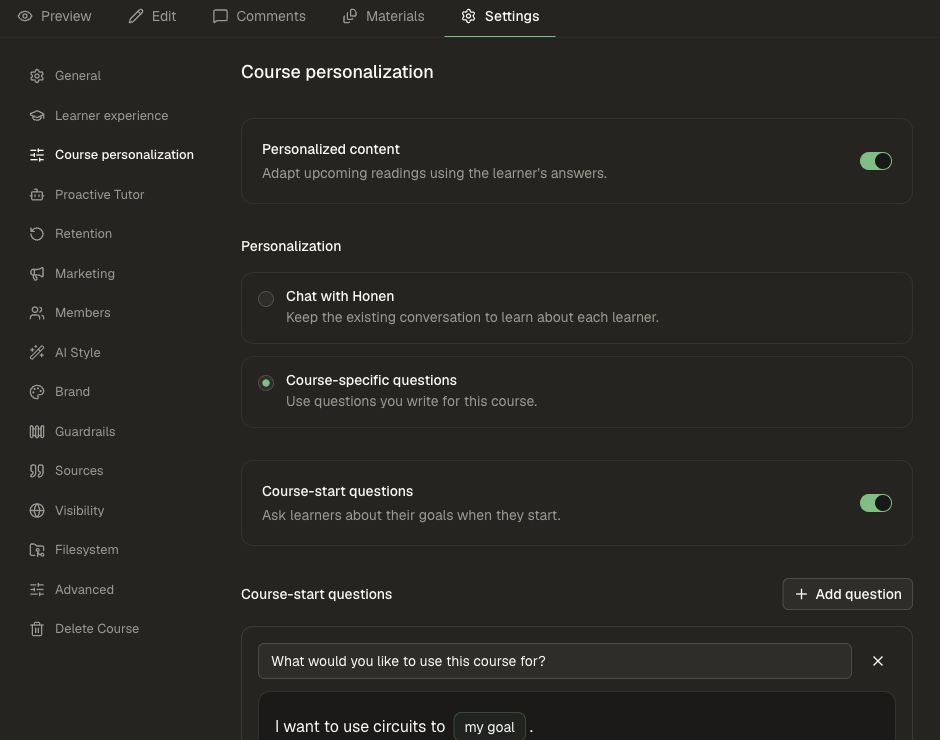
Personalize a course explains each control.
2. Set up Proactive Tutor
Open Settings → Proactive Tutor.
- Enable Proactive Tutor if it should reach out during learning.
- Review Interventions, starting with Dynamic. Scroll to see the rest of the list.
- Enable the error, retry, project, pause, celebration, and encouragement moments appropriate for your course.
- Choose separately whether Open tutor automatically is allowed.
- Review the existing tutor mode and other tutor settings below these controls.
Enabling every intervention is not necessary. For example, a course with extended reading tasks may keep pause check-ins off while retaining support after repeated incorrect answers.
3. Choose whether topics can be added
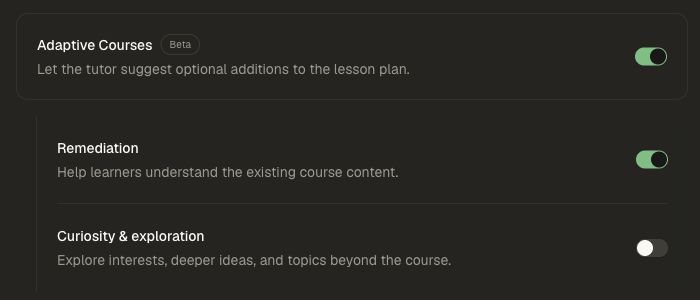
On the same page, enable Adaptive Courses — Beta if learners may accept extra topics.
- Enable Remediation for help with existing content.
- Enable Curiosity & exploration to allow expansion beyond the authored course.
- For remediation only, keep the first on and the second off.
Save your settings. Complete the editor’s Apply Changes or Save & Apply step when shown, and follow your normal publishing and review process. Draft edits alone are not a substitute for applying the course revision used by learners.
4. Configure retention separately
Open Settings → Retention → Keep sharp if the course should revisit earlier goals. Configure in-course refreshers and follow-ups independently of adaptive topic additions. Follow Retention and refreshers for prerequisites, saving, and schedule checks.
Study banks and spaced repetition are a separate learner practice flow. Their recall ratings and review queue are not the Keep sharp follow-up schedule.
5. Review as a learner
Use a test learner and a course with meaningful questions and clear answer keys.
| Check | Expected experience |
|---|---|
| Enter a course with start questions enabled. | The dedicated tailoring screen appears with the same course header and tutor. Completing or skipping continues into learning. |
| Open a reading after sharing a concrete goal. | A personalized example can connect to that goal while teaching the original concept. The authored reading is available while preparation runs. |
| Answer one quiz question incorrectly. | Normal answer feedback appears; a single mistake does not qualify as a repeated-mistake intervention. |
| Make repeated errors in the same topic. | When eligible and selected by the model, a contextual help bubble appears after feedback time. |
| Click the help bubble. | The existing tutor opens and can discuss the current concept using the learner’s text/audio settings. |
| Ask for practice within the course goals. | If allowed, an inline proposal appears after the tutor’s message. |
| Select Add & start. | The accepted set enters one Just for you group, the first topic opens, and its reading streams in as it is generated. |
| Open the new flashcards and quiz. | The ordinary activity interfaces display usable content and valid answers. |
| Ask for exploration with Curiosity & exploration disabled. | The tutor should keep additional topics within remediation scope. |
| Close a bubble. | Further proactive messages are snoozed for 15 minutes; manual tutoring stays available. |
Interventions are not guaranteed on every eligible event. Use the reference to check the evidence, enabled switches, feedback grace period, and cooldown before treating silence as an error.
6. Review quality as well as mechanics
Read generated explanations and try the quizzes. Confirm that examples preserve the intended concept, correct answers are correct, and an added topic addresses the actual question. Check the same journey with voice if your learners use it.
After support, ask a new question aligned with the same goal and revisit it later to check retention. Look for independent application, alongside dismissals and unnecessary topic additions. A helpful system may say less as the learner becomes more independent.