
Turn your source material into practice that helps learners remember terms and make the right decisions. Flashcards work well for focused recall; quizzes can check how a learner applies an idea in context.
Add practice to a topic
- Attach the source through Materials or choose it while creating the course. Wait for processing to finish.
- In Course Editor Assistant, name the topic, the source, and the practice you want. For example: “Add three flashcards and a three-question quiz to Prepare a helpful welcome call. Use the attached checklist and test the customer's goal, approved sources, and definition of done.”
- For a new course, request these formats during setup and check them in the outline before Approve & Build.
- Wait for generation. Open Edit, expand the unit and topic, and select Flashcards or Quiz.
- Use Editor for changes and Learner View to try the activity.
A topic has one activity of each format. Add cards or questions inside that activity; use another topic when you want a separate practice set.
Edit the flashcards
- Edit each Term and Definition. Keep one idea per card.
- Use the hint control to add an optional hint. Write a cue that helps recall without simply repeating the answer.
- Choose Add Card for another term and definition. Use the row's remove control for a card you no longer need, or drag its handle to change the order.
- Where media controls are available, use Generate or Upload to add an image that supports the concept. Preview the image with the card.
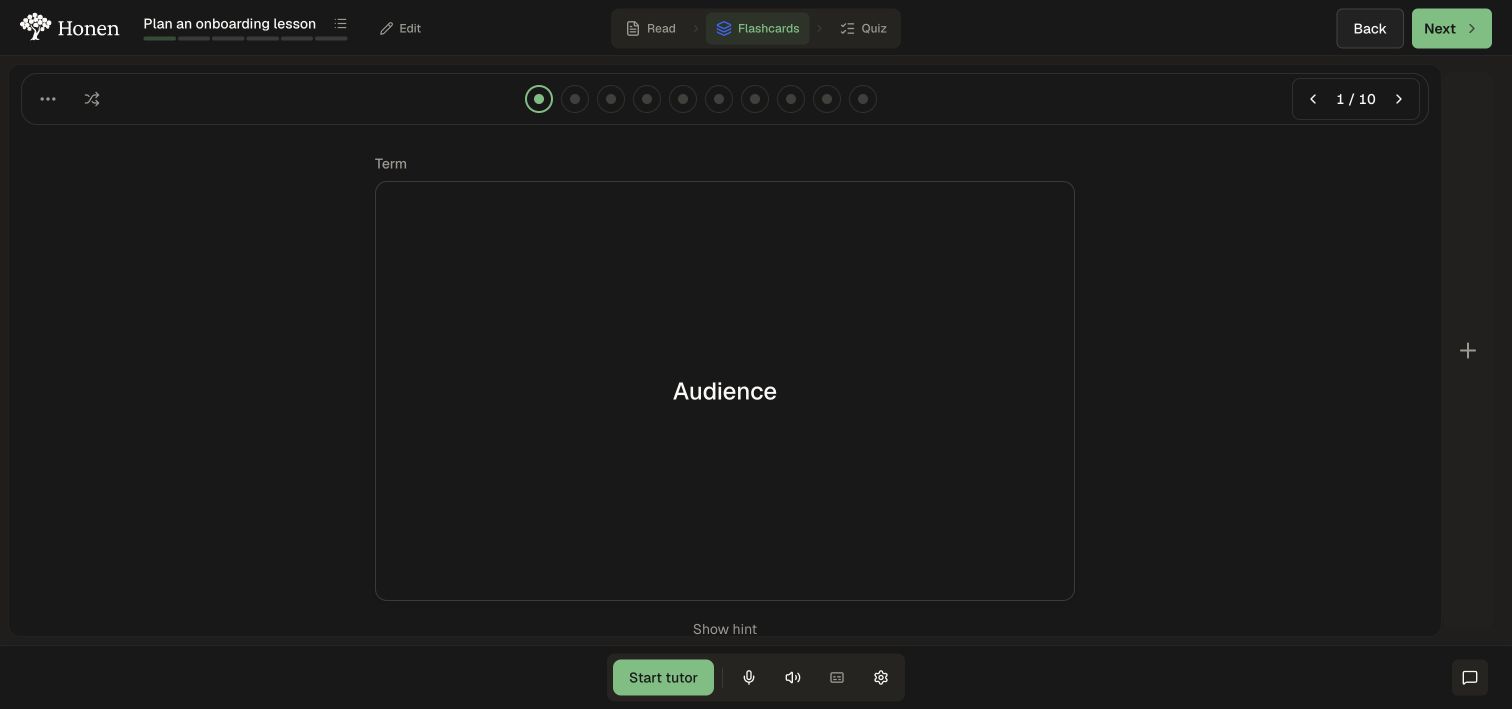
- Open Learner View, flip each card, and check the term, definition, and hint together.
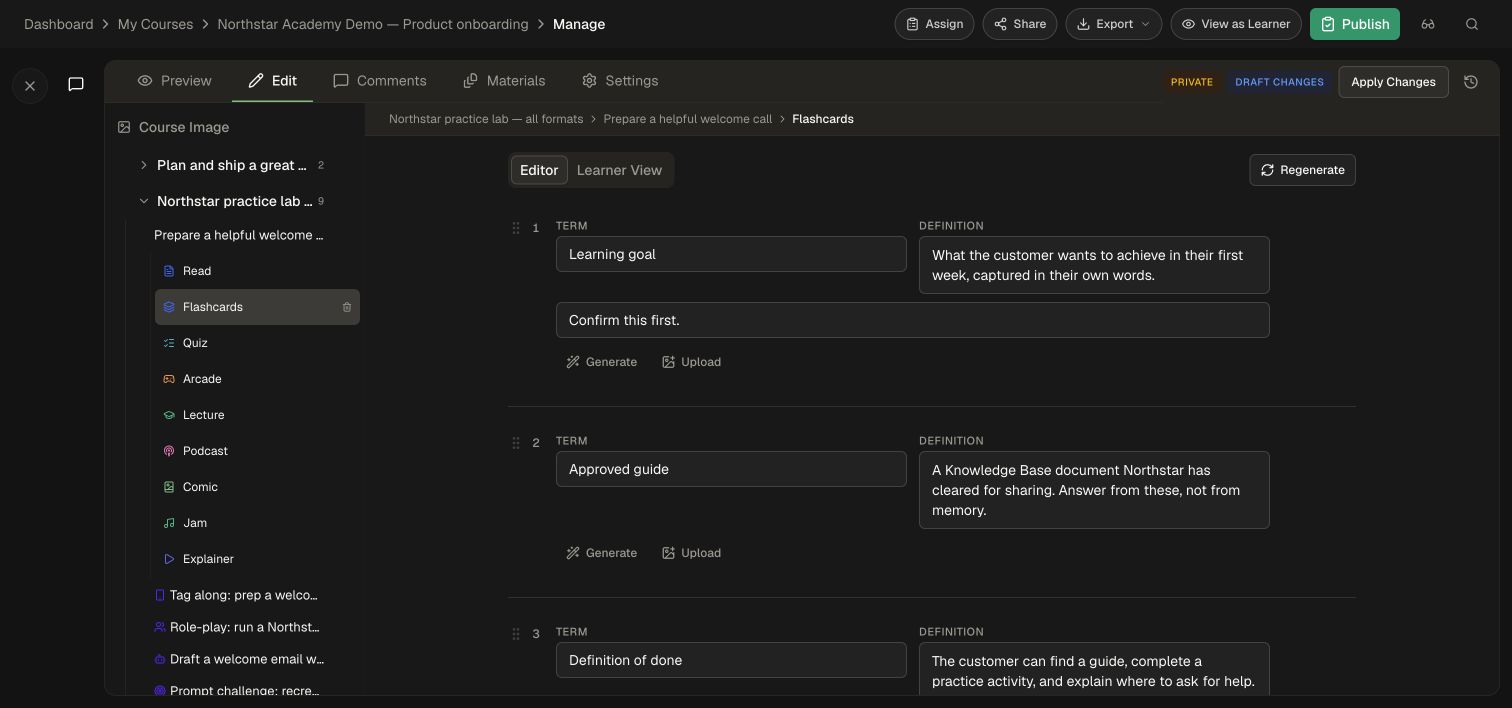
Try the learner settings, including shuffle and definition-first study, when they fit your deck. The flashcard learner guide shows the study controls and keyboard flow.
Edit the quiz and its answer key
- Select Quiz → Editor.
- Edit Enter the question… so the prompt describes one clear decision.
- Edit the answer options. Select the circular control beside the correct option; the chosen answer is highlighted.
- Use Add Option when another choice is useful. The multiple-choice editor keeps between two and six options.
- Fill in Explain why this is the correct answer… with the reasoning learners should take away.
- Choose Add Question for another question. Reorder or remove rows as needed.
- Where available, use Generate or Upload to add question media, then inspect it alongside the prompt and answers.
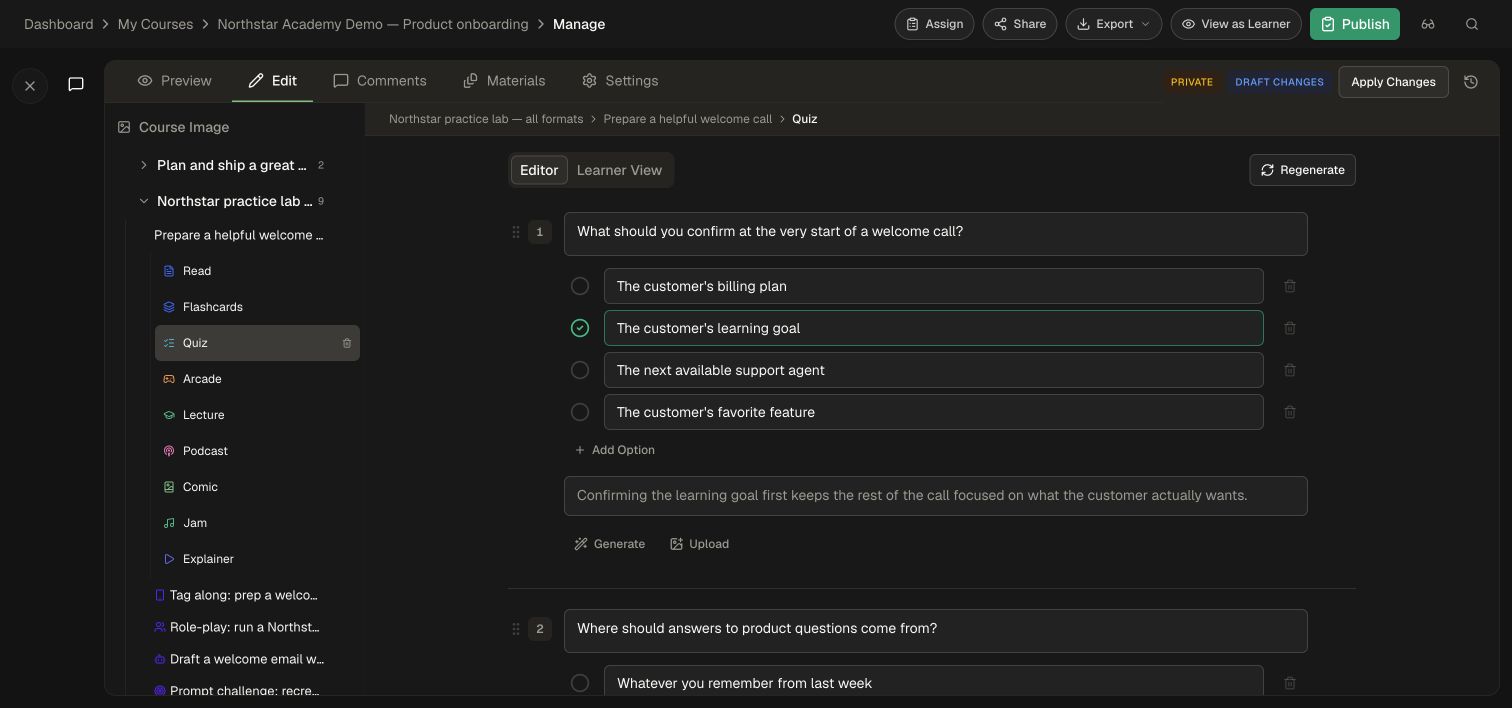
These controls edit the multiple-choice questions shown in this walkthrough. For a different question format or a broader rewrite, describe the change to the Course Editor Assistant and review the resulting question in the learner view.
Try the complete quiz
- Open Learner View and start the quiz.
- Answer a question. When confidence is requested, choose the confidence level before continuing.
- Read the answer feedback and explanation. Check that the selected correct option matches your source.
- Complete the remaining questions and inspect the result.
- Return to Editor to improve any ambiguous wording or weak explanation.
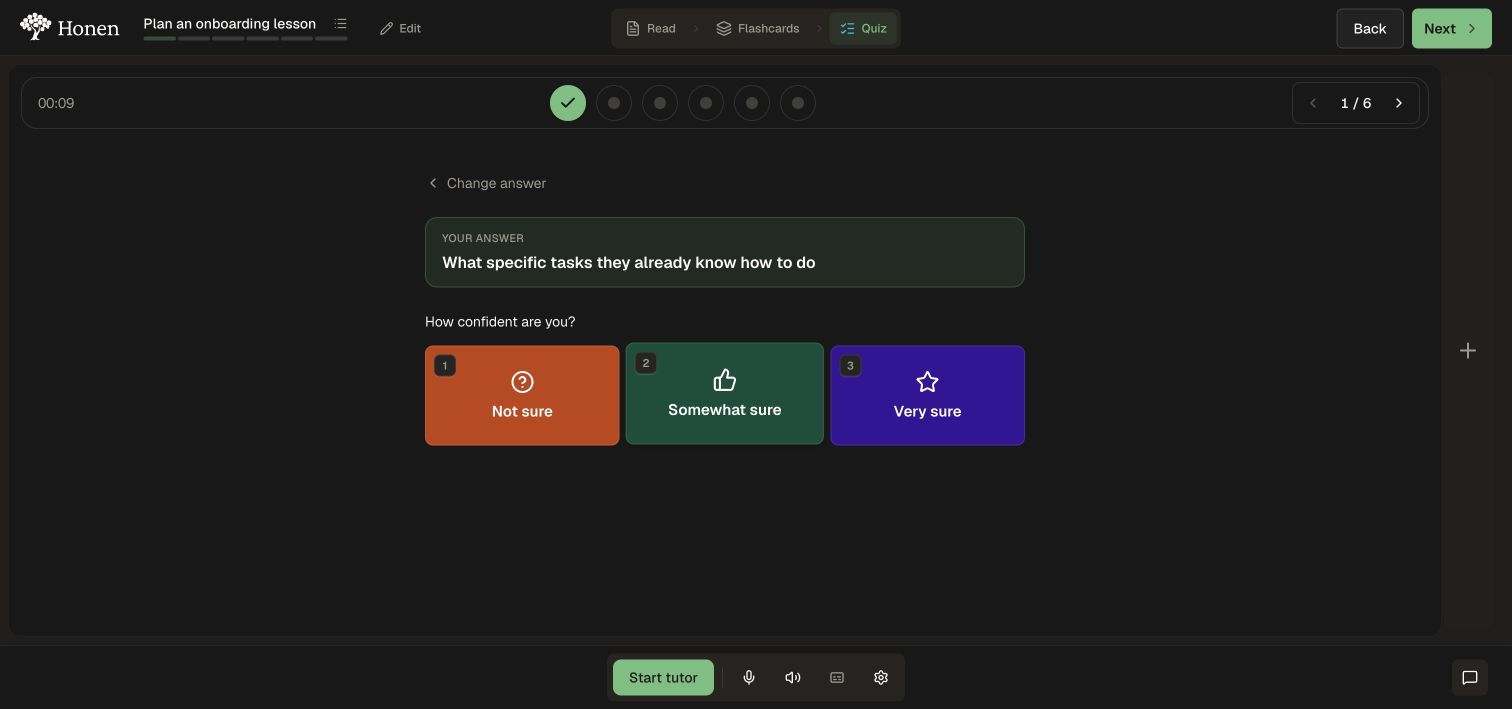
Follow Take a quiz for the learner's complete answer-and-feedback workflow. Use a unit test when you need a separate unit-level assessment with required-work settings.
Apply the reviewed practice
Wait for edits to save, then use the course's Apply Changes or Save & Apply control as shown. Open the course-wide Preview and verify that the practice follows the right lesson. Follow Publishing and review when the revised course is ready to share.
For readings that introduce the same concepts, see Edit readings and add images. For games using a question set, follow Arcade authoring.