
Give reviewers a clear checkpoint before a course release reaches its audience. Publishing reviews hold the submitted course revision steady, so reviewers can assess a specific version while the author continues working.
Publishing approvals are available in team workspaces. Managing catalogs and review policy requires Manage catalogs permission.
1. Enable the workspace review workflow
- Open Organization → Publishing.
- Select Publishing settings.
- Turn on Enable publishing approvals.
- Close the dialog to return to your catalogs.
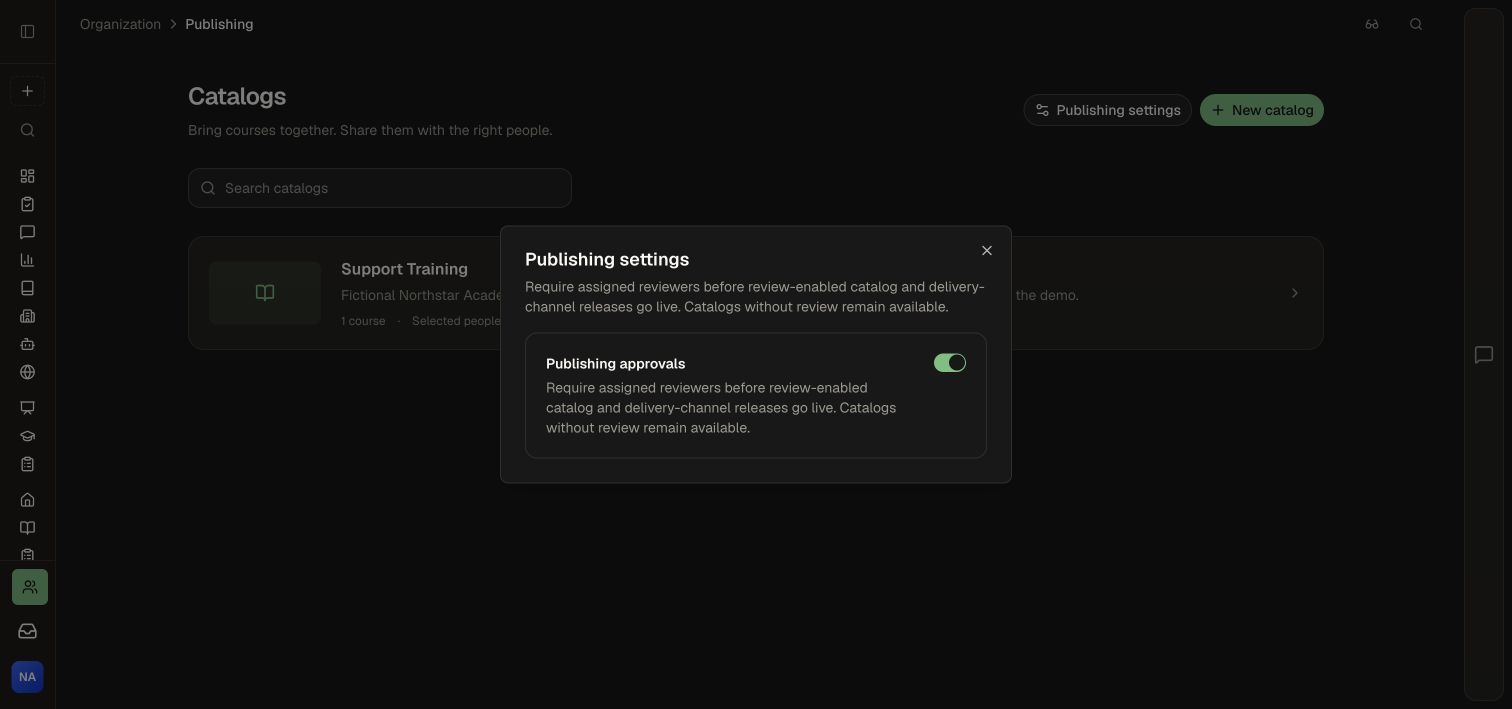
Each catalog has its own review policy. Catalogs without review remain available for publication according to their settings.
2. Set a catalog's reviewers
- Open a catalog, or select New catalog and complete its name and description.
- Open Publishing.
- Keep Catalog available on when authors should be able to publish to it.
- Turn on Review required.
- Select the Reviewers and set Required approvals to a number those reviewers can meet.
- Select Save changes.
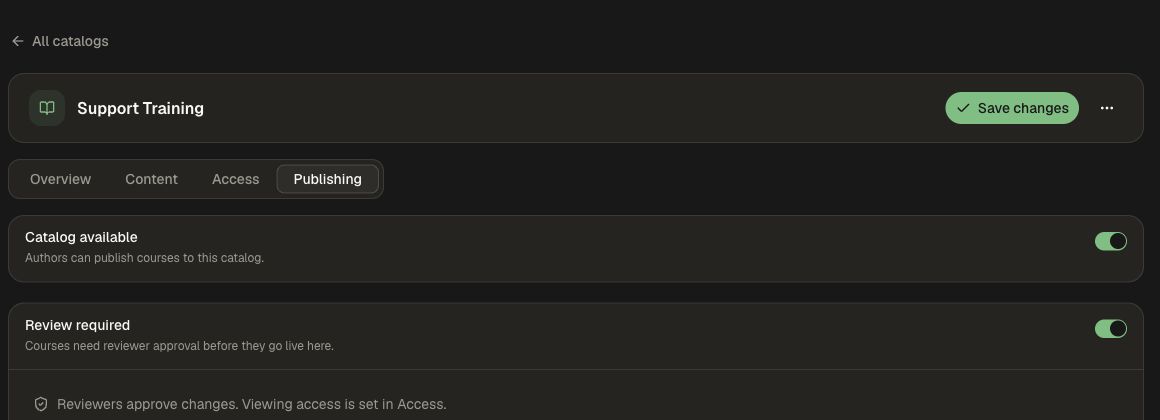
Use Access to define who can open the catalog. Reviewers approve changes; viewing access is a separate choice. See Catalogs, publishing, and review for the broader publishing flow.
3. Submit a course revision
- Finish the course draft and preview its learner experience.
- Open Publish in the course editor.
- Select the destination catalogs. Each catalog shows its own publication and review status.
- Select Submit for review where approval is required.
- Check that the destination is In review.
The request contains the submitted revision. Later draft edits do not change that review. When updating a published course, the current release stays live while the new revision is reviewed.
4. Review and decide
- Open Publishing reviews from the dashboard or open the request from Inbox.
- Search or filter the queue, then select the request.
- Check the target catalog, audience, operation, revision, and approval progress.
- Use Changes to compare lessons, questions, media, and settings. Use Course preview to inspect the submitted learner experience.
- Add comments to the changed content or select a passage to start a feedback thread.
- Choose Approve when the revision is ready, or Send back with the changes the author should make.
Approval is recorded for that target and operation. Once all required approvals are received, the submitted revision is published to the selected catalog. Check the resulting publication status to confirm delivery.
5. Revise and resubmit
- Read the review comments and requested changes.
- Update the working draft and preview the affected content.
- Submit the revised version to the destination catalog.
- Have reviewers assess the new request.
Comments remain associated with the reviewed revision. If the course was already live, sending an update back leaves that publication unchanged.
Review removals and Agent proposals
Removing a course from a review-enabled catalog follows that catalog's review process. The current release remains available until the removal is approved; other catalogs are unaffected.
An Agent with proposal access can prepare changes for review. Course-editor proposals can be accepted into the draft using Accept changes, then published through the usual workflow. A catalog proposal follows the catalog's approval policy. Set the Agent's allowed courses, sources, and actions to match its job.
Before turning workspace approvals off, finish or send back pending review requests. For recurring source checks, see Automations.