
Adaptive Courses lets the tutor suggest one to three optional topics and add them to an individual learner’s lesson plan after acceptance. Use it to support an existing learning goal or explore a learner’s interests.
What the learner sees
1. A timely offer to revisit a concept
Adaptive Courses can begin with the course reaching out. With Proactive Tutor → Repeated mistakes and Adaptive Courses → Remediation enabled, a pattern of incorrect answers can prompt a help bubble inviting the learner to revisit the concept before continuing. One mistake gets ordinary feedback; repeated difficulty can make a check-in eligible. The tutor uses the available context to decide whether to offer help, so a bubble is not guaranteed after a fixed number of errors.
In this live example, a learner answered two heat-transfer questions incorrectly. The tutor stayed closed and offered to work through Heat Flows from Warmer to Cooler Objects together. The learner could choose Talk to tutor or Maybe later.
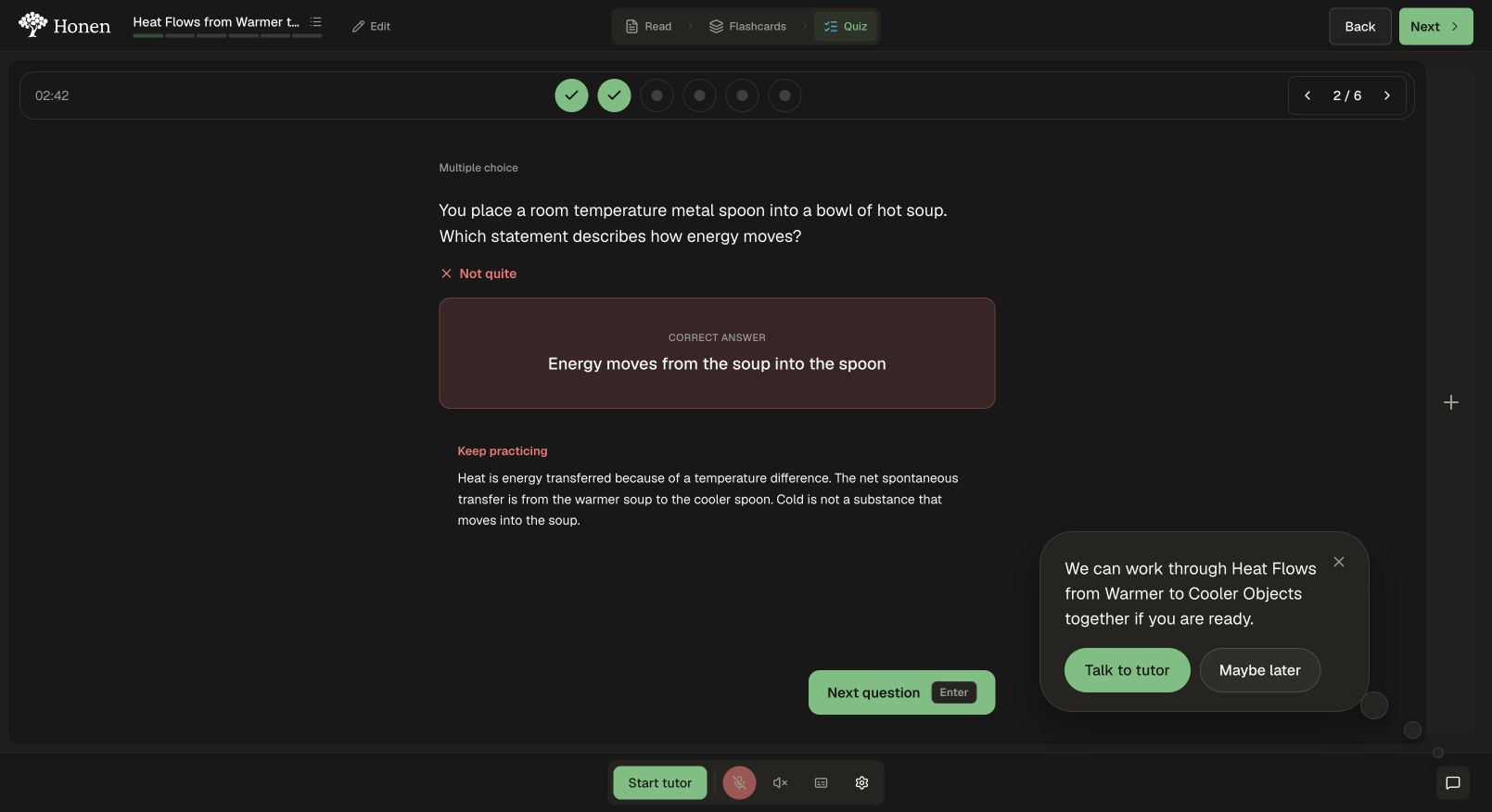
Opening the bubble brings up the existing tutor with the learner’s current question and difficulty. The tutor can revisit the concept, offer a hint, and discuss what is unclear. If the gap persists or the learner asks for extra practice, it can propose targeted new topics.
Here, the conversation led to a set on Temperature vs Transferred Energy, Direction of Net Heat Flow, and Thermal Equilibrium in the Lunchbox. The inline proposal appears after the tutor’s explanation.
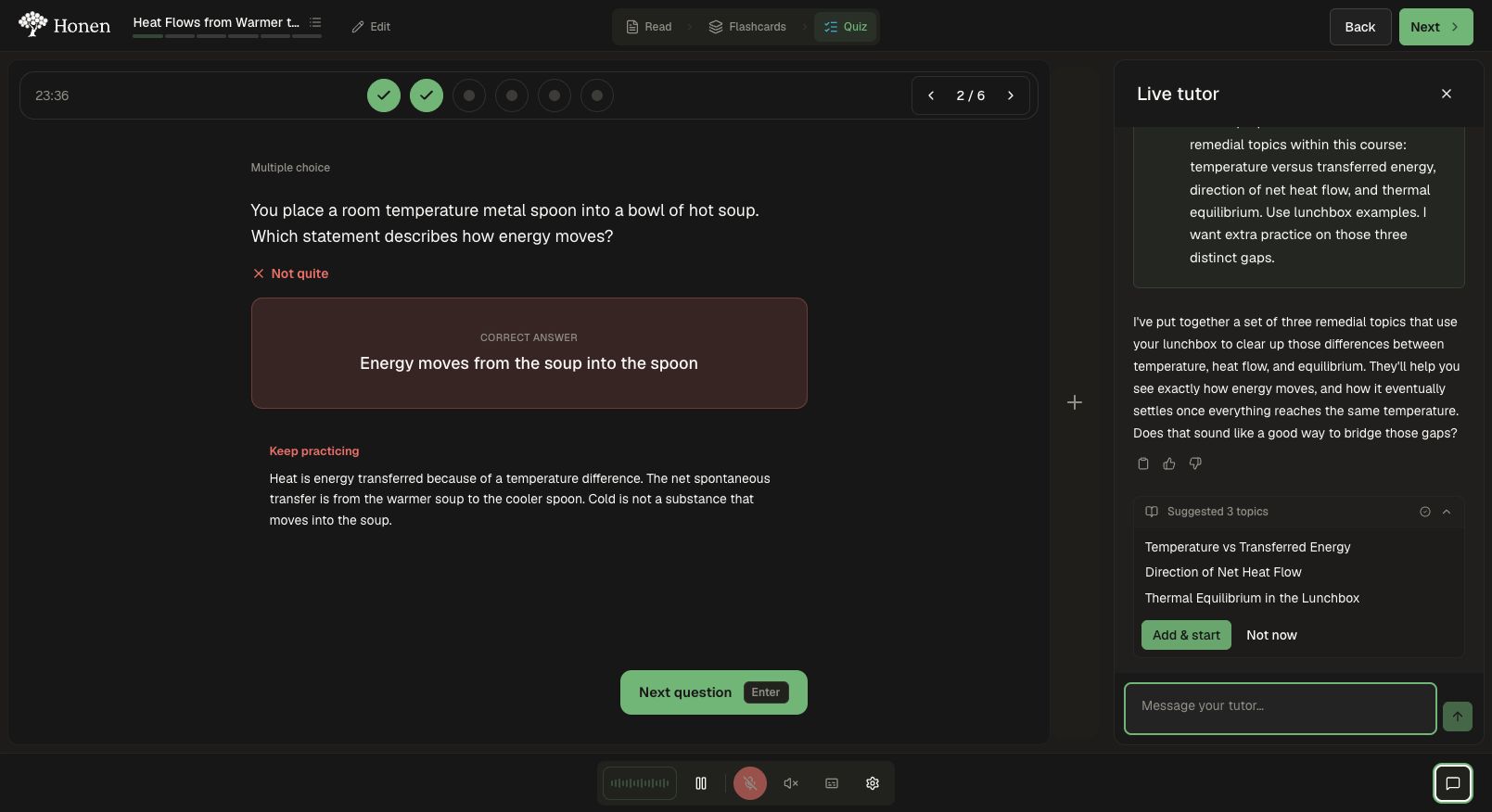
The learner accepts with Add & start. Only then are the topics added under Just for you and the first one opened. A help bubble does not automatically move the learner or add content, and Maybe later lets them continue their current activity.
2. Accept one set of new topics
- The tutor discusses the learner’s question or difficulty.
- When additional topics would help, it uses an inline tool call after its message. The tool lists a set of one to three topics.
- The learner chooses Add & start to accept the whole set, or Not now to continue without adding it.
- The action changes through its adding and added states. The lesson plan opens and the new topics animate into place.
- The first topic opens. Its reading streams into the normal reading view as the model produces it.
The three topics are one proposed set, not three alternatives to choose between. Nothing is added merely because the tutor displayed a suggestion.
3. Find the additions in the lesson plan
Accepted topics appear together beneath one Just for you heading for the consecutive group, with a distinct background in the lesson plan. They use the same topic navigation and activity components as authored topics.
The circuits example below shows the same grouping in the lesson plan.
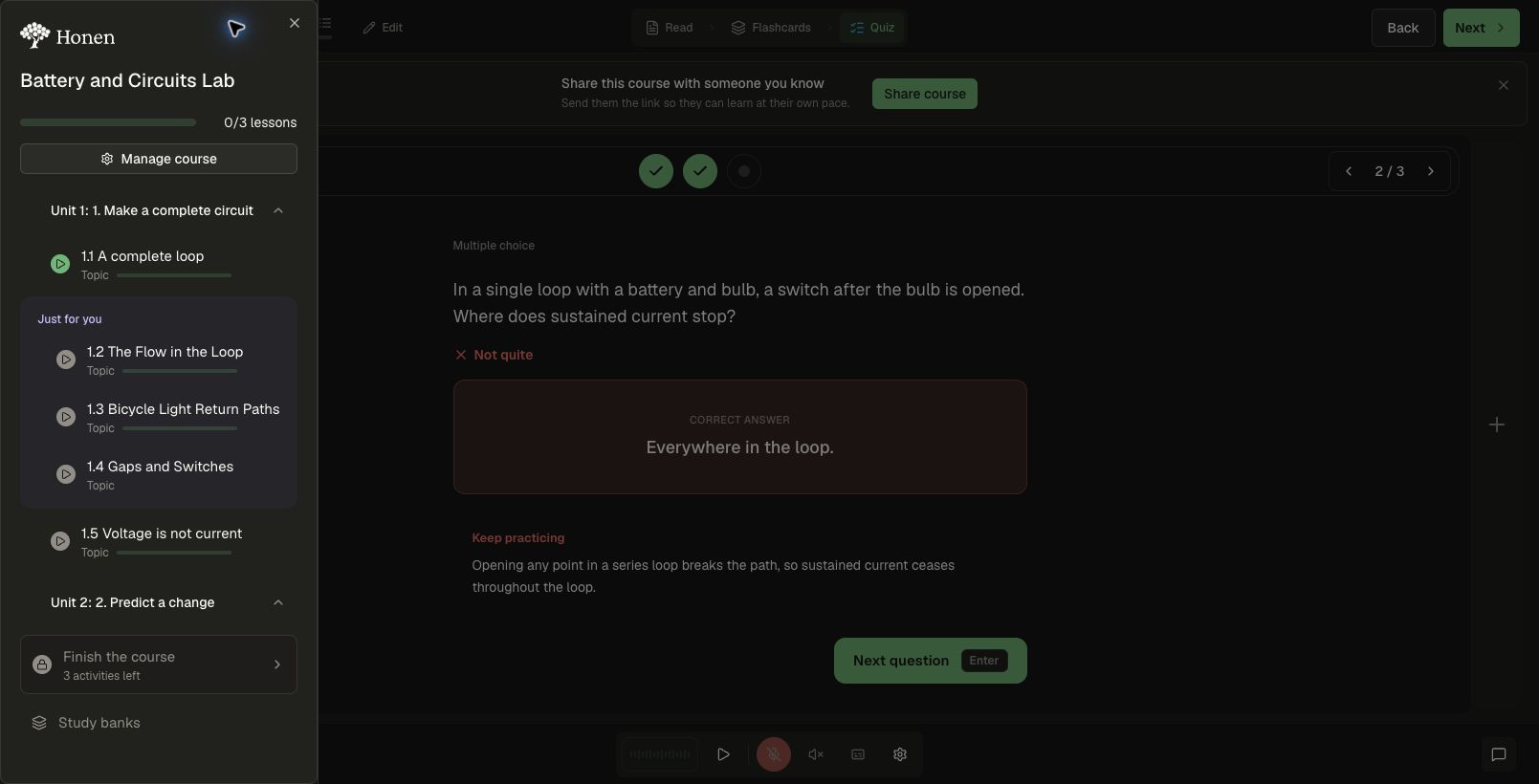
The Beta supports readings, flashcards, and quizzes. Opening another added topic starts preparing its content when needed. Generation takes time; text appears as it becomes available, and practice activities follow. If generation fails, the learner can retry.
These additions belong to that learner’s course experience. They do not edit the shared authored outline for everyone. They are optional practice and do not replace the course’s required assessments.
Why use it
Use remediation when the next useful step is extra explanation or practice on an existing goal. Use exploration when a learner wants to apply an idea to a new interest. The intended benefit is a useful next step without requiring every learner to take the same detour.
Pair an explanation or worked example with a fresh problem so the learner can apply the concept. For exploration, check that the new application connects back to the course goal. These choices align with the IES guidance on worked examples and practice.
Judge an addition by whether it addresses the gap and helps the learner return to independent work. More generated topics are not evidence of better learning.
Enable it step by step
- Open the course editor and select Settings → Proactive Tutor.
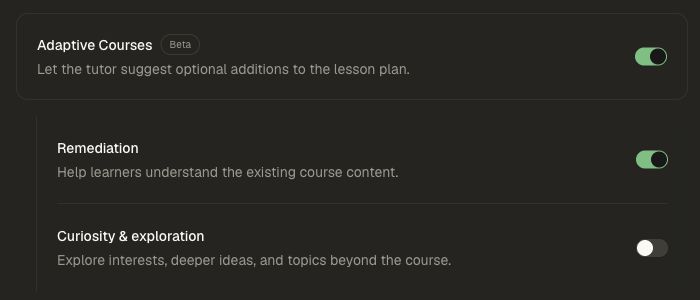
- Enable Adaptive Courses — Beta.
- Enable Remediation for existing course content and necessary prerequisites.
- Independently enable Curiosity & exploration if the tutor may propose topics beyond the authored scope. Leave it off for a remediation-only course.
- To let a difficulty prompt an offer, also enable Proactive Tutor and the relevant Interventions, such as Repeated mistakes. Proactive messages are optional: a learner can ask for topics in an ordinary tutor conversation.
- Save the settings and complete Apply Changes or Save & Apply when shown. Follow the course’s publishing and review process.
Check the result
- Use a test learner and ask the tutor for extra practice on an existing goal. Confirm that the proposal appears inline after the tutor’s explanation.
- Select Not now once. No topics should be added.
- Request a new proposal and select Add & start. Confirm the adding/added feedback, lesson-plan animation, one Just for you heading for the consecutive group, and navigation into the first topic.
- Watch the reading appear as generation produces it. Open its flashcards and quiz, then open another added topic and check that its activities become usable.
- Check explanations and answer keys against the course objectives. Try an independent aligned question to see whether the extra teaching helped.
- With exploration off, ask for an unrelated extension. The tutor should keep additions within remediation scope.
Personalization and additions are different actions
The reading personalization control adapts the presentation of an existing topic. It does not create a topic or apply the Just for you treatment. Adaptive Courses creates new topics after the learner accepts the tutor’s proposal.
Keep revisiting the learning
Use Retention and refreshers alongside Adaptive Courses to revisit earlier goals during the course and schedule later refresher checks. Missed checks become due again sooner. Keep sharp uses configured refresher stops; additional topics address specific gaps or interests after the learner accepts the tutor’s proposal.
Start with Enable and review adaptive learning, or read Proactive Tutor to see how a learning moment can lead into this conversation.