
Course personalization uses a learner’s goals and interests to make upcoming readings more relevant. Creators choose how to collect that context and whether to adapt content from it.
What the learner sees
1. Share a goal at the start
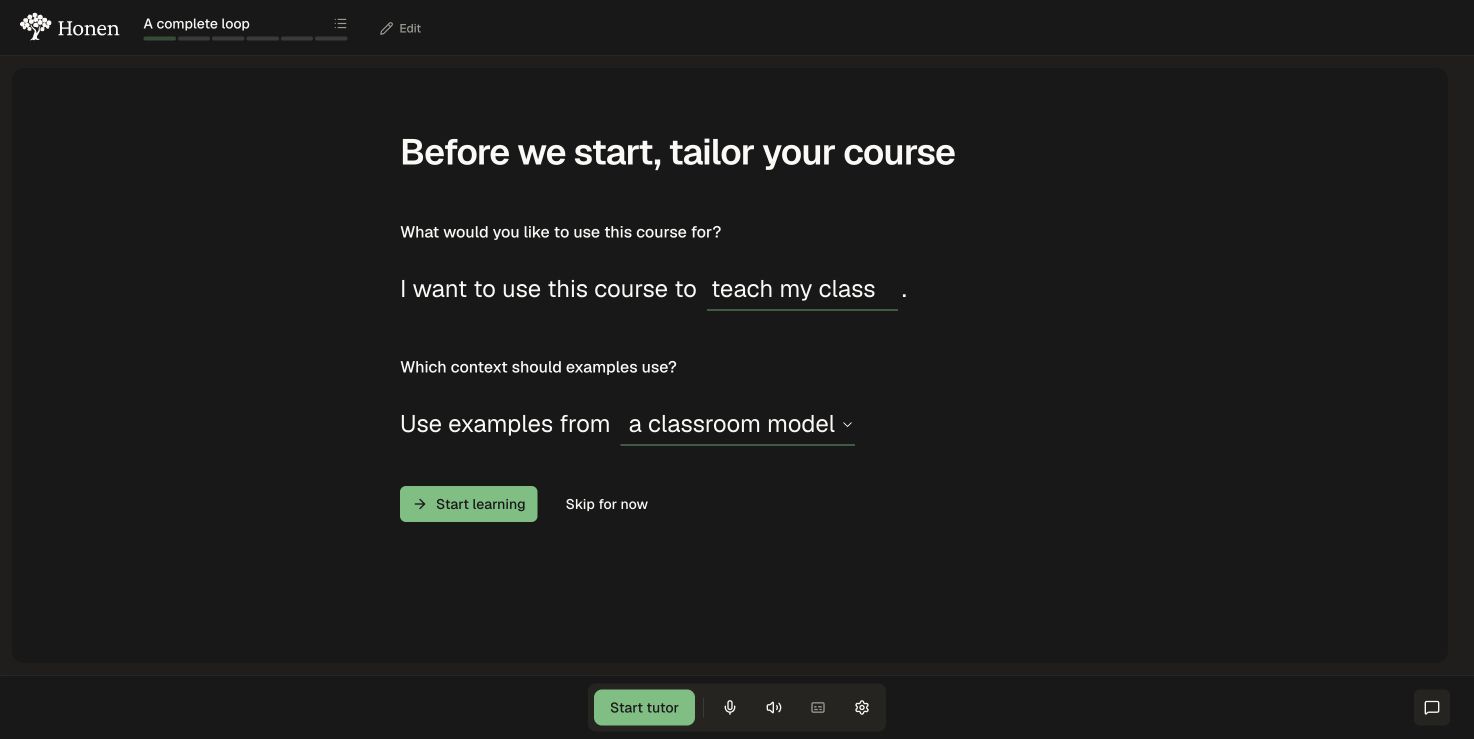
The learner enters the course on Before we start, tailor your course. In this example, they enter teach my class and choose a classroom model. They use Start learning to continue. Skip for now is available if they prefer to begin without answering.
2. Each reading is personalized to the learner
With Personalized content enabled, Honen uses the learner’s answers to personalize upcoming readings as they move through the course. Examples and presentation adapt to their goals while preserving the learning objectives.
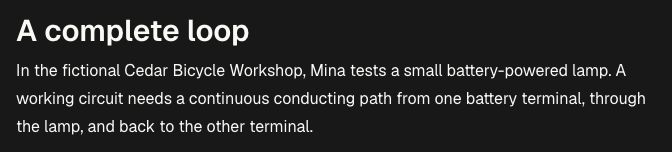
Below are the opening paragraphs of A complete loop, captured from the same topic before and after personalization. The authored reading begins in a bicycle workshop. The learner wants to teach a class, so the personalized reading changes the setting to a classroom demonstration. The learner’s answers were saved before preparing this version.
| Authored: bicycle workshop | Personalized: teaching a class |
|---|---|
 |
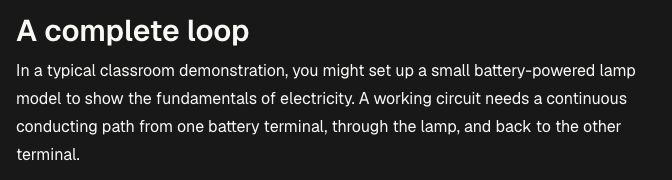 |
| Mina tests a lamp in a bicycle workshop. | The teacher sets up a lamp model for a classroom demonstration. |
Both versions explain that the path must go from one battery terminal, through the lamp, and back to the other terminal. The screenshots show the actual generated version; another learner’s wording may differ.
3. Continue in the normal course
The learner keeps the same topic, navigation, tutor, flashcards, and quizzes. The reading control lets them switch between standard and personalized content once a personalized version is available. This does not add a topic or apply a Just for you label.
Why use it
A familiar application can help a learner connect an abstract idea to something they want to do. The intended benefit is a clearer route into the same learning goal. Relevance alone does not demonstrate understanding: check whether the learner can apply the concept in a new question.
The generator is instructed to preserve learning goals, definitions, factual meaning, and assessment meaning. Creators should review generated examples for subject accuracy.
Enable it step by step
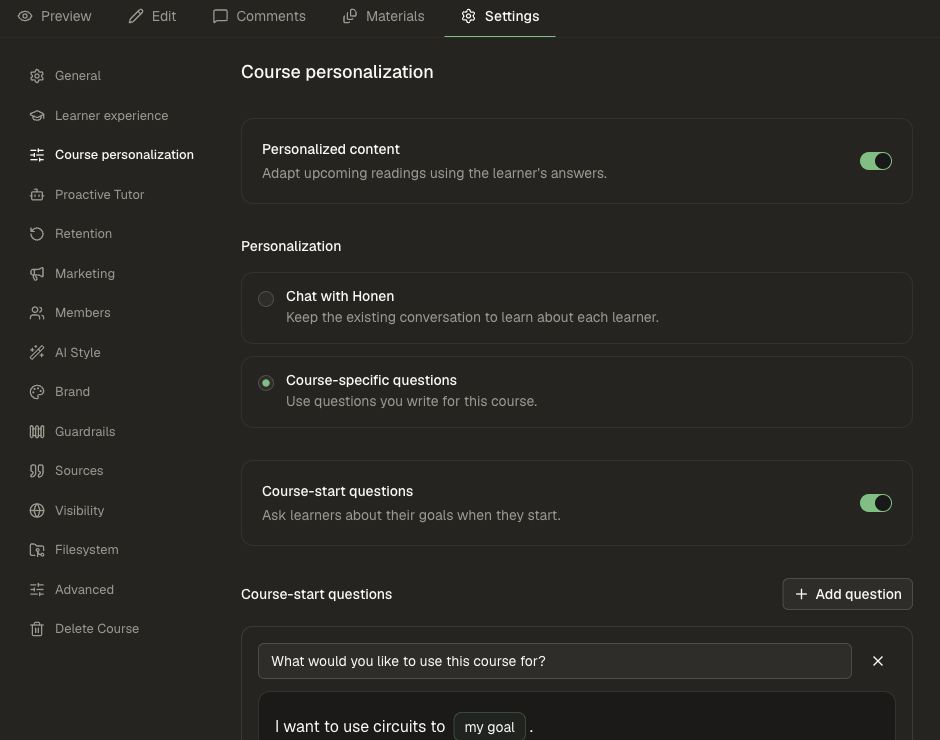
- Open the course editor and select Settings → Course personalization.
- Turn on Personalized content to use learner context when preparing readings. This control is independent of the method used to collect answers.
- Select Course-specific questions for a structured form, or Chat with Honen for the existing conversation-based method. Both provide context for tutoring and reading personalization.
- For questions, select Add question. Write the prompt and a sentence starter. Use Add blank for free text and Add dropdown for a defined set of choices.
- Enable Course-start questions to show the dedicated tailoring screen when answers are needed.
- Select Save Changes when shown. Complete Apply Changes or Save & Apply when the editor requires it, following your normal publishing and review process.
Reproduce the classroom example
| Question | Sentence starter | Field |
|---|---|---|
| What would you like to use this course for? | I want to use this course to … | Blank named my goal |
| Which context should examples use? | Use examples from … | Dropdown named my context, with bicycle repair, a classroom model, and a camping light |
Ask for context that will make an example useful. Avoid asking learners to label their ability or choose a supposed learning style. Up to eight questions are supported; a short set is easier to complete.
Check the result
- Enter the applied course as a test learner. Confirm that the start screen uses the normal course header and tutor.
- Enter teach my class, choose a classroom model, and select Start learning.
- Open the reading. The authored version remains available while preparation runs. Allow the personalized version to finish, then compare both versions with the reading control.
- Check that the classroom demonstration replaces the workshop example and that the complete-path explanation stays correct. Try the flashcards and quiz to confirm that the same concept is assessed.
- Test Skip for now with a learner who has not answered. They should be able to continue into the course.
Prepared readings are reused for the same base content, course revision, and learner context. Changes to the base reading or answers require a new version. A changed question set can require fresh answers; previously saved answers are used only when they match the current questions.
Next steps
Use Proactive Tutor for timely help during learning, or Adaptive Courses — Beta for optional new topics. Enable and review adaptive learning connects the full setup and learner checks.