
Proactive Tutor can reach out during learning without requiring the learner to ask first. It can offer help, acknowledge progress, encourage practice, or stay quiet. The creator chooses the allowed interventions.
What the learner sees
1. Receive an optional check-in
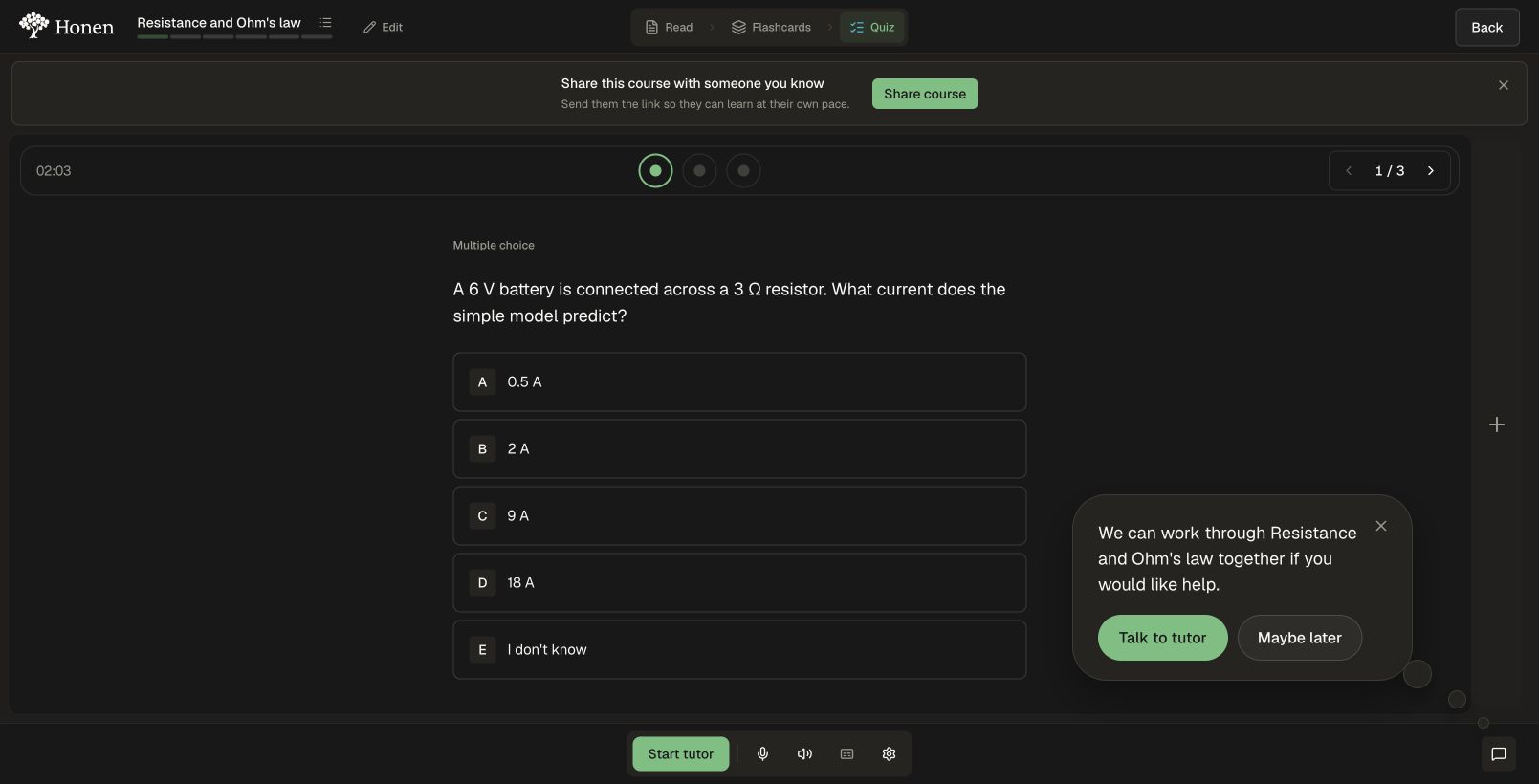
A small animated thought bubble appears beside the tutor controls while the lesson stays in view. Its message is generated from the current learning context. A help message might ask whether the learner wants to work through the current concept together.
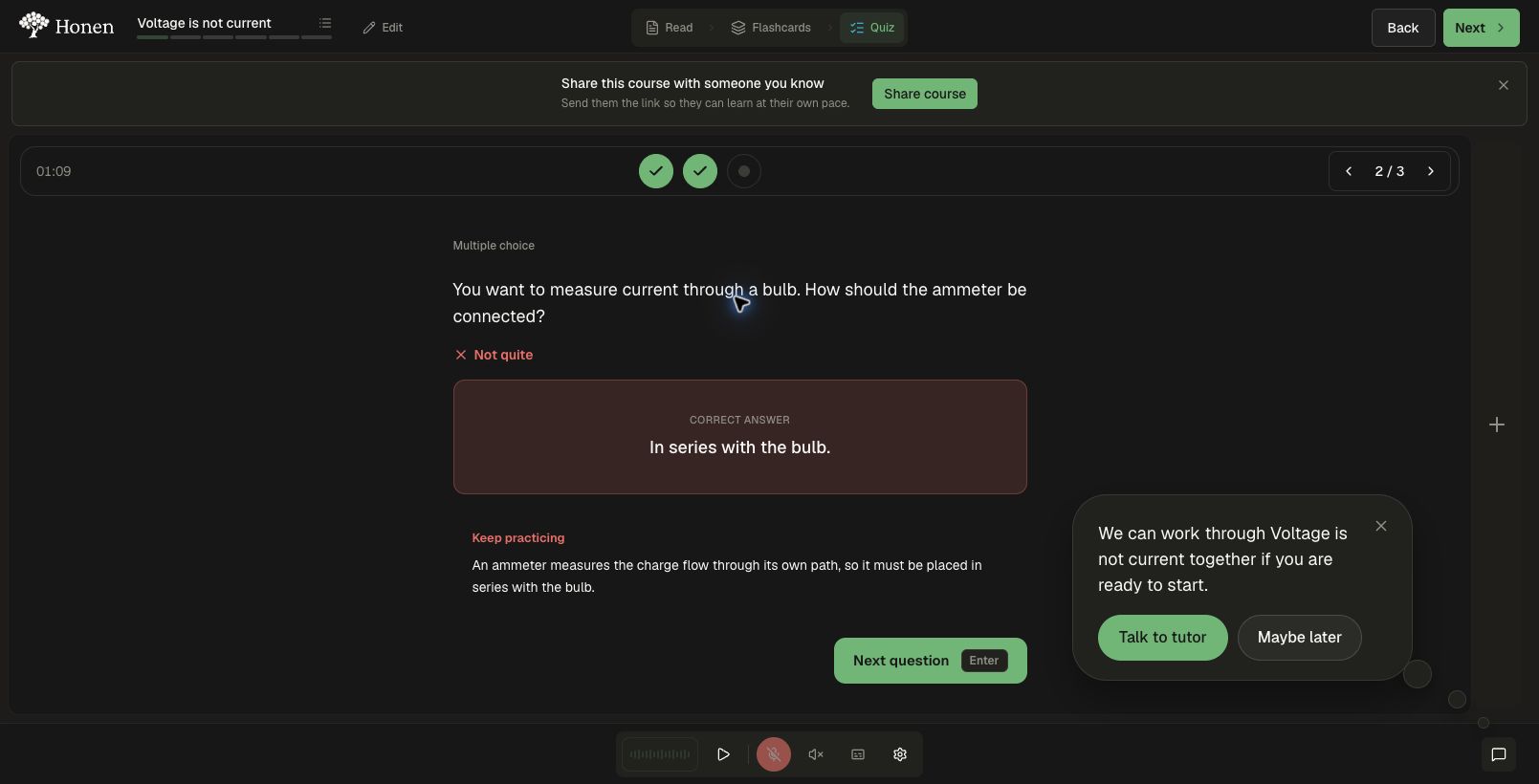
2. Choose whether to talk
Clicking the bubble or Talk to tutor opens the existing tutor pane. The tutor has the relevant course context and can begin with a focused question. It uses the learner’s existing microphone and audio controls: text-only learners can keep both muted, while learners using voice can continue by voice.
Maybe later or closing the bubble snoozes proactive messages for 15 minutes in that course. The learner can still open the tutor manually.
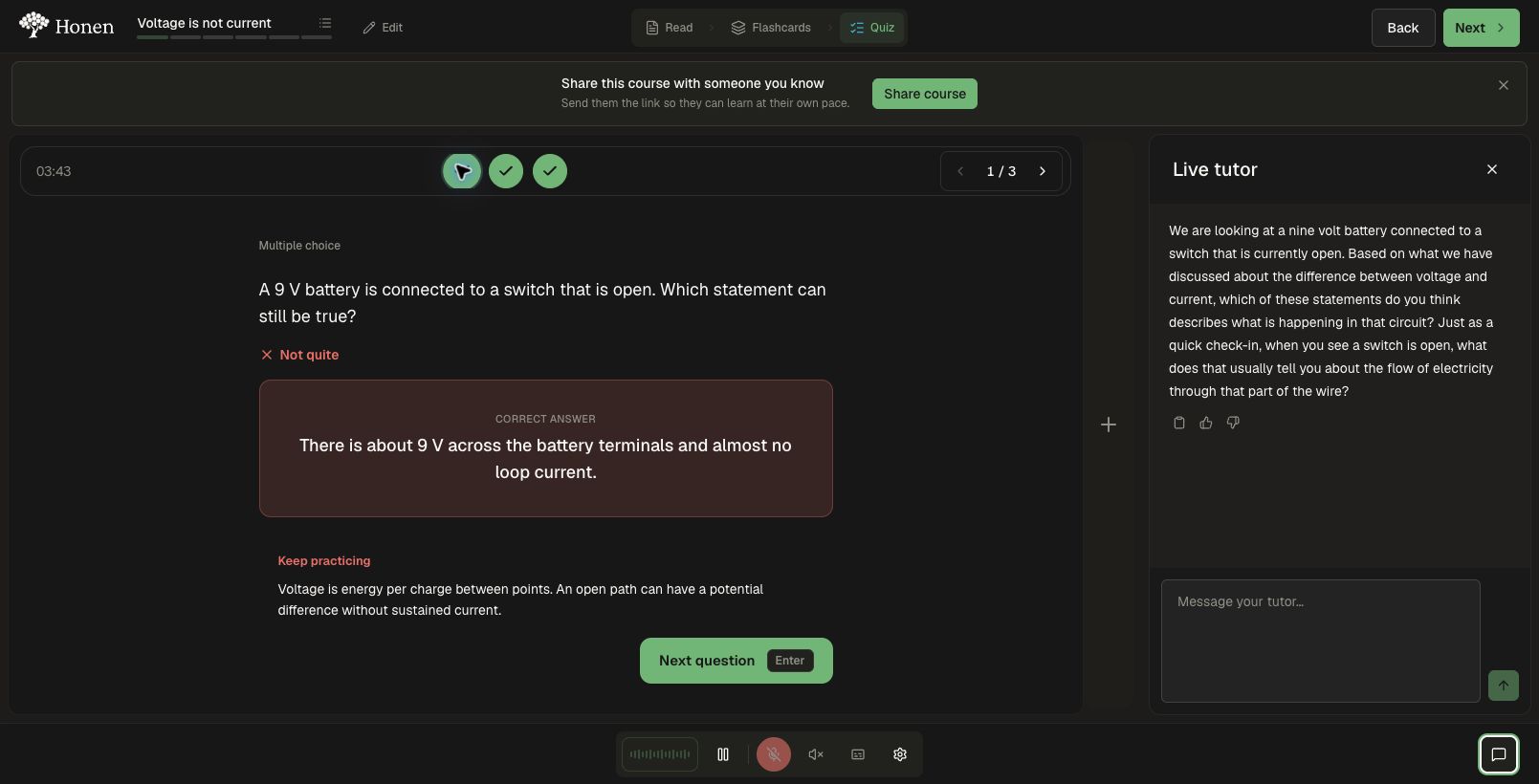
Here, the tutor asks the learner to reason about an open switch. The conversation can continue with an explanation or optional practice; opening help does not automatically add topics.
Other possible responses
| Response | Learner experience |
|---|---|
| Stay quiet | Learning continues without a message. This is a normal outcome, even when an intervention is enabled. |
| Offer help | A bubble invites the learner to discuss the concept. |
| Congratulate | A brief message acknowledges a successful assessment, without an action button. |
| Encourage | A brief message recognizes continued practice, without an action button. |
| Open the tutor | With separate permission enabled, continued difficulty after an earlier offer can open the tutor pane. |
Congratulations and encouragement do not create topics or claim that the learner has mastered the subject. A learner can click a message bubble if they want to talk.
Recognition during practice
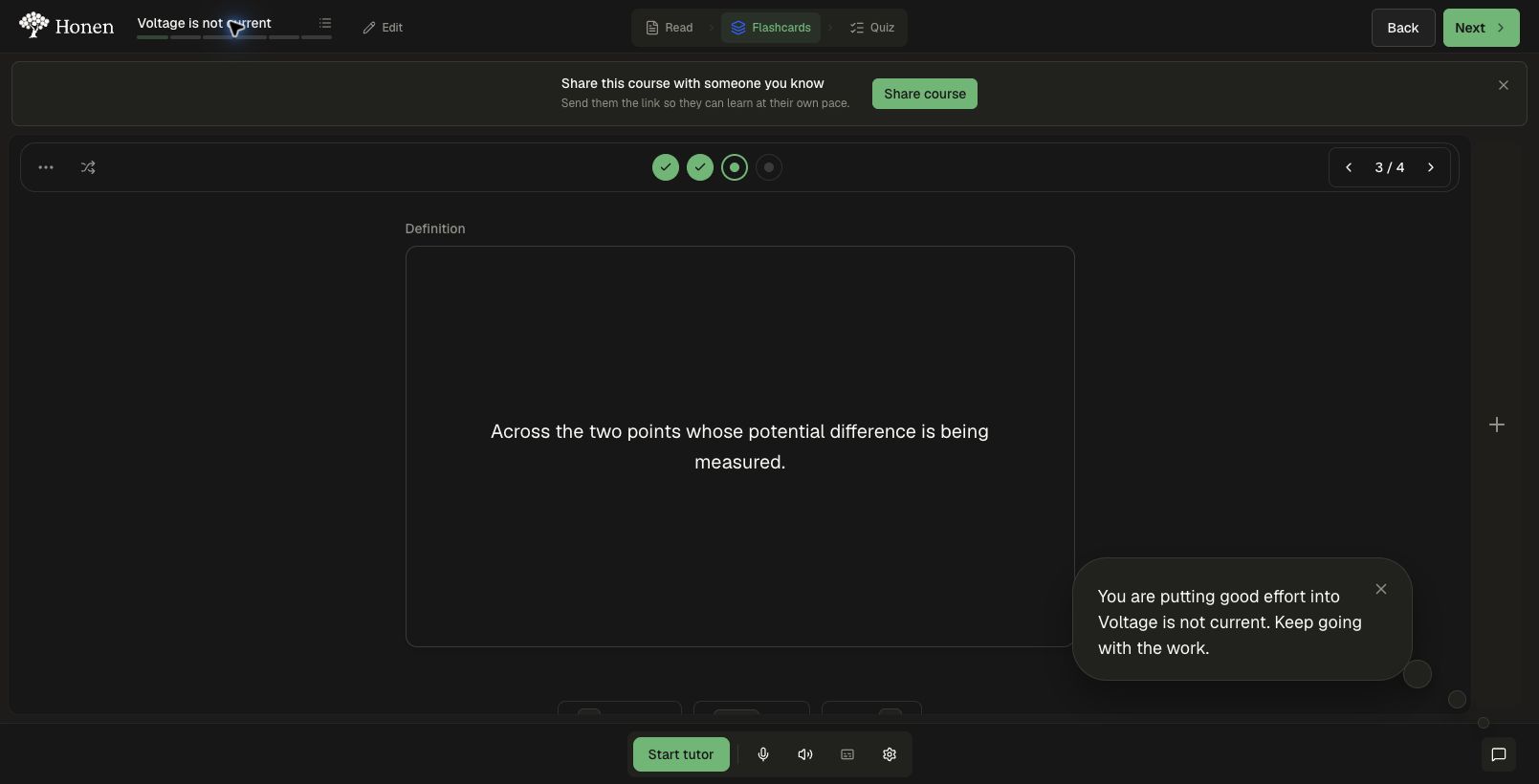
Encouragement can appear while the learner reviews flashcards. It has no Add & start, Talk to tutor, or other visible action button; the whole bubble remains clickable if the learner wants a conversation.
A completed assessment can also receive a short message. In this example, the learner answered three questions correctly and the model chose encouragement. It may instead choose congratulations or stay quiet, within the enabled intervention rules.
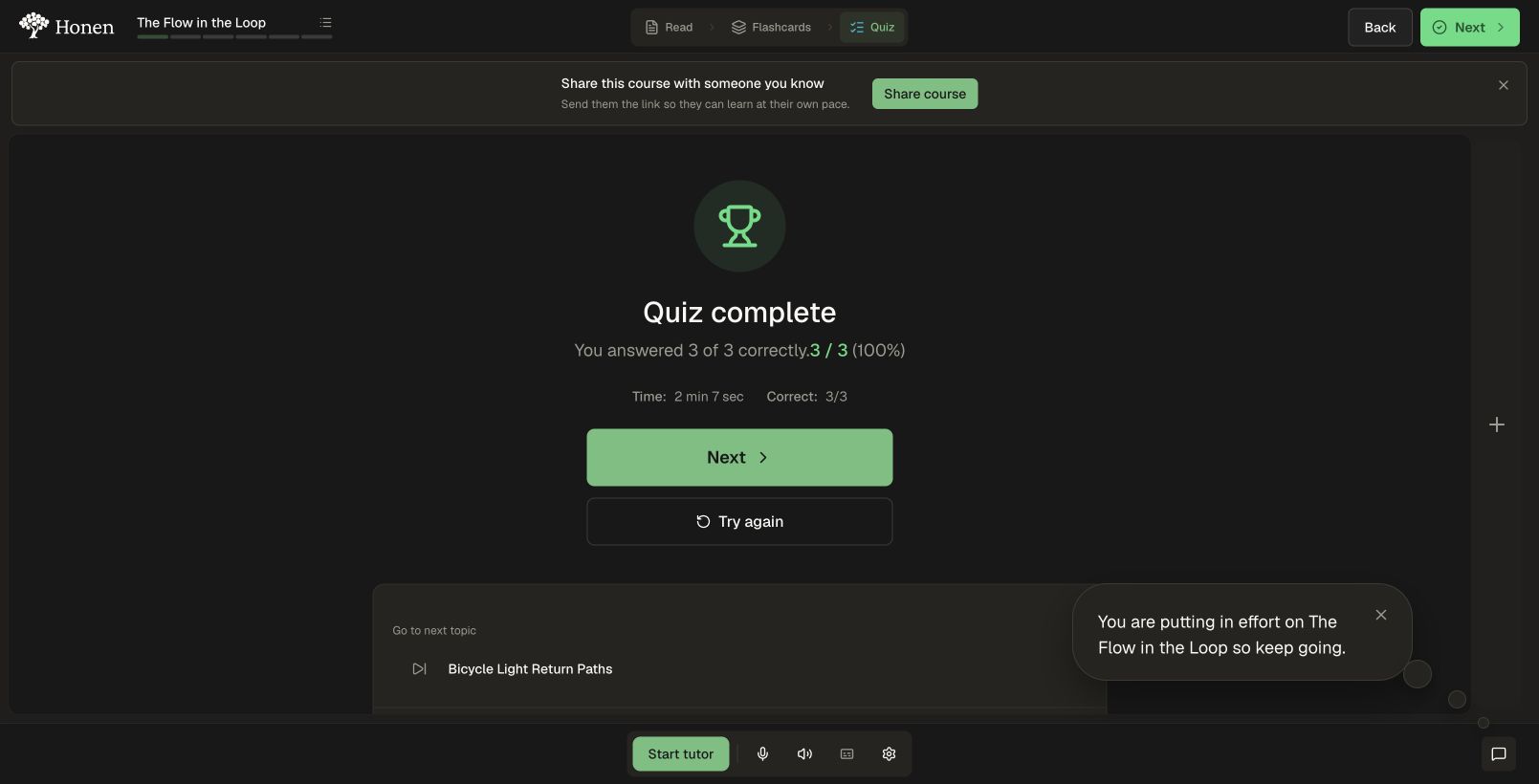
Message-only encouragement and congratulations clear automatically after a short display. The screenshots capture those live, temporary states.
A neutral invitation during a pause
After the configured focused pause on an unanswered question, the tutor can offer a neutral invitation. The learner has not submitted a wrong answer in this example. The bubble leaves the question in place and makes help optional.
Why use it
One wrong answer receives the quiz’s ordinary feedback. A repeated pattern may justify help. The tutor should first clarify what the learner is thinking and offer an explanation, hint, or worked example. Additional topics are available when Adaptive Courses permits them and the learner accepts them.
Ask the learner to explain their thinking before choosing the next hint. For example, ask them to trace the complete circuit path, then try a fresh question after the explanation. This follows the emphasis on subject-specific reflection in the EEF metacognition guidance.
A pause can mean careful thought, note-taking, or an interruption. Use a neutral invitation and let the learner decide whether help is useful. Keep pause check-ins off for tasks where extended reading or reflection is expected.
Enable it step by step
- Open the course editor and select Settings → Proactive Tutor.
- Turn on Proactive Tutor.
- Under Interventions, review Dynamic first, then scroll through the list. Enable the individual moments that fit your course. The scrollbar and bottom fade indicate more controls below.
- Decide separately whether to allow Open tutor automatically. Leave it off if all help should begin with a learner opening the bubble.
- Review tutor mode and conversation settings. Learners continue to use the ordinary microphone, audio, and chat controls.
- Save the settings and complete the editor’s Apply Changes or Save & Apply step when shown. Follow your normal publishing and review process.
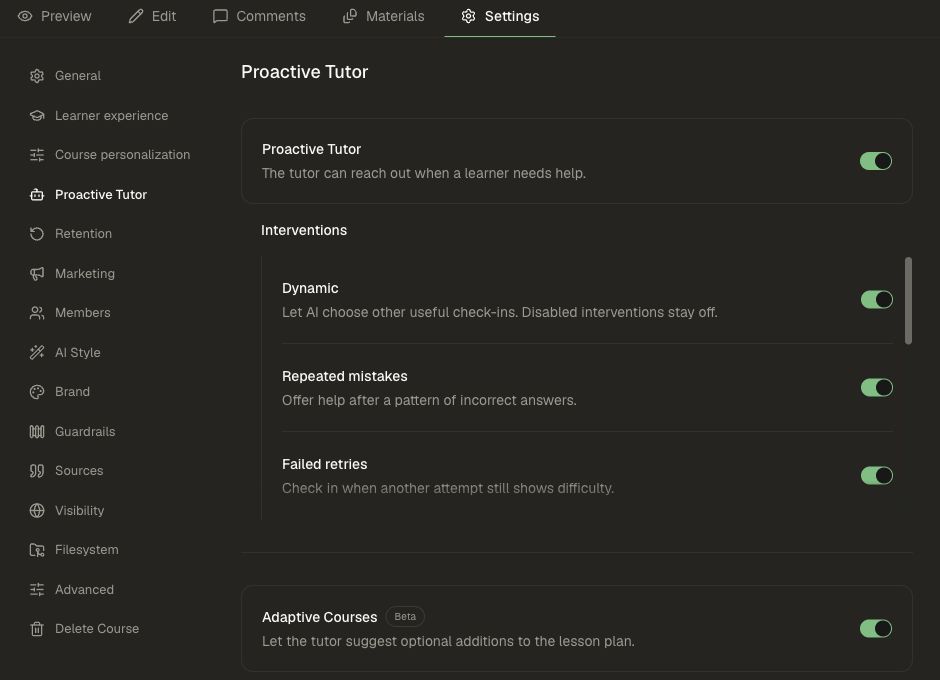
Open tutor automatically is a separate permission. Ignoring a bubble alone does not cause the pane to open: an earlier help offer, time to respond, and new evidence of difficulty are required.
See the Intervention reference for each control and the current timing rules. For the normal conversation controls, see Ask the AI tutor for help.
Check the result
- Use an applied test course with a quiz containing at least three automatically graded questions. Enable Repeated mistakes and leave Dynamic off to isolate that scenario.
- Submit one wrong answer. Confirm that ordinary quiz feedback appears.
- Submit another wrong answer in the same topic. Leave the feedback visible for at least eight seconds. Repeated mistakes requires at least half the graded answers to be incorrect; the model can still choose to stay quiet.
- When a bubble appears, open it. Confirm that the existing tutor addresses the relevant concept. Check text and audio behavior using your learner’s preferred controls.
- In a separate attempt, dismiss an offer. Proactive messages should be snoozed for 15 minutes, while manually opening the tutor remains available.
- Review whether the help was timely and specific. Watch for unnecessary interruptions and whether the learner can solve a new question independently.
For the other scenarios, use the evidence and timing rules in the Intervention reference. A quiet tutor can be the expected result of a disabled switch, insufficient evidence, a cooldown, or the model’s decision.