
Interventions define the situations in which Proactive Tutor may offer help or acknowledge progress. Creators select the allowed moments; learners keep the normal course experience and can decline a conversation.
What the learner sees
After repeated incorrect answers, the learner may receive a small help bubble while quiz feedback stays visible. Opening it begins a tutor conversation. Encouragement and congratulations can be short messages without action buttons. Silence is also a valid response.
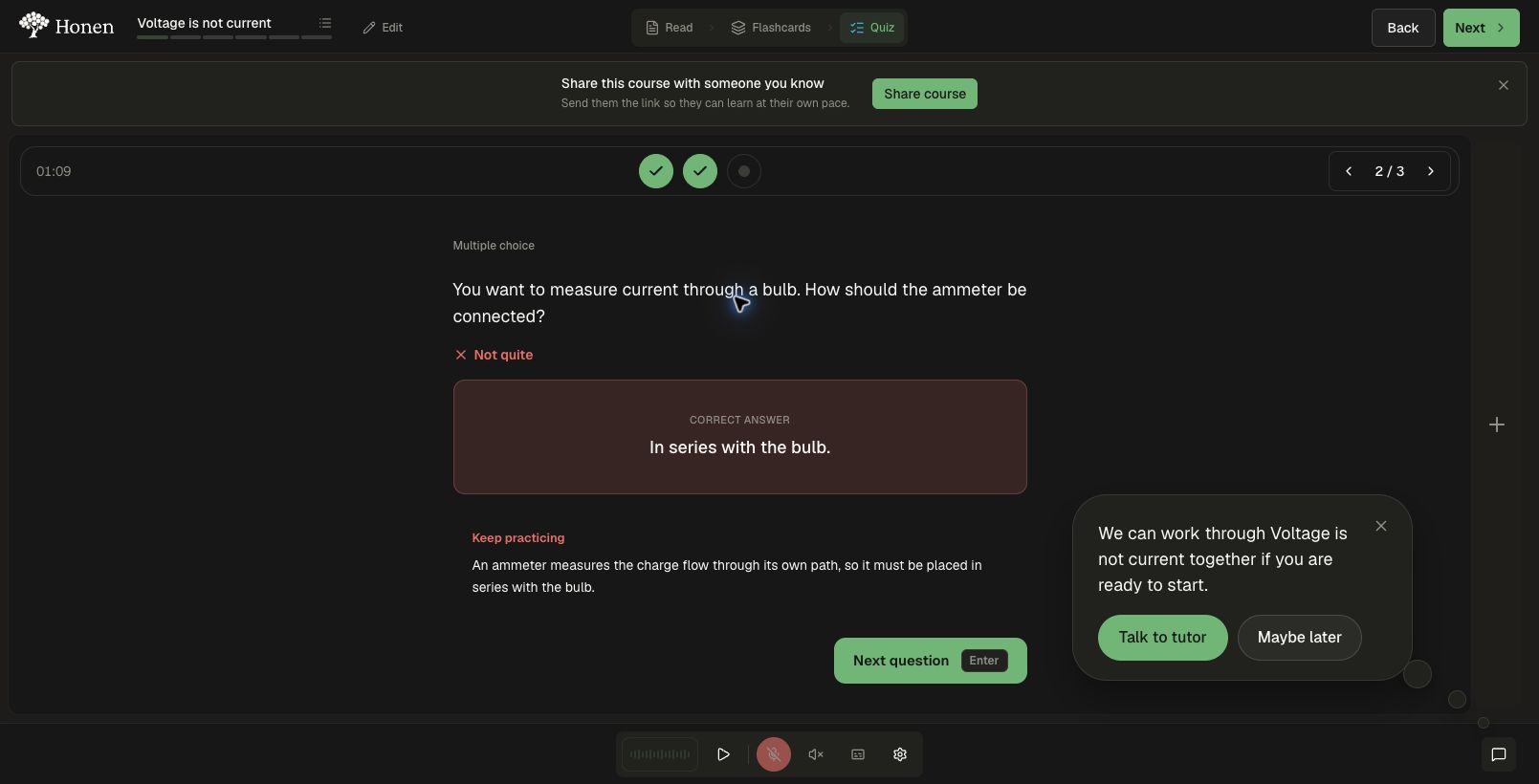
The intended benefit is support at a useful moment. Time and activity counts are signals to consider, rather than diagnoses of understanding or motivation.
Choose interventions step by step
- Open the course editor’s Settings → Proactive Tutor and enable the master switch.
- Review Dynamic at the top of Interventions. It can permit an additional reflective offer; it cannot override a category you have disabled.
- Scroll down and enable the individual moments in the table below. Start with the ones you can meaningfully review in your course.
- Decide separately whether Open tutor automatically is appropriate. A pause alone cannot open the tutor automatically.
- Save and apply the course settings through your normal publishing and review workflow.
Turning the master switch off stops proactive messages while retaining the individual selections. An enabled intervention gives permission to act; it does not force a message whenever a threshold is met. The model may choose silence and timing checks may defer a message.
Available interventions
| Intervention | Current evidence used | What it permits |
|---|---|---|
| Dynamic | Learner-reported low confidence or meaningful reading/flashcard activity, subject to the other policy checks. | An additional reflective help bubble. It cannot turn disabled intervention categories back on. |
| Repeated mistakes | At least two incorrect automatically graded answers in the current topic, with at least half of graded answers incorrect. | A targeted offer of help. One mistake or two errors among many correct answers does not qualify. |
| Failed retries | Two consecutive completed attempts below 60%, with current evidence of difficulty. Successful or ungraded attempts break the streak. | Help after another attempt still shows difficulty. This control is independent of Repeated mistakes. |
| Project setbacks | At least one graded project submission and a best recorded result below 60%. | An offer to review the task or feedback. Missing grades do not count as failure. |
| Long pause on a question | Two minutes of visible, focused time on the same unanswered question, followed by at least eight seconds without input. | A neutral help bubble. A pause alone cannot open the tutor automatically. |
| Long pause while reading | Five minutes of visible, focused time without meaningful scroll progress, followed by at least eight seconds without input. | A neutral help bubble. Moving at least two percentage points in either direction resets the pause timer. |
| Celebrate progress | A completed quiz with at least three automatically graded answers and at least 80% correct, or a project result of at least 80%. | Congratulations without an action button or claim of mastery. |
| Encourage practice | At least three flashcards viewed or three graded answers, without a current pattern of difficulty. | Brief recognition of practice without an action button. Viewing cards does not prove understanding. |
| Open tutor automatically | An earlier help bubble, at least 30 seconds to respond, and new difficulty meeting the stronger escalation rule, such as three errors or repeated failed submissions. | Opening the existing tutor pane. Ignoring the bubble by itself is insufficient. |
These thresholds are current product defaults, not creator-editable fields. They are initial design hypotheses, not research-established cutoffs for every subject or learner.
Timing and learner control
- The learner gets at least eight seconds to read quiz feedback before an intervention.
- Hidden or unfocused tabs do not accumulate pause time.
- A response is discarded if the learner changes question, activity, answers, focus, or starts interacting again before it arrives.
- Closing a bubble snoozes proactive messages for 15 minutes for that learner in that course and workspace.
- After an intervention, a 15-minute cooldown prevents repeated offers from the same evidence. New difficulty can justify help or escalation.
What the evidence can tell us
Automatically graded multiple-choice and true/false answers can show a pattern of incorrect responses. They do not, on their own, identify the learner’s exact misconception. Project support currently uses the recorded score, rather than a detailed model of each rubric concept.
Reading time, scrolling, and cards viewed describe activity. They do not establish comprehension, emotion, motivation, disability, or ability. A useful tutor asks a diagnostic question instead of treating a signal as a diagnosis.
For the learner-facing experience and guidance on choosing a useful response, see Proactive Tutor.
Check one scenario at a time
- Enable the intervention you want to review. Leave Dynamic off when isolating a specific evidence rule.
- Use a test learner and produce the evidence in that row, such as two incorrect automatically graded answers in a topic with at least half incorrect.
- Allow the feedback grace period and inspect the course without switching tabs or interacting again. For a pause check, keep the question unanswered and the tab visible and focused.
- Compare the observed response with What it permits. The exact message is generated and is not guaranteed.
- Check dismiss and cooldown behavior before testing another scenario. Avoid treating a snoozed or stale response as a failed trigger.
- Review relevance and interruptions alongside subsequent learner work. Use Enable and review adaptive learning for the full course checklist.