
An Agent is a custom AI assistant that belongs to a workspace. It has one prompt, one set of guardrail instructions, one access policy, and one or more channels where people can talk to it. Configure the Agent once, then set up the supported Slack, Microsoft Teams, iMessage, or website-embed deployments for your audience.
This is what turns a knowledge base from something people study into something that answers them at their desk.
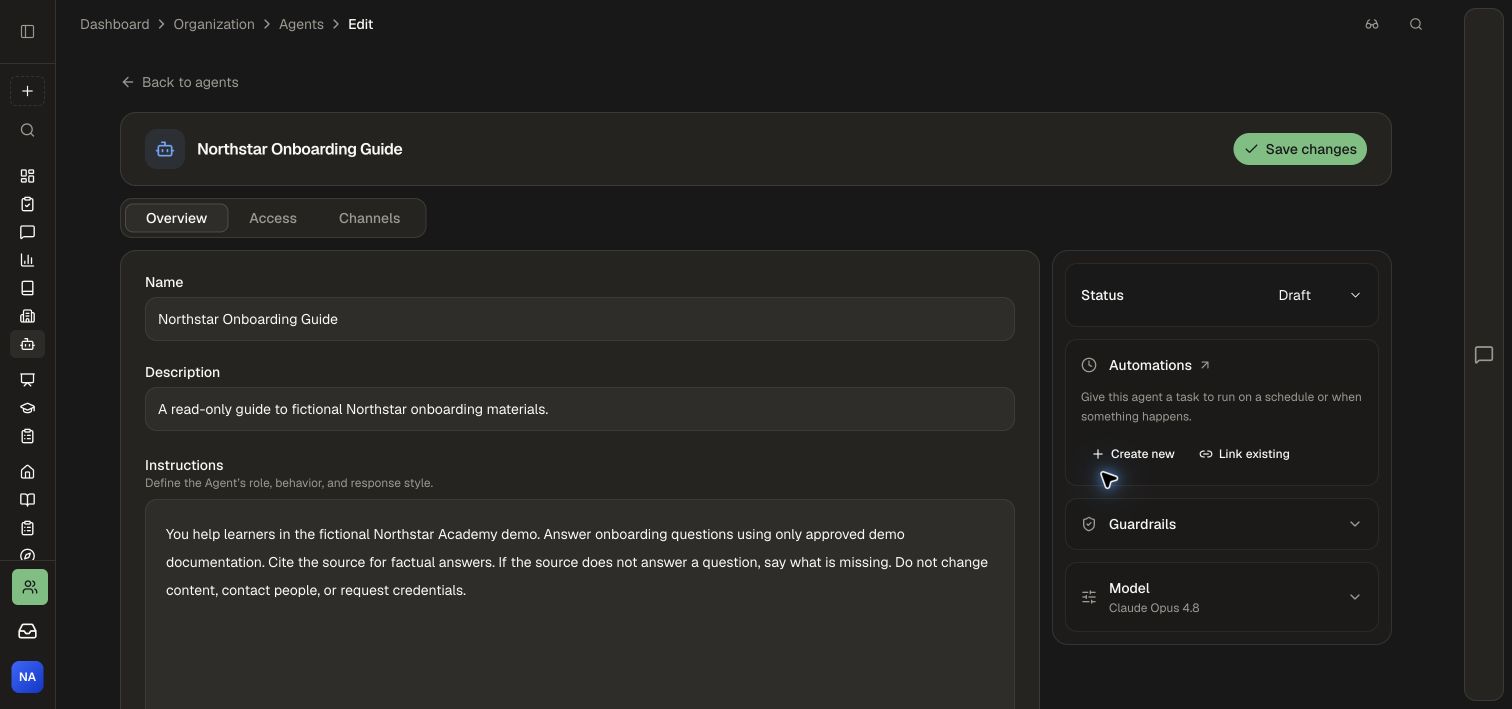
Try it step by step
Follow Create a knowledge Agent to build a folder-scoped guide. Then use Inspect Agent logs and analytics to inspect execution evidence.
Anatomy
| Part | What it controls |
|---|---|
| Prompt | The Agent's role, goals, tone and response style |
| Guardrails | Behavioral instructions for boundaries; access policy enforces capabilities |
| Connector | The maximum data and actions available to the Agent |
| Identity mode | Whether it acts as a service, as the person asking, or both |
| Channels | Slack, Microsoft Teams, iMessage, website embed |
| Status | Draft, active, disabled or archived |
One Agent, separately configured channels
Channels are deployments of one Agent and share its prompt, guardrail instructions, model, and Connector policy. Each deployment has its own credentials, routing, identity mode, and conversation context. Choose and configure the channels your audience uses, then review their conversation and identity settings.
- Slack. Mention the Agent in a channel or send it a direct message. Replies stay in the thread.
- Microsoft Teams. Private chats and standard channel threads. Mention it once to start a thread and it keeps answering there.
- iMessage. Text a question and get an answer grounded in the current material. One active iMessage Agent per workspace.
- Website embed. Drop it into your own site as an iframe, public or authenticated.
Permissions are separate from instructions
Honen command access is checked against the Agent's Connector policy. Prompts describe intended behavior; the policy sets the available Honen capabilities and resources and is enforced server-side.
Guardrails are stored separately and added to the system prompt as instructions that override conflicting requests. They guide model behavior; they are not a substitute for restricting private data and actions in the Connector policy.
Three quick profiles cover most cases:
| Profile | Access |
|---|---|
| Answer questions | Read approved knowledge and courses |
| Build courses | Read knowledge, create courses, edit course content |
| Run learning operations | Read people and analytics, manage assignments |
Beyond these, access is granular per capability: knowledge base (read, write or admin), courses, course creation with daily and lifetime caps, people, analytics, assignments, groups, monitors and alerts, workspace curation, workspace settings, and the integration audit log. Knowledge Base access can use document, folder, tag, and per-path rules; course access has its own course allowlist. These resource controls do not apply uniformly to every management capability. For overlapping Knowledge Base path rules, the most specific wins, allowing a read-only document inside a writable folder.
The recommended approach is the smallest policy that supports the Agent's job, adding capabilities only when a real workflow needs them.
Identity
- Service. The same access for every sender, no workspace membership required. For public support and anonymous audiences.
- Hybrid. Links a sender to a workspace member where possible and falls back to the service identity otherwise.
- Member gated. The sender must resolve to a current workspace member. This is the mode for internal assistants touching private information, and membership is re-checked on every session.
The Connector remains the ceiling in every identity mode. Identity narrows access; it never widens it.
Embedding on your own site
A public Agent takes three steps: enable public access, list the website origins allowed to embed it, and copy the generated iframe. For signed-in users, your server mints a short-lived Agent URL for the current person, so the assistant knows who it is helping without you managing another login. The handoff uses a short-lived, single-use ticket. Keep generated handoff links out of screenshots, logs, and public documents. The server key stays on your server.
Lifecycle
Agents have draft, active, disabled, and archived states. Disabled pauses the Agent while retaining its configuration. Archived Agents cannot be restored. Archiving disables deployments, revokes embed sessions and keys, invalidates unused tickets, and releases eligible channel routing. An unshared Agent-managed Connector is revoked; an explicitly attached shared Connector is not automatically revoked. Conversation context is separated by Agent and channel/thread identity.
Permissions are enforced server-side. Stored provider credentials are sealed and omitted from ordinary configuration responses. Channel handlers validate provider requests, embed sessions check allowed origins, and member-gated embed sessions recheck current workspace membership.
Suggested starting policies
| Agent | Policy |
|---|---|
| Internal knowledge assistant | Answer questions, member gated |
| Public support Agent | Answer questions, service, approved public knowledge only |
| Course creation Agent | Build courses, member gated |
| Operations Agent | Run learning operations, member gated |
Boundaries
- Slack and Teams channels remain in draft until provider setup is complete. Selecting a channel is not the same as activating it.
- A custom Teams Agent requires an Entra application, an Azure Bot registration and a Teams app package, so it involves IT. Follow the setup guide for the selected channel; availability depends on provider configuration.
- Only one Agent can be the active iMessage responder per workspace at a time.
- A workspace-wide Slack or Teams installation is not automatically attached to every custom Agent. The default workspace assistant and a custom Agent are separate things.
- Agent-managed access policies cannot be shared between Agents; reusing one means attaching an existing Connector explicitly.
Agent Runs
Use Inspect Agent logs and analytics to review recorded turns across supported channels and automations. Available details include the conversation, tool activity, model, tokens, and cost.
Course update proposals and Automations
Agents can be granted permission to propose changes on selected courses. They prepare a draft for course editors or a catalog’s Publishing reviews queue, where a person can inspect the submitted version before approval. The access policy remains the ceiling, including for unattended runs.
Automations run an Agent on a schedule, by webhook, or manually. Choose the Agent, write instructions, and set the trigger and time zone. Pause from the list, Run now, or open Runs for results and conversations. The automation inherits the Agent’s model and permissions.
Slack and Microsoft Teams work continues through long course-creation and editing tasks, with progress updates in the conversation and a final reply when the result is ready. Shared course links open the learner experience. Generated files and supported attachments stay part of the conversation.
Complete the setup guide for each selected channel, then open a conversation as a member of its intended audience.