
Honen's Connect MCP page provides the endpoint and client-specific setup instructions. A personal sign-in connection uses your existing permissions. A scoped Connector is for access to a narrower set of content.
1. Open the setup guide
From Dashboard → Quick Actions, select Connect MCP. Review the explanation, then copy the MCP endpoint.
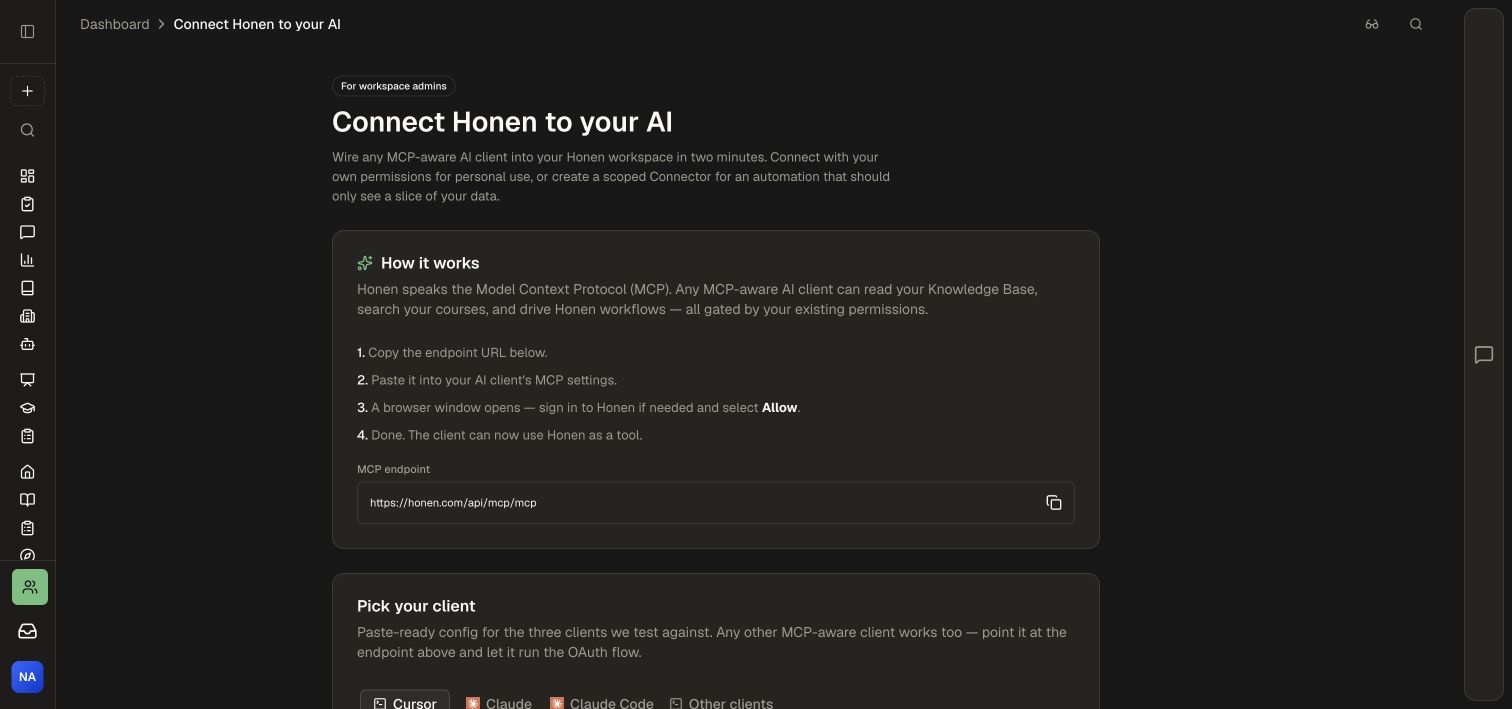
The endpoint is https://honen.com/api/mcp/mcp.
2. Select your client
Under Pick your client, choose Cursor, Claude, Claude Code, or Other clients. Follow the instructions shown for that client. The Cursor tab includes a copyable configuration block.
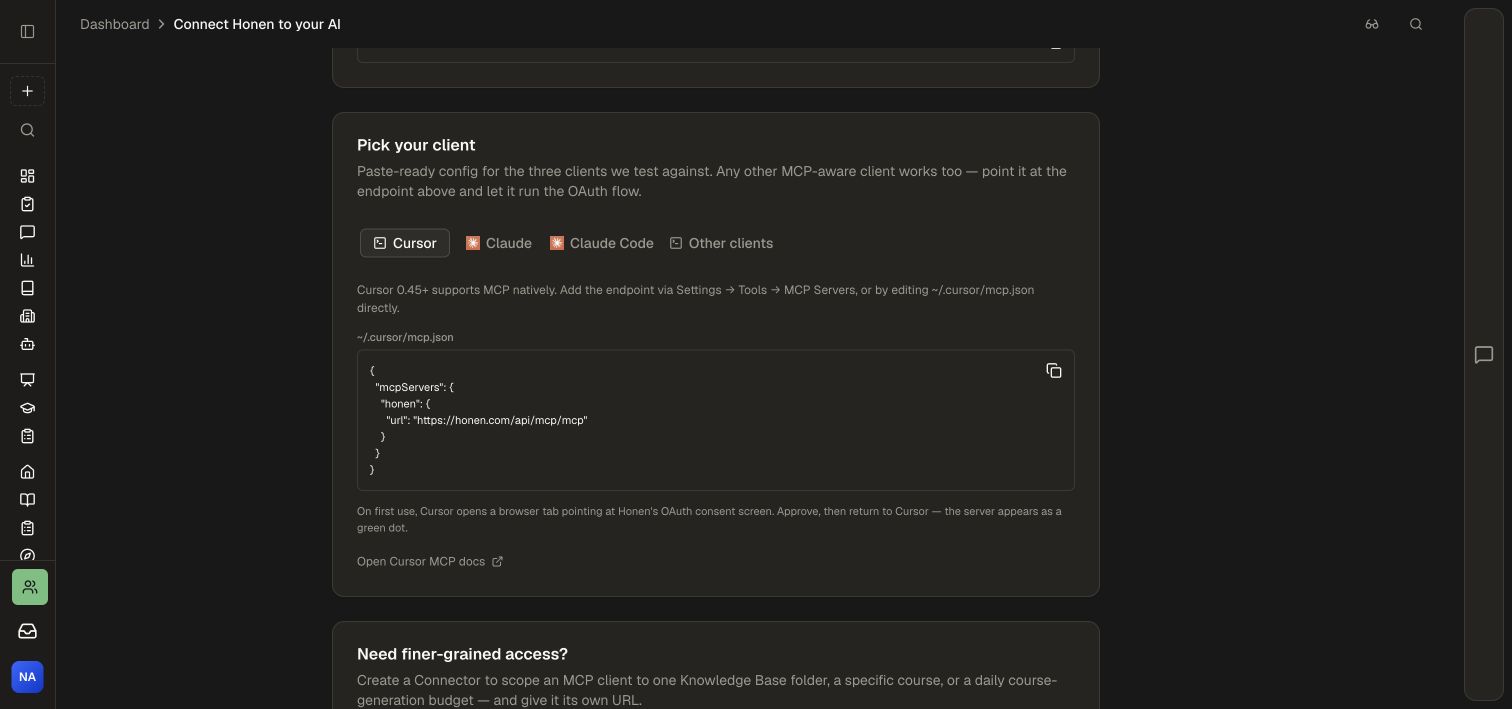
Add the endpoint in your client's MCP settings. When the Honen authorization window opens, review the requested access and account before allowing the connection. Return to the client and start with a read-only question about a document you can already open in Honen.
3. Use a scoped Connector when needed
Select Open Connectors from the setup page, then New Connector. Enter a descriptive name and expand Customize permissions. Select only the required capabilities and explicit folders or courses.
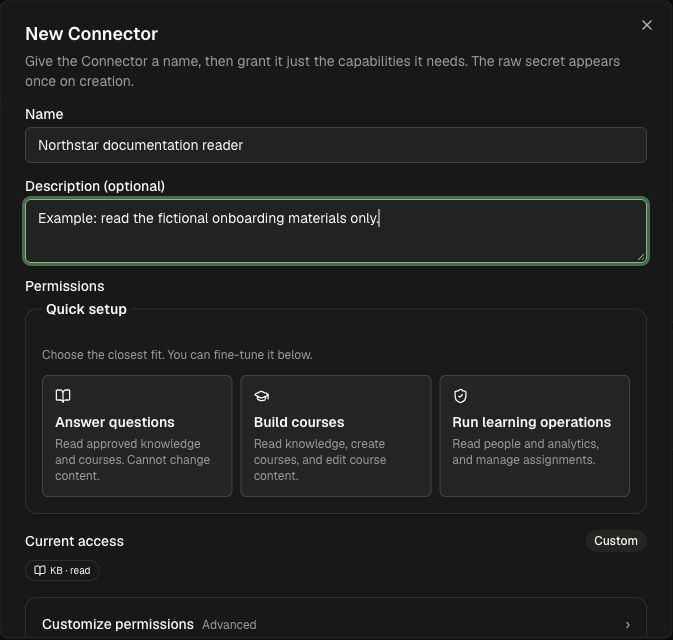
For a documentation reader, keep Knowledge Base access at Read, select the approved folder, and turn off unrelated capabilities. If there are no document, folder, group, tag, or path restrictions, the enabled Knowledge Base capability covers the workspace. Review all scope controls before creating anything.
Creating a Connector issues a credential; the form says its raw secret appears once. Store it securely and keep it out of documentation, screenshots, source repositories, and prompts.
Confirm the connection
Ask the connected client to find a known document and cite it. Open the cited source and compare the answer. If the client cannot connect, check the endpoint, complete any pending sign-in, and confirm your current account can access the intended workspace. If connection succeeds but a document is unavailable, inspect permissions and connector scope.
For HTTP requests using the same Connector policy, see API and OpenAPI. Integrations and MCP distinguishes incoming content sync from external tools the Honen assistant can call.