
Make the same expertise useful to different people. Give the Course Editor Assistant a clear audience, learning goal, and scope, then review the adapted lessons and practice together.
1. Choose the shape of the training
Decide how your learners will use the material before asking for changes.
| Your goal | Course structure |
|---|---|
| Each role needs its own examples, practice, and delivery | Create a separate course for each role from the same approved sources. |
| Several roles share a foundation and then branch into different responsibilities | Ask for a course with shared material and clearly named role-specific units. |
| An existing cohort needs a clearer or shorter explanation | Edit the relevant topics in the existing course. |
| A program spans several courses | Organize the courses into a learning path. |
For a new course, follow Create your first course. Name the role in the brief and inspect its proposed outline before approving generation. For example:
Build a beginner course for customer onboarding specialists from the attached playbook. Focus on preparing a welcome call, confirming the customer's goal, and agreeing on next steps. Include a short reading, practice quiz, and conversation scenario.
2. Open the existing course and define the change
- Open Organization → Courses and content, find the course, and select Edit.
- Use Preview to inspect the current topic and its available activities.
- Open Course Editor Assistant.
- Identify the unit or topic, the intended audience, and what should change.
- Name the learning goals, source facts, or terminology to retain.
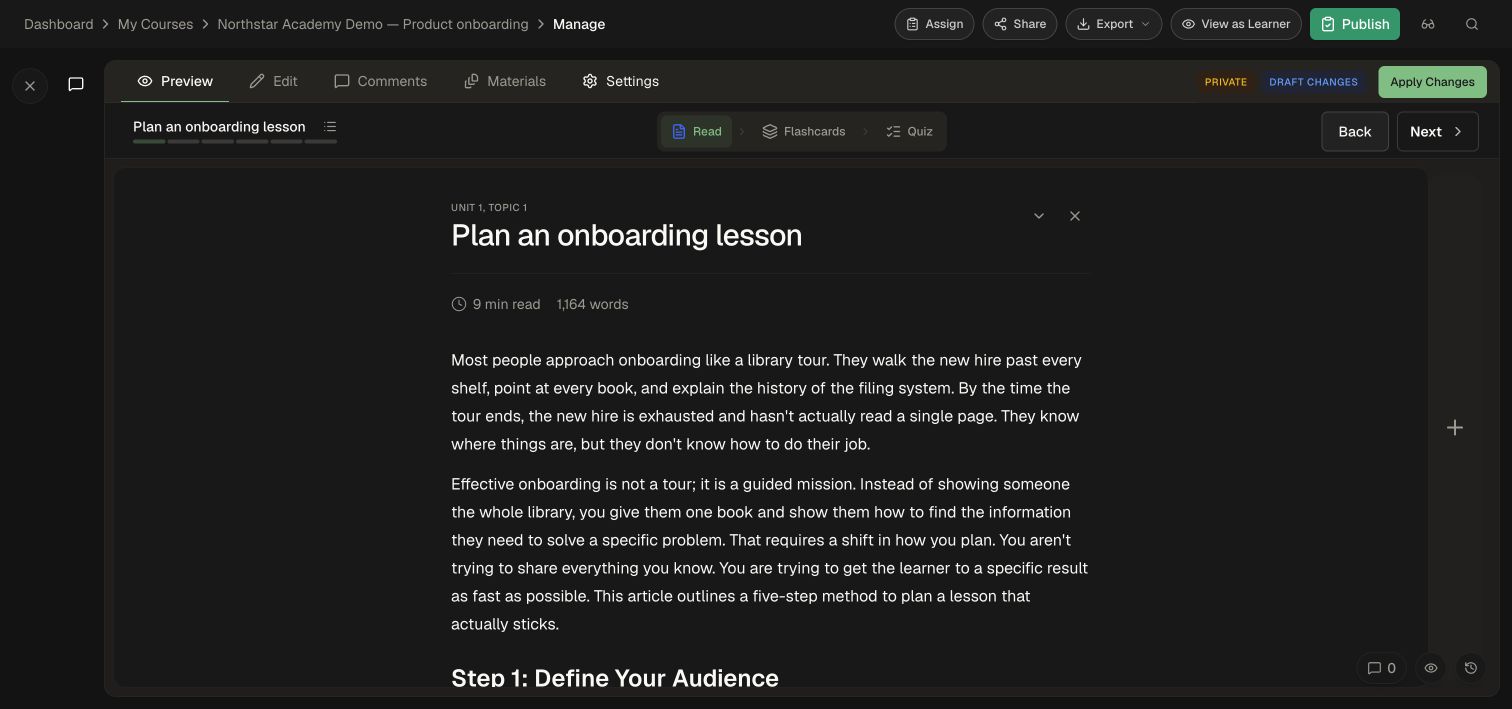
A focused request gives you a clear result to review:
Adapt the Welcome call topic for new support specialists. Explain unfamiliar terms before using them and use an example from the attached onboarding checklist. Keep the three preparation steps and the existing learning objectives.
For direct changes, select Edit, open the topic, and review Learning objectives and Generation instructions. Use the assistant to revise the existing activities to match those directions.
3. Specify language, reading level, length, or format
Use the change that serves the learning task. Combine compatible requests when the result is easy to review.
| Adaptation | Example request |
|---|---|
| Language | “Translate the Welcome call topic into Spanish, including the reading, flashcards, quiz questions, answer explanations, and project instructions. Keep product names in English.” |
| Reading level | “Explain this topic for a beginner. Define each technical term, shorten long sentences, and preserve the required procedure.” |
| Audience and tone | “Use examples for an account executive preparing a discovery call. Keep the source's product facts and use direct, practical language.” |
| Length | “Make this a ten-minute introduction. Keep the safety-critical steps, remove repeated background, and shorten the practice to the essential decisions.” |
| Modality | “Create a short podcast for this topic using the attached checklist. Teach the same learning goals and include a worked example.” |
For translated material, include your preferred terminology and regional language choices. For shorter training, identify which decisions or procedures remain essential. For audio or illustrated activities, review the generated media as well as its script or text using Create and edit media activities.
4. Choose evidence that matches the skill
Adapt the practice alongside the explanation. A new audience may need different examples while demonstrating the same skill.
| What the learner should demonstrate | Choose | How to interpret the result |
|---|---|---|
| Recognize a correct fact or decision | Quiz or unit-test questions with reviewed answers | Responses are checked against the configured answers; explanations help the learner understand mistakes. |
| Explain a choice or produce a written artifact | Form or Agent project | Review the authored rubric and AI feedback against the submitted work. |
| Handle a conversation | Scenario | Use the character's goal and weighted evaluation criteria to assess the interaction. |
| Write functioning, readable code | Code Notebook | Executed test cases check defined behavior; rubric criteria assess qualities such as clarity. Set the point allocation for both. |
| Improve a prompt toward a visual reference | Prompt Challenge | Compare the generated result with the reference and use the match feedback to guide another attempt. |
| Follow a procedure | Interactive Walkthrough, Screen Share, or Tagalong | Select the format for a recorded interface, a live screen, or a physical task, then inspect its steps and evaluation settings. |
Create and edit projects explains the project controls. Use Assignments to set which work is required and the passing criteria. A curriculum certificate represents the configured learning path and its completion requirements.
5. Review the adapted experience
- Return to Preview and open each affected activity.
- Check that the explanation, terminology, examples, and source facts fit the audience.
- Answer the revised quiz questions and inspect their explanations.
- Open project instructions and rubrics. Confirm that the requested task and evaluation criteria agree.
- For translated content, check navigation between affected activities and read the questions, answers, and feedback in the intended language.
- Select Apply Changes, or Save & Apply when shown, and wait for the operation to finish.
Use Version History to inspect the resulting revision. Follow your publishing and review workflow when the course is ready for its delivery destination.
Reuse a successful adaptation
Put a recurring audience brief, terminology preferences, and source instructions into a template or Skill. Use the same learning goals across role variants when you want to compare their outcomes. Build a role-based training program connects those courses to cohorts, assignments, and reporting.
Personalize the experience for individual learners
For learner-specific examples and support within one course, use Course personalization, Proactive Tutor, and Adaptive Courses — Beta. These controls let learners share their goals, receive timely support, and accept optional topics in their own lesson plan. Start with Enable and review adaptive learning.