
Use course Settings to control metadata, topic entry, and tutor behavior. You need editing access to the course.
1. Check basic information
- Open the course editor and select Settings.
- Select General.
- Review Course Title, Description, and Content type.
- Make your changes and select Save Changes when it becomes available.
- If using a reusable format, inspect Course template beneath the basic fields.
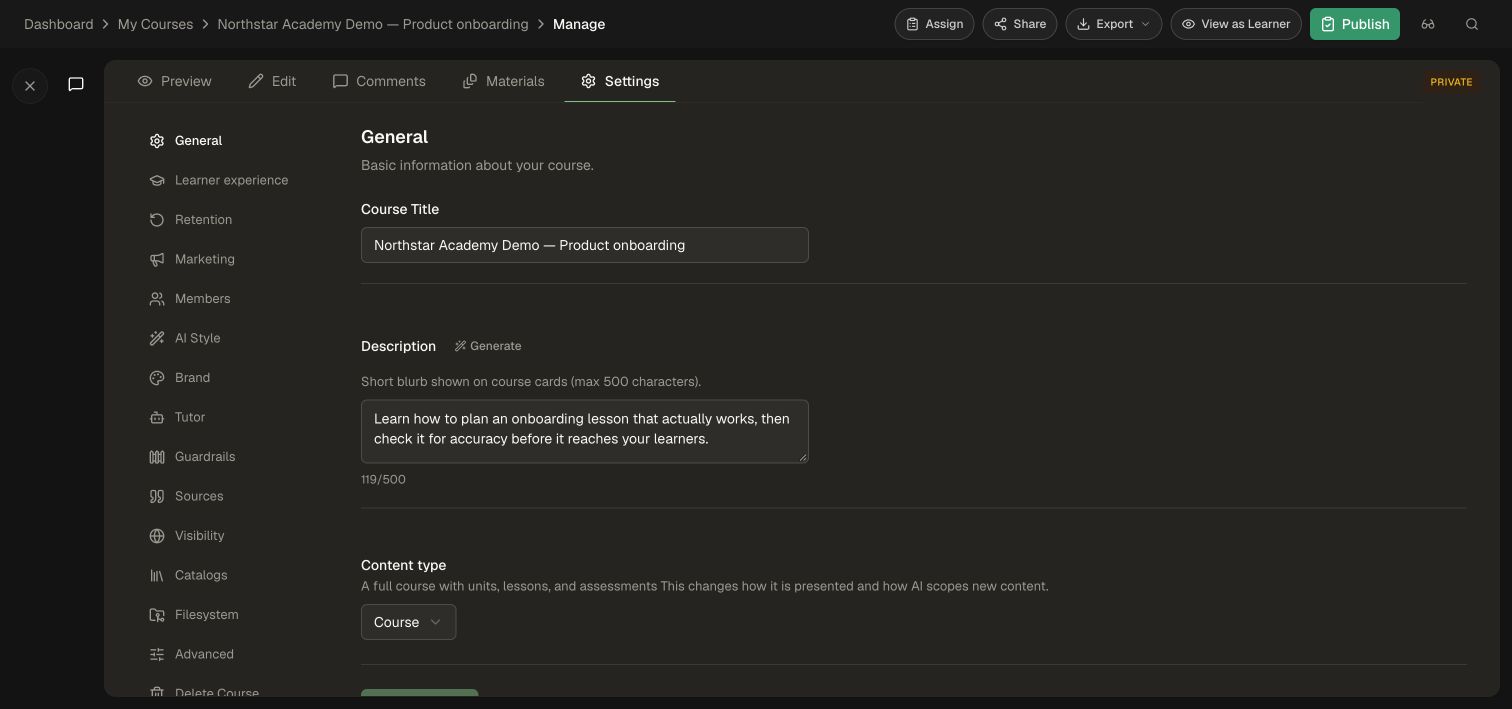
The short description appears on course cards and has a character limit. Changing the content type updates presentation and how AI scopes new content. Use the editor to revise existing activities.
2. Choose how a topic opens
- Select Learner experience.
- Choose Topic start screen to show goals and the activity picker, or Inline intro banner to start on an activity with a compact introduction.
- Choose Start learners on for the default activity used when a topic has one activity or when resuming from a direct link.
- Inspect the preview and save your changes.
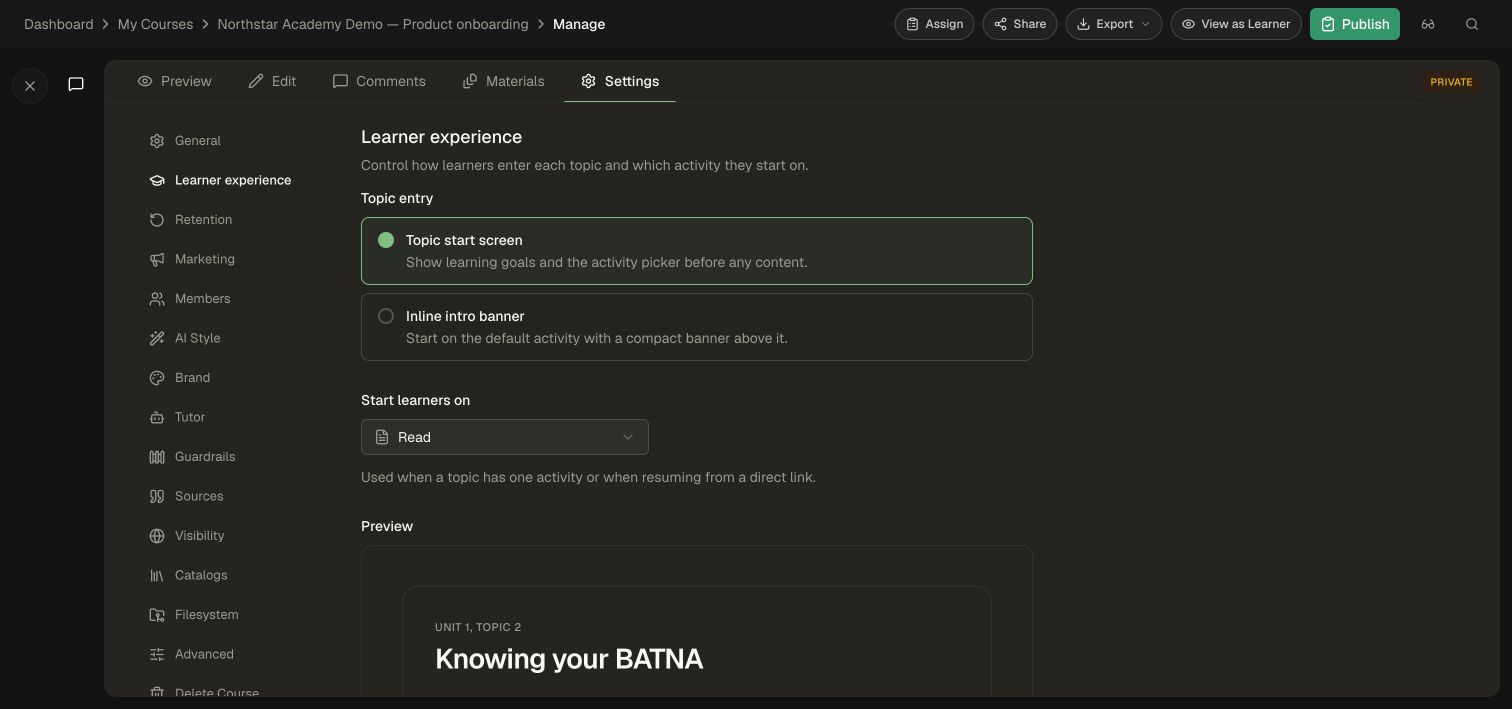
The settings panel's preview is a built-in example. Check your actual course with View as Learner too.
3. Review tutor behavior
- Select Tutor in the settings navigation.
- Choose Standard for the activity-focused voice/plain-text tutor, or Advanced for richer formatted responses and optional research.
- If Advanced is selected, inspect the available switches for Search the knowledge base, Search the whole course, and Generate illustrations.
- Mode and capability changes save as you select them. Wait for the saving state to finish, and check for errors. Review Tutor Personality below the mode controls.
- Check the learner experience in a new tutor session; the screen states that changes apply to the next session.
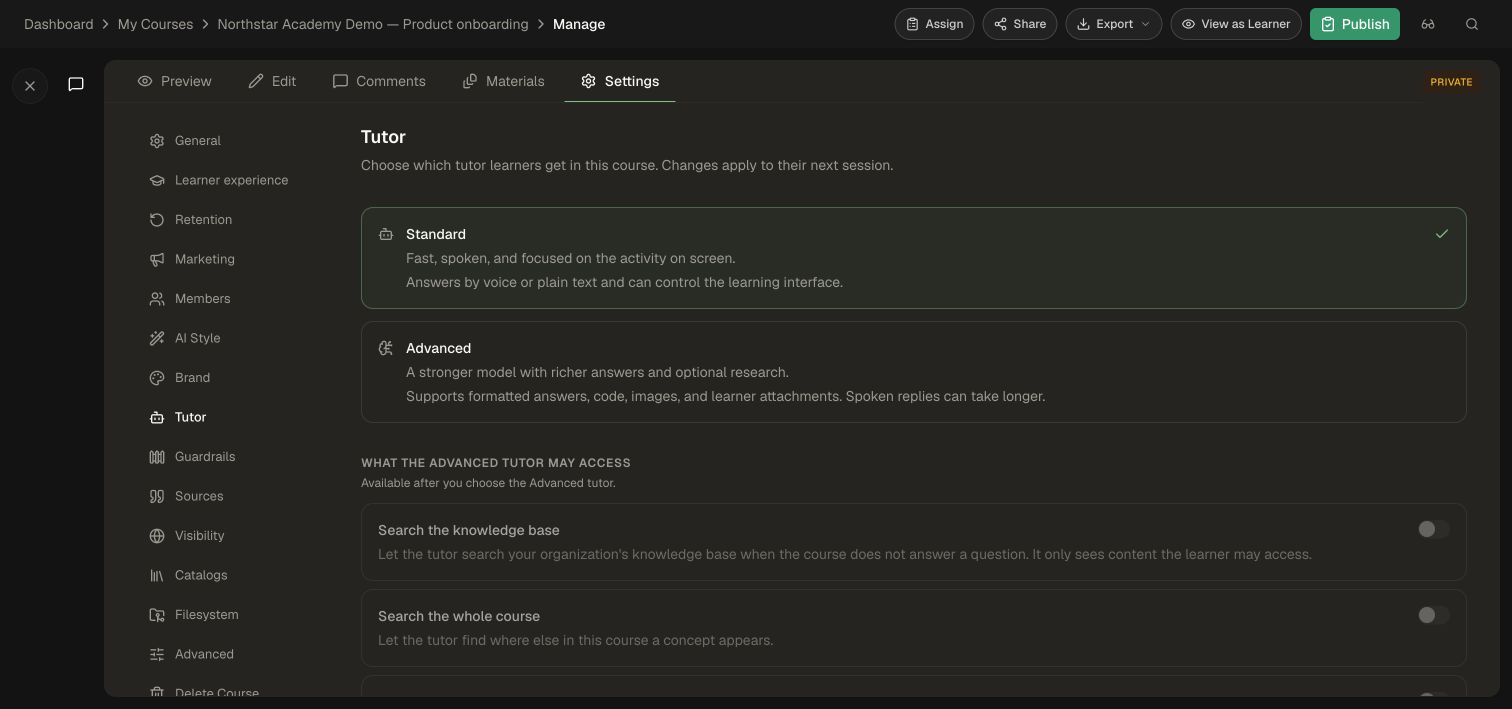
Knowledge Base search is constrained by the learner's access. Course Guardrails are configured separately. Use Tutor guardrails to set the coaching boundaries that apply across courses.
Tips for your next step
Start a new tutor session after changing its mode or capabilities. Use the course's publishing workflow when releasing changes to the learning content.