
Build an academy around what your audience should learn next. Combine a selected course collection, an ordered learning path, and a searchable documentation library in the same Site.
Start by creating a Site. The steps below use the Default editor.
Add a course section
- Open Sites and choose the Site.
- Open Content → Courses → Add section.
- Enter the Title and optional Subtitle.
- Choose Course row, Featured, or Trending, then choose Add section.
- In the section, choose Add course. Search and select the intended courses; selected results change to Added.
- Close the picker and choose Save. Wait for Draft saved.
- Include a Courses block in Layout, or choose a template that displays courses, to show the collection on the home page.
Use Edit section to change a section's title, supporting text, or layout. Use Remove course to remove an individual item, or Delete section to remove the section. Draft courses can be selected while preparing the Site; publish the courses before launching them to learners.
Show approved catalog content
- Open Content → Catalogs.
- Select the catalog whose approved releases should appear.
- Review the catalog's entries and their Site placement. Use the available section, visibility, featured, and ordering controls to arrange them.
- Review the preview after each update. Catalog-source placement controls persist their changes as you edit.
The catalog continues to manage review and publication. Follow Sites and Distribution to prepare the collection and its audience.
Add a learning path
- Open Content → Learning paths.
- Choose Add and select the intended curriculum.
- Review the selected path and course count. A certificate badge identifies a curriculum with a certificate.
- Save the Site draft and review how the path appears to visitors.
Maintain course order, requirements, and certification in the curriculum editor. Use the remove action in the Site's learning-path list when a path should leave this academy.
Connect documentation
- Open Content → Docs and enable Publish docs at /docs.
- Set the documentation title.
- Choose Add folder, search for the source folder, choose Add, and close the picker.
- Review the sidebar heading and save.
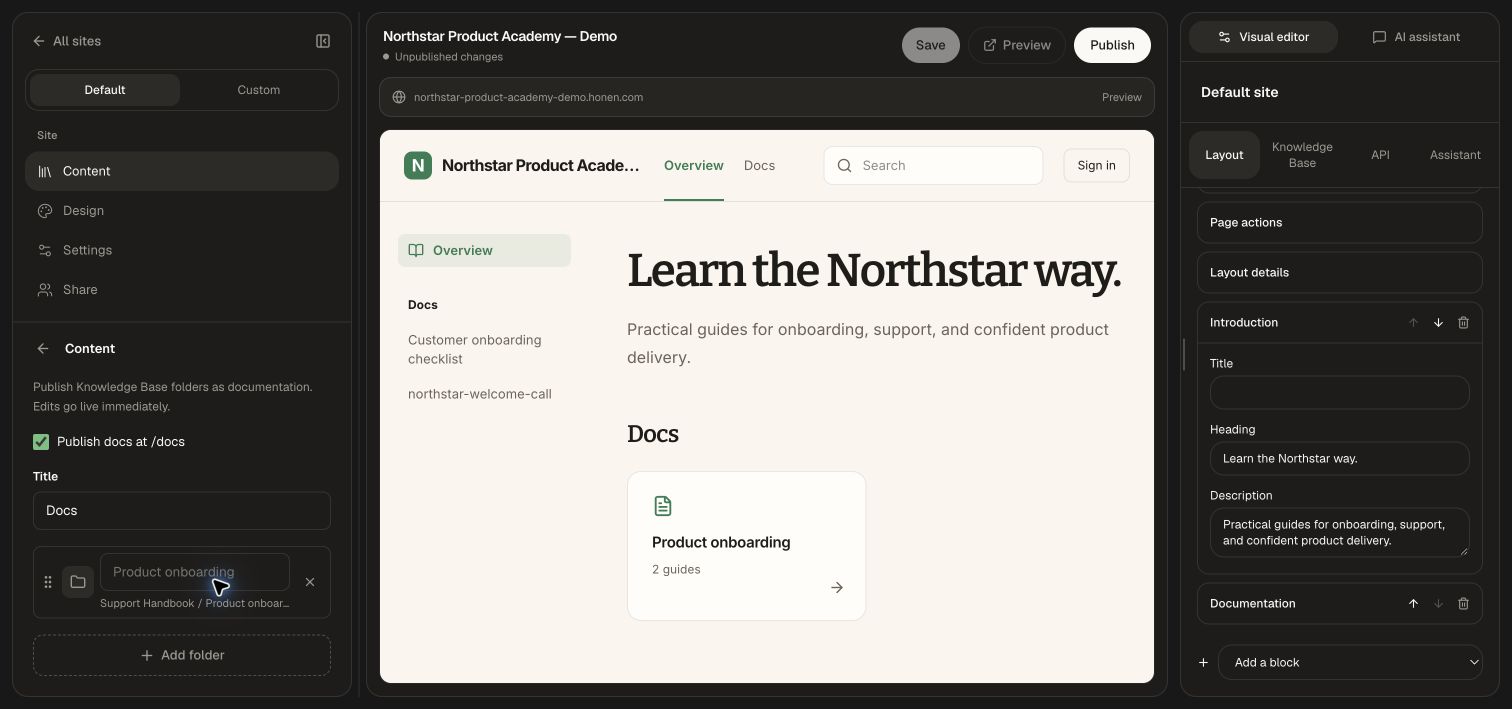
For more detailed selection, use the right-hand Knowledge Base tab:
- Enable Documentation and set its title.
- Search the Knowledge Base and select the publishable folders or documents for this audience.
- For a folder, decide whether to Include all descendants and future additions, or curate individual descendants.
- Use the exclusion controls to leave particular descendants out of the Site.
- Under Navigation order and labels, move sources up or down and set a reader-friendly navigation label.
- Save and review the documentation preview.
Selected Knowledge Base documents remain connected to their sources, so document edits can appear on the Site without a separate layout publication. Select content intended for the Site's audience, including future additions when you choose that option. Repository content can use the same flow after GitHub sync imports it.
Organize documentation categories
- In Layout, expand Documentation categories.
- Enter a Category name and choose Add documentation category.
- Give the category a useful label and description.
- Assign the selected folders, individual guides, or imported API specifications that belong together.
- Reorder categories and remove unused ones. Review both the navigation and category overview.
Categories organize selected content; the Knowledge Base selection determines which documentation is available. The Site supports up to 24 categories. An API import creates its own category, which you can rename and position alongside the guides.
Review the complete learning journey
Preview Home, Docs, Course page, and Learner experience. Check that a first-time visitor can find the starting course, open its supporting guide, and continue to the learning path. Then configure access and onboarding and publish the academy.