
Bring Honen learning into the LMS your organization already uses. Select your platform to see its connection guide, then choose the launch and reporting options that fit your program.
1. Choose your LMS
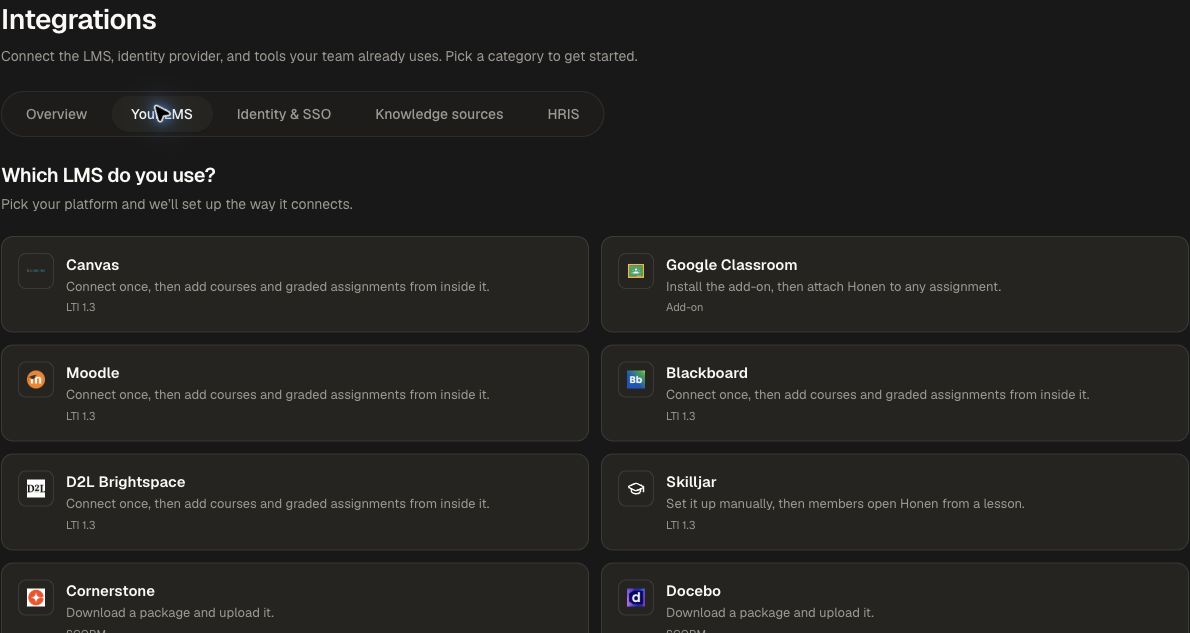
- Open Organization → Integrations.
- Select Your LMS.
- Choose your platform. Canvas, Moodle, Blackboard, Brightspace, and Skilljar use the LTI path. Canvas and Moodle have their own guides; Blackboard and Brightspace open the generic LTI 1.3 setup. Skilljar uses manual, launch-only setup without Deep Linking, roster sync, or grade passback.
- For a package-based platform such as Cornerstone, Docebo, SAP SuccessFactors, Workday Learning, or TalentLMS, choose its SCORM card.
- If your platform is absent, use Another LMS with LTI 1.3, My LMS supports xAPI or cmi5, or Any other LMS (SCORM).
2. Review SCORM defaults
- Select a SCORM platform to open Packages for your LMS.
- Review whether SCORM is enabled for the workspace.
- Read SCORM tenants: each tenant isolates its launch session on a subdomain; a group can be bound for enrollment.
- Under Export defaults, review the learner audience, SCORM version, completion policy, pass/fail status, and score reported to the LMS.
- Review Report time spent and Save resume position.
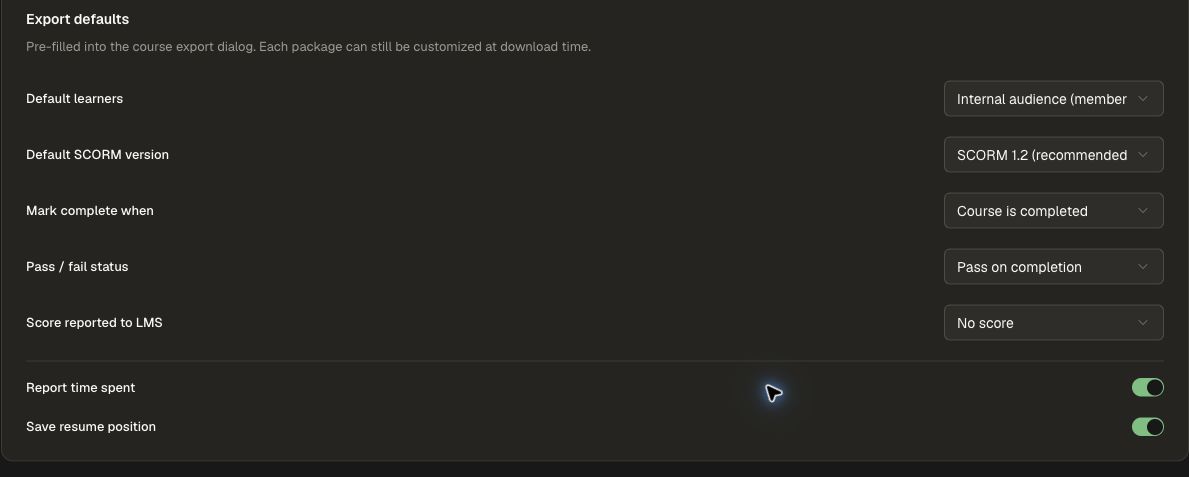
Defaults prefill the course export dialog; each package can still be customized at download time. The page directs you to a course's manage screen and Export → SCORM package to create a package. Upload the resulting package through your LMS's package-import workflow, then test with a learner account.
A SCORM package loads the live course. Detailed learning analytics remain in Honen; completion and scores are reported through the LMS package. Disabling exports also blocks SCORM launches across the workspace, so treat it as an operational setting.
3. Prepare an LTI 1.3 connection
- Return to Your LMS and choose the LTI platform.
- Review the platform's displayed capabilities.
- Under LTI app branding, choose the app name and logo learners should see.
- Follow the platform-specific Integration guide displayed on the page.
- Review How learners open Honen and What learners land on before connecting.
For Canvas, the displayed guide directs administrators to Admin → Developer Keys → + Developer Key → + LTI Registration, followed by the registration URL, enablement, and deployment availability. Use Manual setup if that registration option is unavailable. Keep the generated registration URL within the administrator setup process.
Connect Canvas
Have a Canvas account administrator and a Honen workspace administrator complete these steps together.
- In Your LMS, select Canvas and copy the Dynamic registration URL.
- In Canvas, open Admin → Developer Keys → + Developer Key → + LTI Registration.
- Paste the registration URL, choose Continue, review the registration, and enable it.
- Open Settings → Apps → Manage → Honen and its installed deployment. Change availability from Not Available to Available, then save.
- In a Canvas course, add Honen from an assignment or module and select the course or graded assignment to attach.
- If you want Honen only inside courses, turn off Global Navigation in the Canvas app configuration.
If Canvas does not offer LTI Registration, use Honen’s Manual setup instructions with an LTI Key. The LTI guide explains launch, roster, and grade services.
4. Validate with a test launch
After your LMS administrator completes registration or package import, launch the content as a learner, complete a sample activity, and check the intended score/completion result in the LMS. Test the embedded and new-tab behaviors required by your environment.
Detailed guides
- Connect Canvas
- Connect Moodle
- Register Skilljar, Blackboard, Brightspace, or another LMS manually
- SCORM export and validation
- LTI 1.3 registration and testing
- xAPI and cmi5
- Google Classroom
Tips for a smooth setup
Use LTI 1.3 setup instructions rather than a legacy XML/LTI 2 installation flow. For iframe or cookie restrictions, review the displayed Open in new tab option. Check the package's chosen score policy before expecting a numeric score in the LMS.