
Use a specific question to get an answer grounded in workspace content. Follow this walkthrough to summarize a Customer onboarding checklist and open its cited source. The screenshots use a fictional Northstar Academy example.
1. Start a fresh chat
Open Assistant in the workspace navigation and choose New chat. Confirm the workspace before you ask about its content. You can also open the side Assistant panel from other pages.
2. Name the source and the result you want
Enter a focused request. Include the document and folder names if similar documents exist.
Read the Customer onboarding checklist in Product onboarding. Summarize the first three tasks in a numbered list and link to the source. Use short, direct sentences with no em dashes.
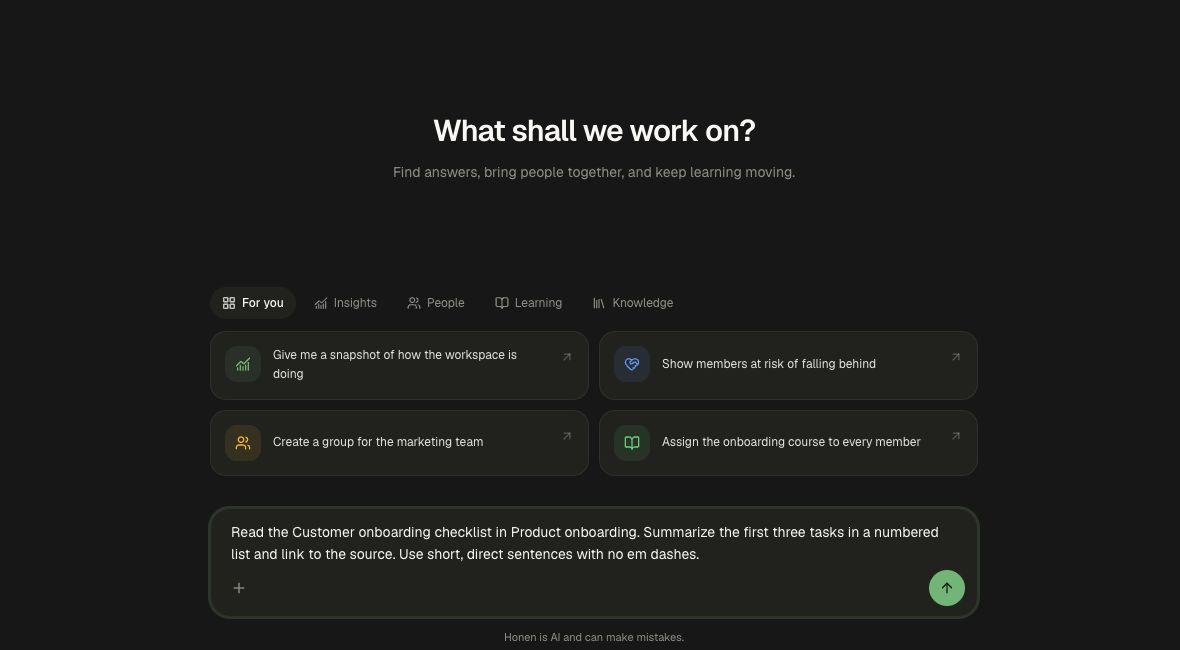
Choose Send message. Watch the progress messages while the Assistant searches and reads the source. Expand a Used tools row if you want to inspect its work.
3. Review the answer
The demo answer returned three tasks: confirm the customer's learning goal, gather approved product guides, and prepare a short course with its learner preview. It named the checklist and provided an Open source document card.
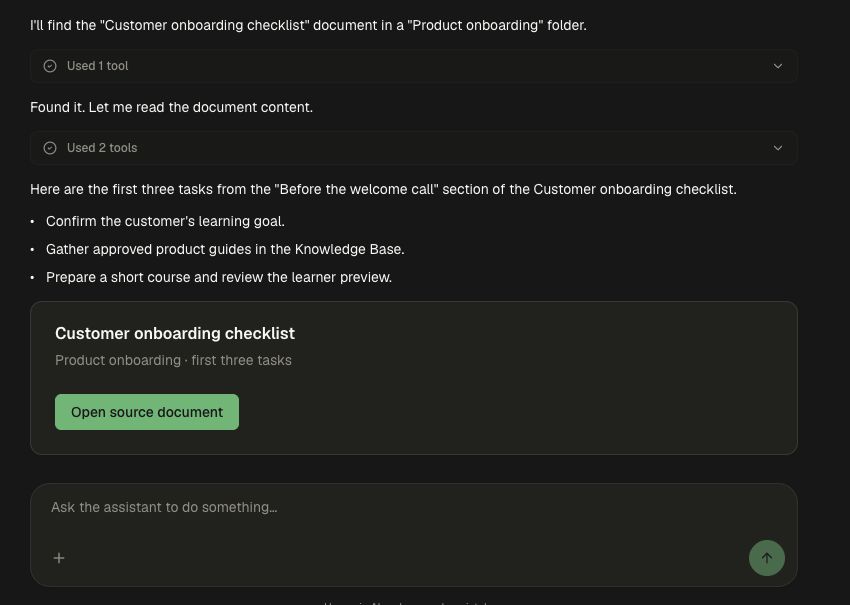
4. Open the source
Choose Open source document. Compare the answer with the document, especially exact requirements, dates, and numbers. In this example the three tasks match Before the welcome call in the checklist.
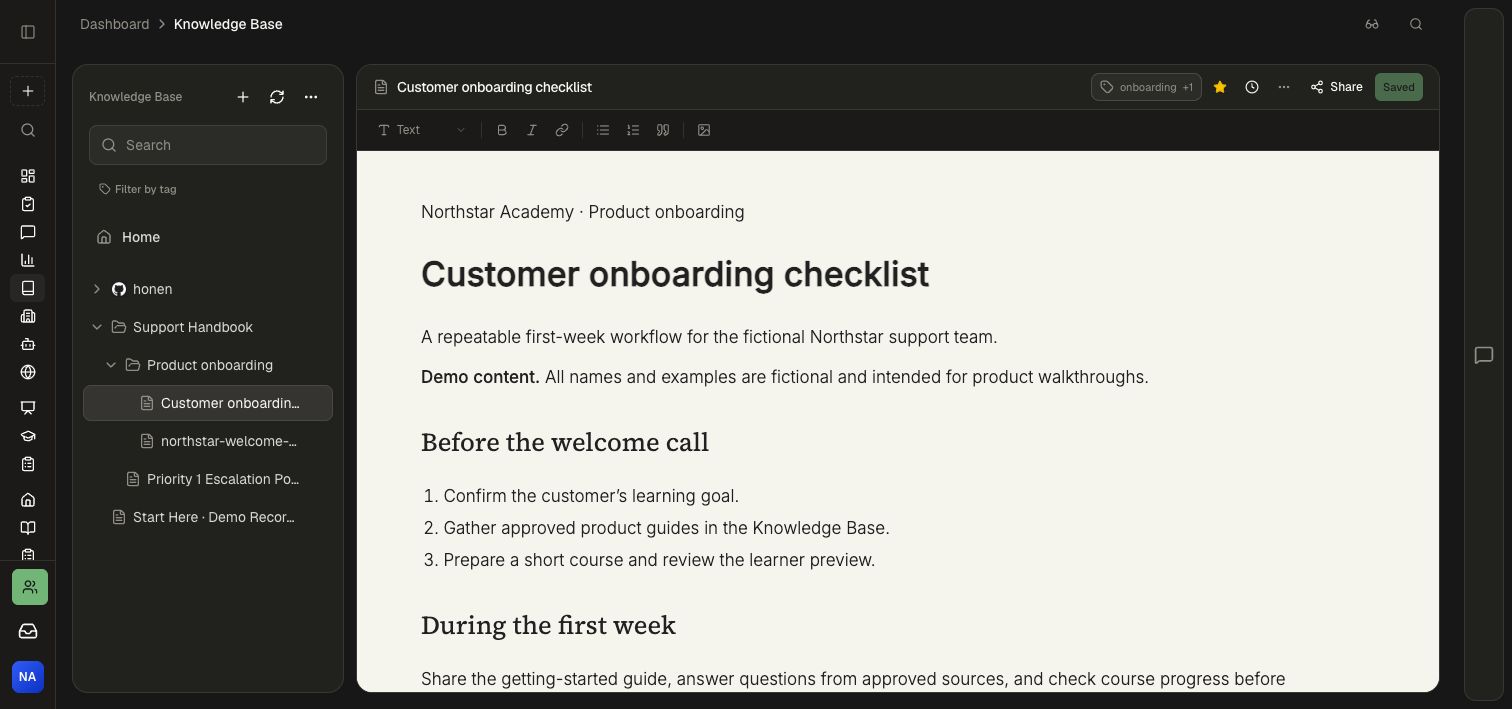
Continue the conversation
Ask a follow-up such as “Turn those three tasks into a checklist in your answer.” If you want a content change or administrative action, say exactly what should change and review any confirmation the product presents. Name the action and its intended audience so the Assistant can prepare the right next step.
For a more focused answer, include the document title, folder, and section in your question. Open the citation to explore the original material, then ask a follow-up about the detail you need.