
Turn a useful prompt into a repeatable action. Skills help authors run a familiar review, draft a checklist, or apply a teaching approach without rebuilding the instructions each time.
You need Manage AI skills permission to create or edit Skills. People who receive a Skill can invoke it on its selected surfaces without receiving editing rights.
1. Create the Skill
- Open Organization → Rules, Skills & Templates → Skills.
- Select New skill.
- Enter a Title that describes the task and a Short description explaining the result.
- Choose Write content and enter the prompt in Content.
- Select one or more Applies to options: Workspace Assistant, Course Creator, and Course Editor.
- Keep Enabled on when it is ready to use, or turn it off to prepare it first.
- Select Create.
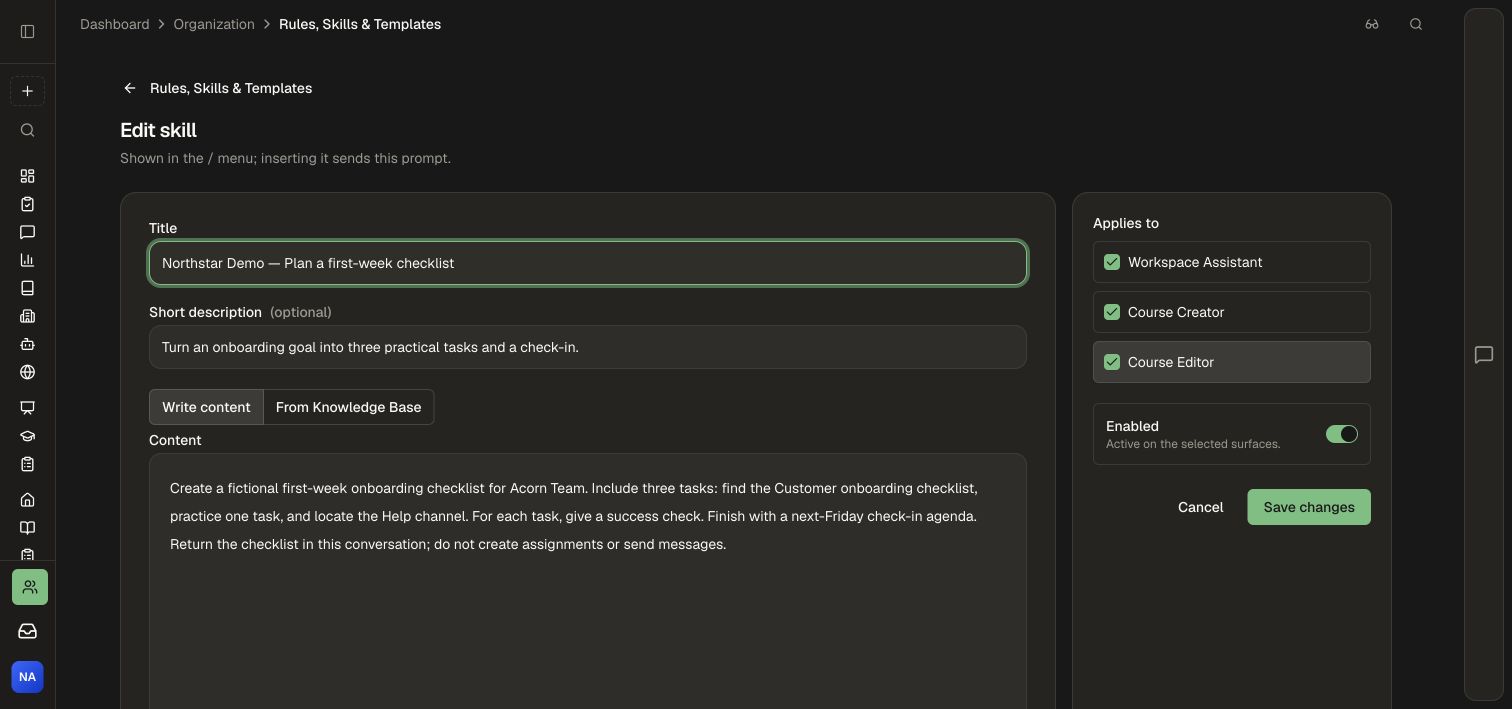
The demo Skill asks for three onboarding tasks, a success check for each, and a Friday check-in agenda. It asks for the result in the conversation, making the desired outcome clear.
2. Choose who can use it
New Skills start Restricted. The sharing dialog opens after creation. Workspace administrators and Skill managers can use, edit, and share Skills; choose the intended people, groups, or workspace audience before rolling one out. See Share Skills.
3. Invoke the Skill
- Open one of the Skill's selected surfaces, such as Assistant.
- Type
/in the message box and choose the Skill from Workspace skills. You can also open Attach → Skills. - Confirm that the Skill appears as a chip in your message.
- Add any context the prompt needs, such as the target topic or audience.
- Send the message and review the result.
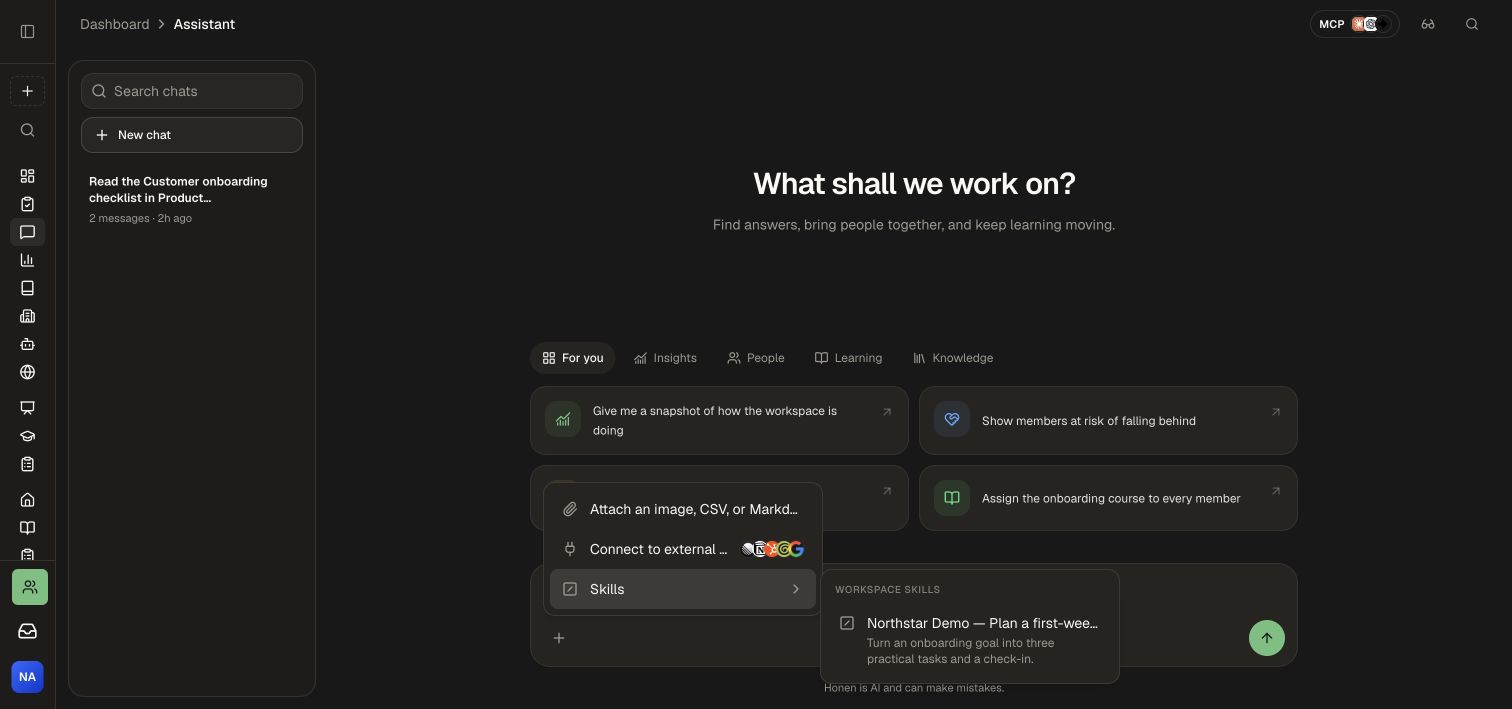
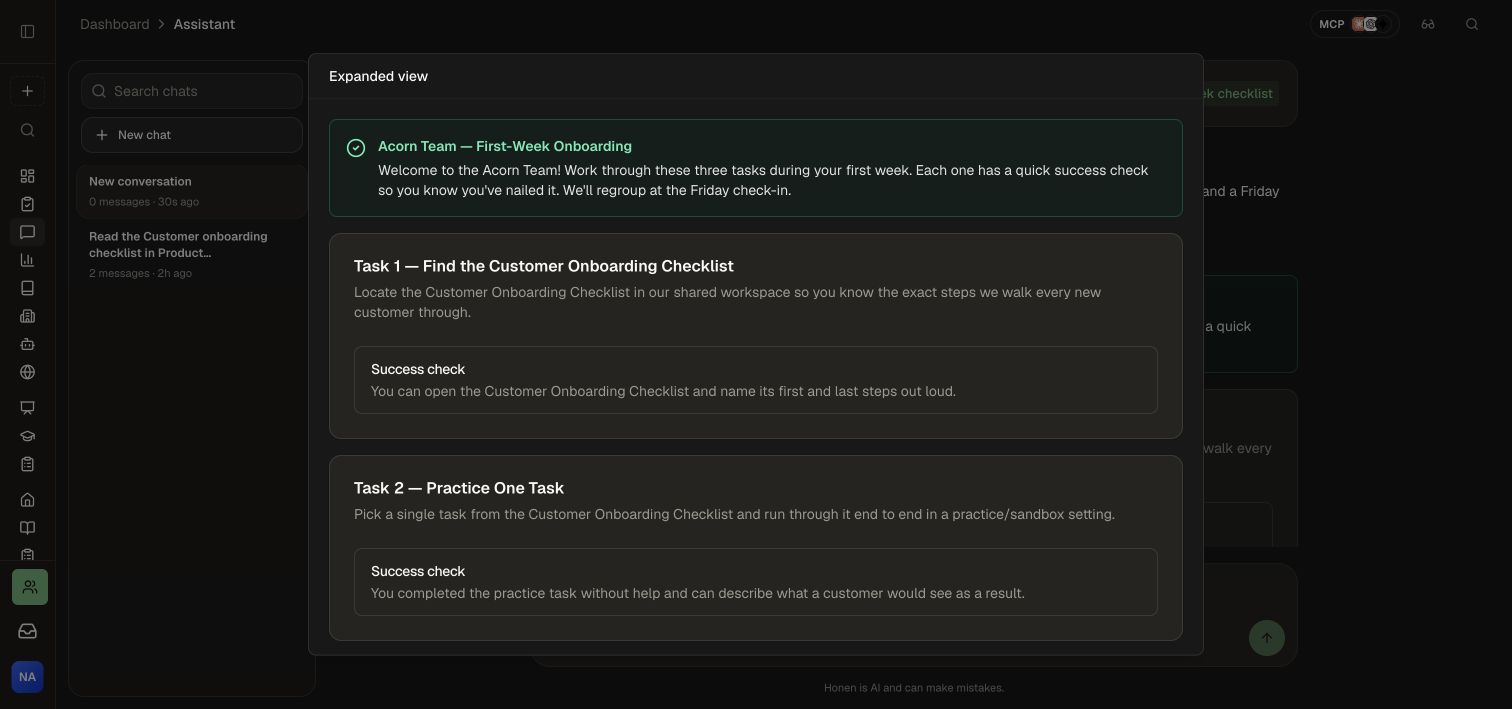
A Skill runs when you invoke it; it is not an always-on Rule. Its instructions guide the request within the permissions available to the person using it.
Use a source document for the prompt
Choose From Knowledge Base in the Skill editor and select an instruction document you can read. Honen uses the document's current indexed text as the prompt. Update the document to maintain that instruction centrally, or change back to Write content to store the prompt directly in the Skill.
The Skill's sharing audience determines who can invoke those instructions. Sharing the Skill makes its prompt usable by that audience; it does not give them permission to browse or edit the source document.
Use a Skill in a template
Enable the Skill for Course Creator, then open a course template, select it in Skills, and save. Up to eight Skills can accompany a template. Make the selected Skills available to the authors who will use it.
Edit or pause a Skill
- Find it in the Skills list using search.
- Select Edit, update the prompt or surfaces, and select Save changes.
- Use the enabled switch to pause or reactivate it.
- Use the up/down controls to organize the list.
- To retire it, use its delete control and confirm the named Skill.
If a colleague cannot find a Skill, check its Enabled state, Applies to surfaces, and sharing audience.