
Make a reusable prompt available to the people who need it while keeping management with the team responsible for the instructions. Skill sharing controls use; workspace roles control editing and sharing.
Share with selected people or groups
- Open Organization → Rules, Skills & Templates → Skills.
- Find the Skill and select its Share control.
- Keep General access set to Restricted.
- In Add people or groups, search for an existing workspace member or group and select it.
- Check the entries under People with access. Added recipients receive Can use access.
- Select Save changes.
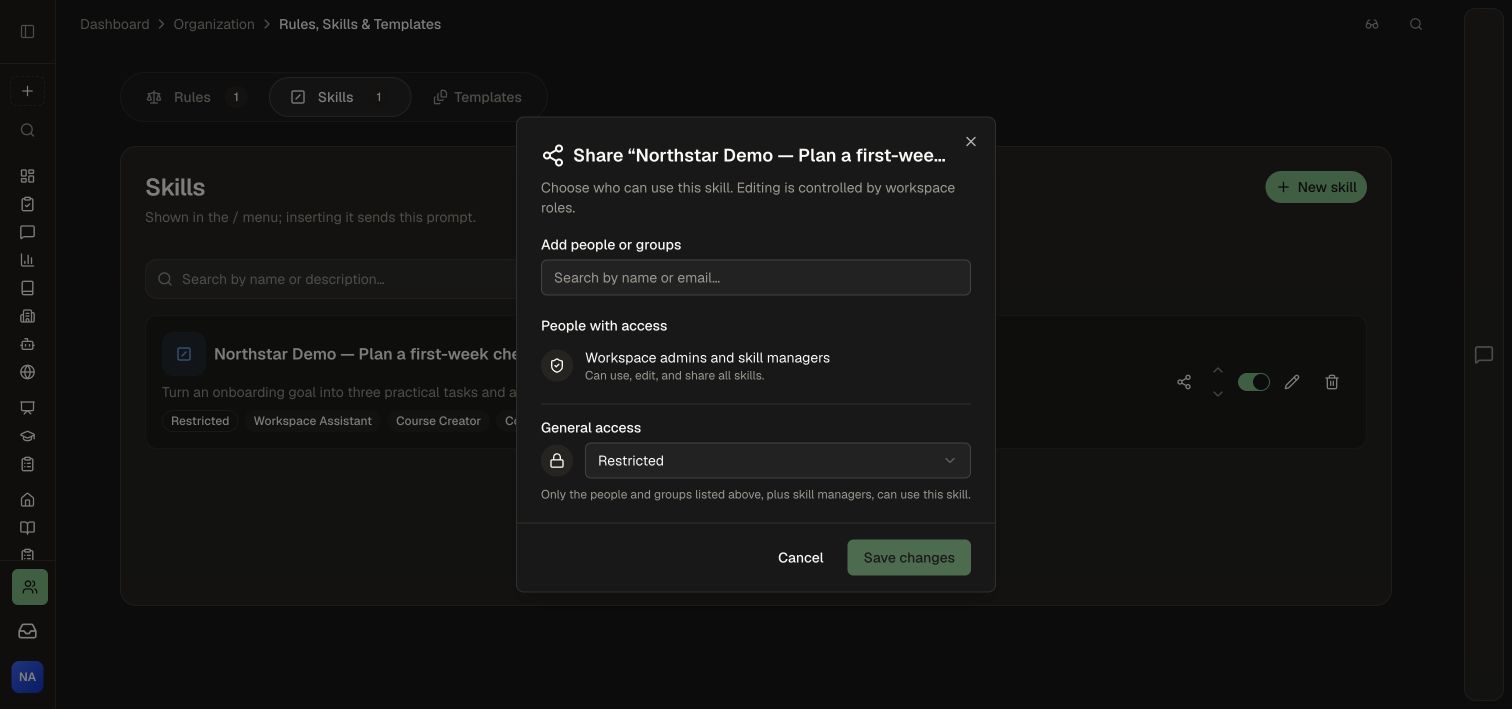
Group sharing includes members of active descendant groups. Recipients must remain members of the workspace. This picker selects existing members and groups; use your organization's normal membership process when someone needs to join first.
Make a Skill available across the workspace
- Open the Skill's sharing dialog.
- Change General access from Restricted to the workspace option.
- Review the audience description and select Save changes.
- Keep the Skill enabled on the intended surfaces so members can find it in the Skill menu.
Change or remove access
- Reopen Share.
- Remove the relevant person or group from the access list, or return General access to Restricted.
- Select Save changes.
Removing one grant does not remove another: a person may still have access through a group, workspace-wide sharing, or a management role. Access is checked when the Skill is used.
Share the prompt and its sources deliberately
For a Knowledge Base-backed Skill, authorized recipients can invoke the source document's instructions even if they cannot open the document itself. Sharing the Skill does not change that document's sharing settings. Review the instruction text for the intended audience before making the Skill broadly available.
If the task also requires reading other documents or editing a course, those resources keep their own access controls.
Related: Create and use Skills, Source ownership, Access and security.