
Turn approved documents into learning that stays connected to the work. Attach the right sources, reuse their original images where accuracy matters, and review course changes when the source changes.
1. Prepare an approved source
- Open Knowledge Base and choose the folder for your team's approved material.
- Import or open the relevant document. Check its title, procedures, images, and current wording.
- For a connected document, inspect its sync status and wait for the intended source version to arrive.
- Open the course's Materials screen, choose Add from knowledge base, select the document, and choose Attach selected.
- Wait for processing, then open the attached material to inspect it.
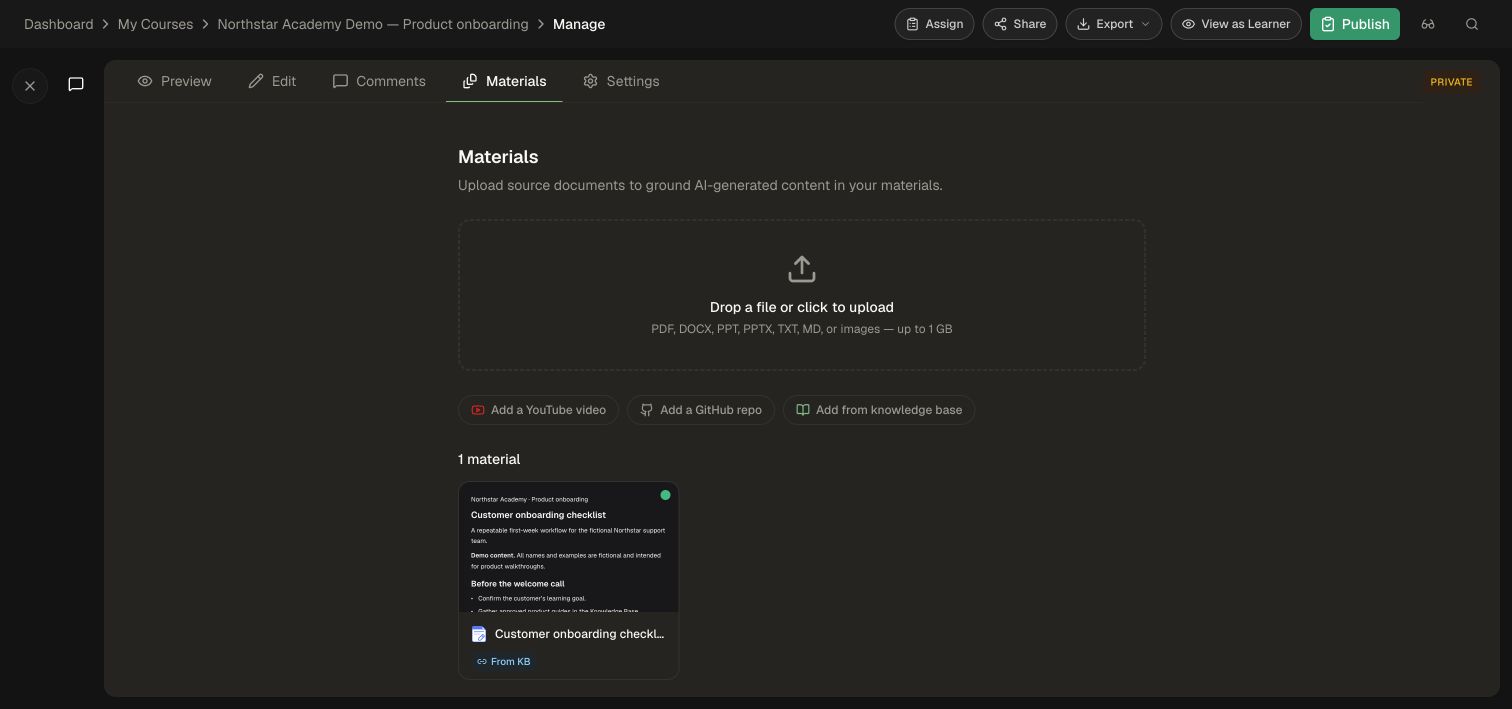
The attachment is a snapshot of the Knowledge Base document. Its connection to that document lets you refresh the course material later. Follow Add sources to a course for the full picker walkthrough, or GitHub sync for repository-backed documentation.
2. Tell the assistant how to use the source
Open Course Editor Assistant and name the source, target topic, and expected result. A useful instruction for operational training is:
Use the attached Customer onboarding checklist as the approved source for this topic. Preserve its procedure and product terminology. Cite the source for factual claims. If the checklist does not answer a question, identify the missing information and ask for an approved source. Do not invent product behavior or extra procedure steps.
Review the resulting reading and practice against the document. Ask one question the source answers and one it leaves open; check that the answer identifies missing coverage appropriately.
For recurring work, save these directions in your team's Rules, Skills, or Templates. Skills can be invoked with / in the assistant or course editor, and templates can include accessible Skills and Knowledge Base folders.
3. Choose original media or a new illustration
Tell the assistant which result you want and where it belongs.
| Desired result | Example request |
|---|---|
| An exact product screenshot in a reading | “Place the original setup screenshot from the attached guide in the Configure access reading. Keep the screenshot unchanged and add a short caption.” |
| Actual PDF or deck pages as lecture slides | “Use pages 3–6 of the attached PDF as the lecture slides for this topic.” |
| Only the source's diagrams or figures | “Use the extracted diagrams from the attached manual to illustrate this lecture.” |
| A new explanatory illustration | “Create an illustration of the process for this reading, using the source's steps and labels.” |
The assistant can inspect uploaded and extracted image assets when selecting source media. Open the resulting activity and compare labels, cropped edges, and small text with the original. Give each lecture an explicit page range when dividing a large document.
Edit readings and add images covers reading controls. Create and edit media activities covers lecture pages, illustrations, video, and audio.
4. Pick the right workflow for a recording
Choose according to what the learner needs:
- Learn from what was said: attach the recording or a supported video source and inspect its processed text before using it to author lessons.
- Watch the original recording: ask the editor to use the uploaded video in a Video activity, then check playback and its accompanying transcript.
- Practice the recorded interface: create an Interactive Walkthrough from a screen recording, then review the generated frames, step descriptions, and click targets.
Follow Create and edit projects for the recording-to-walkthrough flow. Use the recording that shows the exact interface and procedure you want to teach.
5. Refresh an attached Knowledge Base source
- Update the approved document in its source system or Knowledge Base.
- For a connected source, confirm that the new version has synced into Knowledge Base.
- Open the course's Materials screen and find the linked material.
- When Source doc updated appears, select Refresh from KB.
- Wait for processing to finish, then inspect the refreshed material.
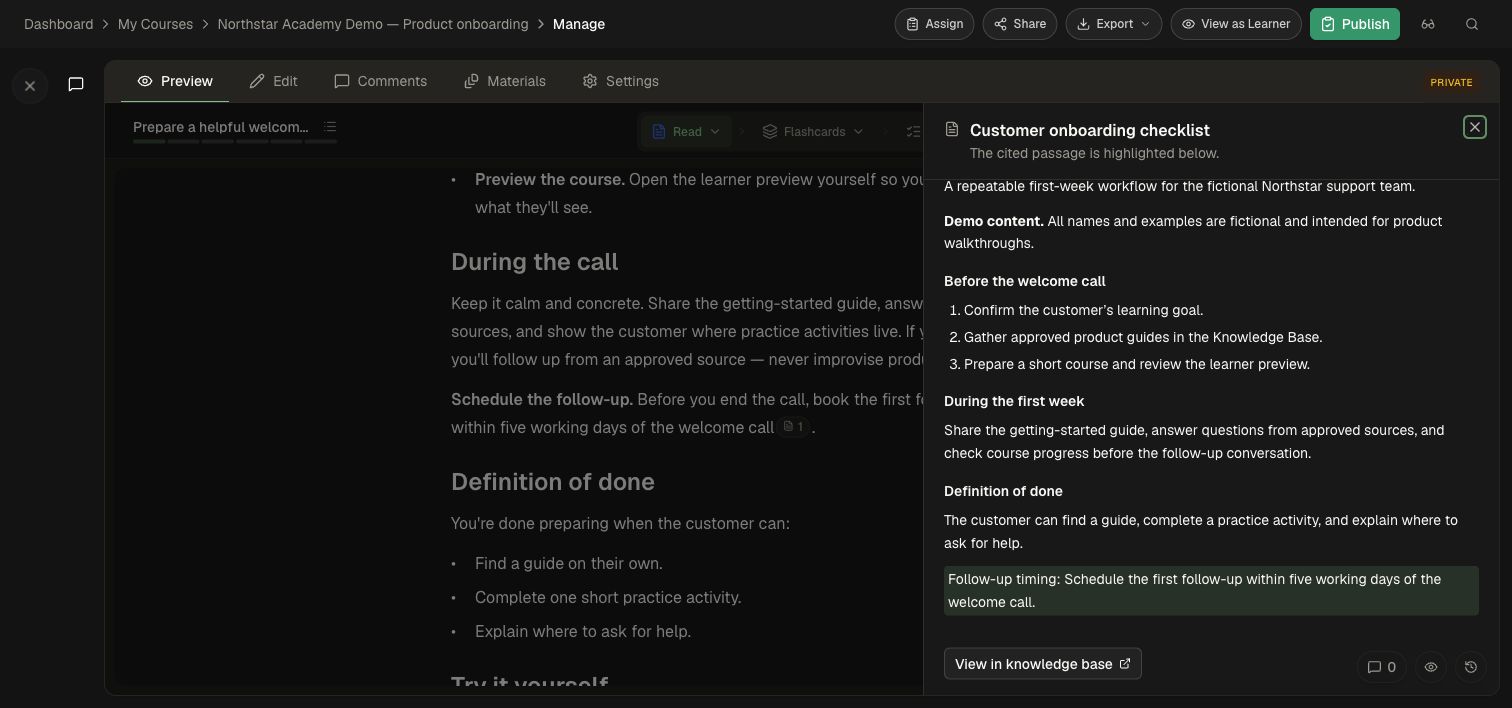
In the demo, the checklist adds a concrete requirement: schedule the first follow-up within five working days of the welcome call.
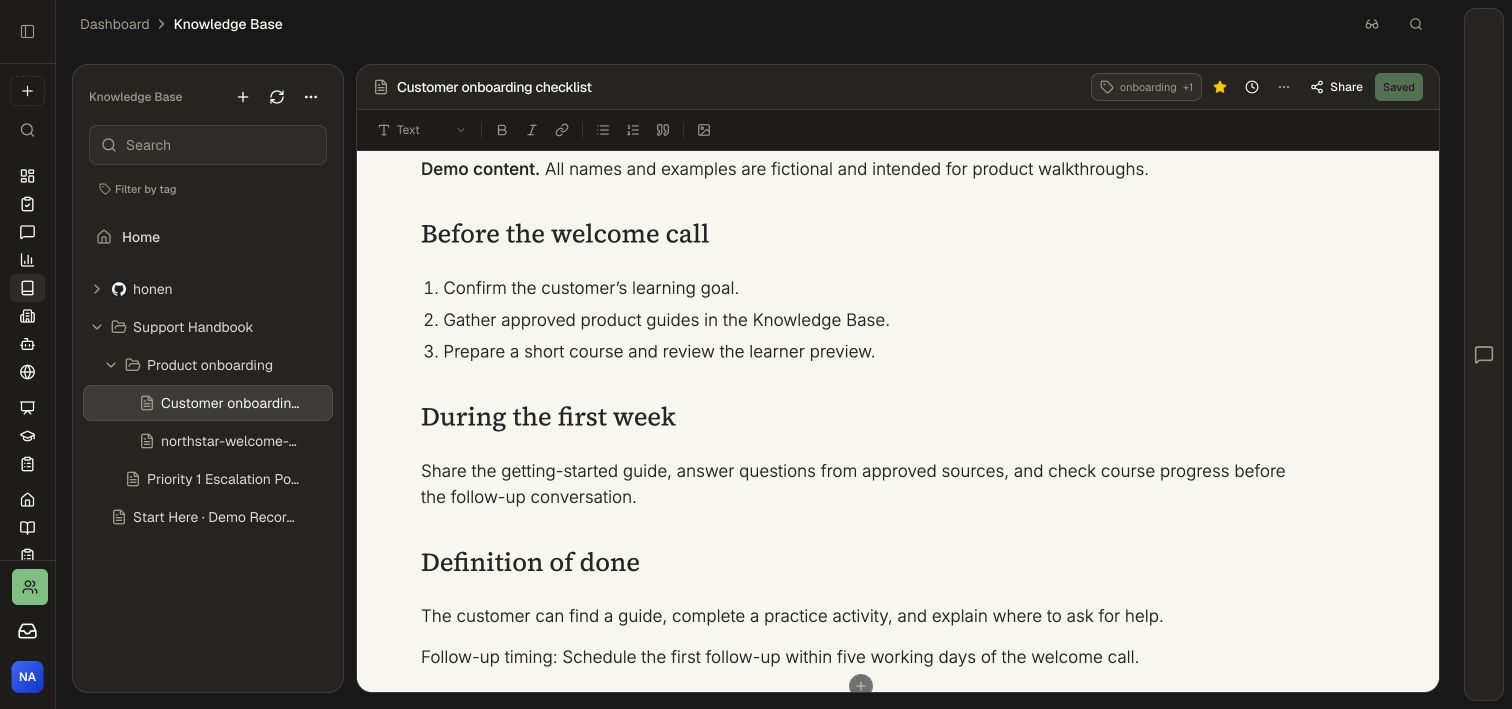
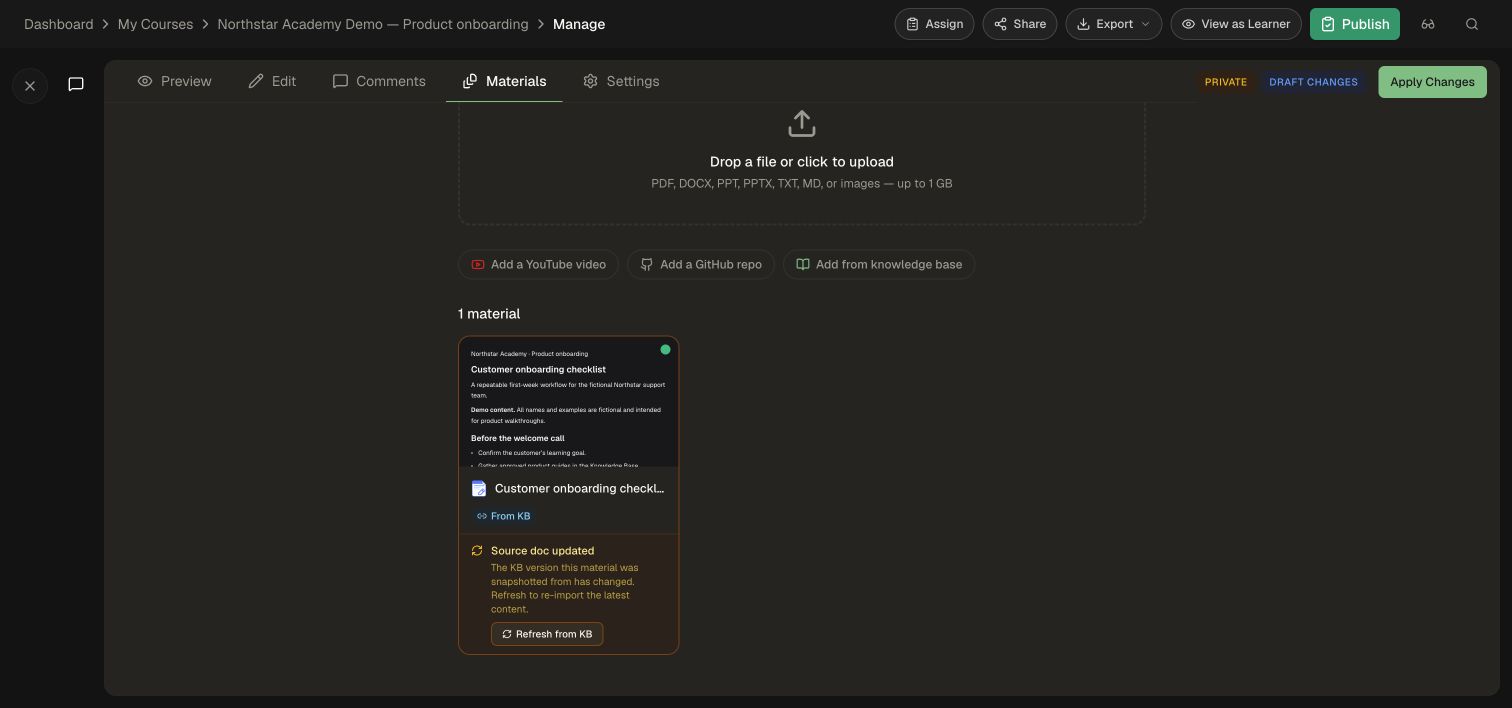
Open the refreshed material to confirm that the new requirement is present.
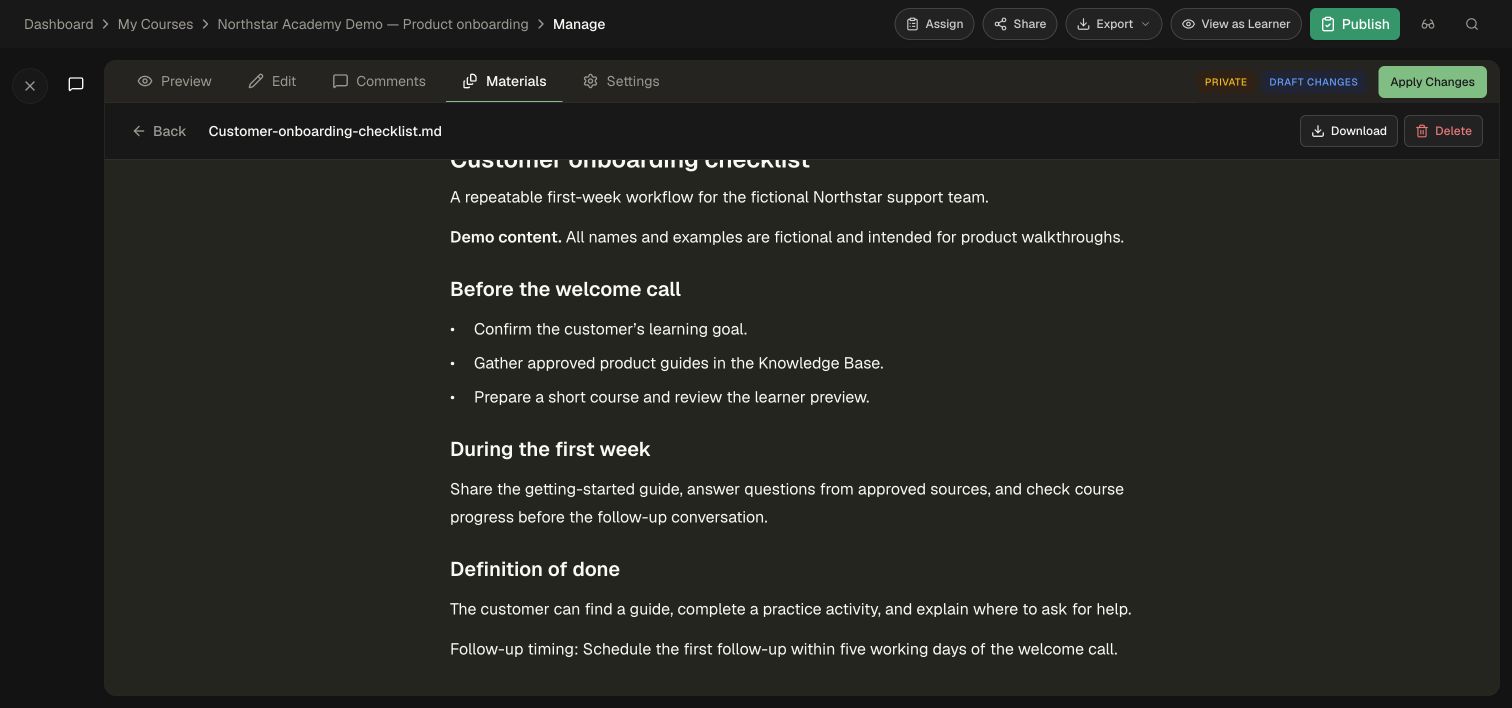
Refresh updates the existing attached material in place. Its source connection and existing citation references are retained. After a substantial reorganization or deletion in the source, inspect the text behind important citations to confirm that it still supports the lesson's claim.
If the update is not visible, check the Knowledge Base document's current version and reopen Materials. Refresh is available for linked Knowledge Base materials; a standalone file upload is updated by supplying the revised file.
6. Revise the affected learning content
After refreshing the material, ask the Course Editor Assistant for the course changes you need:
Compare the updated Customer onboarding checklist with the Welcome call topic. Update the reading, flashcards, and quiz explanations that depend on the changed steps. Keep the existing learning goals and identify the activities you changed.
- Review the changed activities in Preview.
- Open their citations and check that each source passage supports the current wording.
- Compare original screenshots with the current interface and replace outdated ones where needed.
- Try affected questions and projects, including their answer explanations and evaluation criteria.
- Select Apply Changes or Save & Apply and inspect the revision in Version History.
- Follow the course's publishing and review process for delivery.
In the demo, the revised reading now includes the five-working-day follow-up requirement. Opening its citation shows the matching passage in the refreshed checklist.
7. Check the learner's next step
Review the updated lesson plan and the intended cohort's assignment requirements. Changes to required activities, tests, projects, or passing criteria can change what learners still need to complete. Use the learner's displayed remaining-work list and your assignment settings to plan any follow-up practice.
Find unit tests and remaining work explains learner completion controls. Analytics and Reporting helps you review the cohort after delivery.
For the next source update, return to Materials and repeat the refresh, revision, and learner-preview checks.