
Use the pages your team already maintains as the foundation for onboarding and process training. Select a small, coherent collection so the course teaches one workflow with the right terminology.
Notion: select pages and databases
- Open Knowledge Base and the destination folder.
- From the add menu, choose Add an integration. In Content sources, choose Connect for Notion.
- Complete Notion's authorization and select the pages the connection may access. Return to Honen when authorization finishes.
- Open the destination folder's add menu and choose Add from Notion.
- Browse the available pages and databases. Open a parent to inspect its children, or select its checkbox to bring in the collection. Select individual page checkboxes for a smaller import.
- Check the selection count and choose Add selected.
- Wait for processing, then inspect the imported pages, lists, tables, and images.
Notion grants access to selected pages in its own connection flow. If a page is absent, check that it is shared with the connection in Notion. The picker's Search Notion… filters items that have been loaded; browse the correct parent and use Load more where offered.
Confluence: select a space or page tree
- Open Knowledge Base → Add an integration → Content sources.
- Find Confluence, choose Connect, and complete the Atlassian sign-in and consent for the Confluence site you intend to use.
- Return to your destination folder and choose Add from Confluence.
- Open a space to browse its pages. Open a parent page to inspect the child pages underneath it.
- Select individual pages for a focused lesson, or select the space or parent collection to include its supported page tree.
- Choose Add selected and follow the import status.
- Open the imported result. Read the page body and inspect diagrams and images before using it for learning.
Use Search Confluence… to filter the loaded items and Load more to continue browsing. The connected account must be able to read the pages and their source attachments.
Create the course from your wiki pages
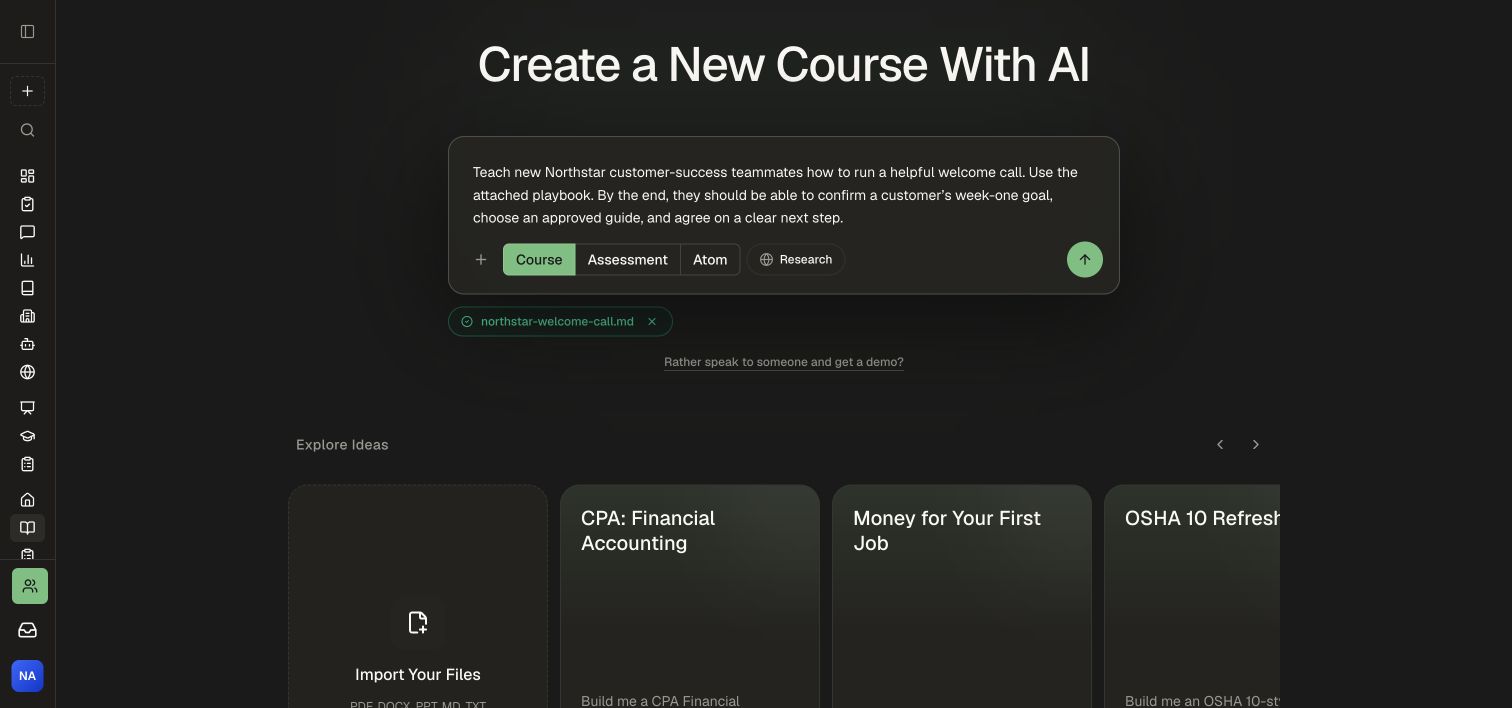
- Choose Create → Attach → Add from knowledge base.
- Select the imported pages that belong in this course and choose Add selected.
- Wait for the attachments to become ready, then state the outcome. For example: “Use these escalation pages to teach new support teammates how to recognize an urgent issue, collect the required information, and choose the correct escalation path.”
- Tell Honen the audience and starting level. Choose the offered structure and size, or type your preferred scope.
- Review the proposed outline. Ask to remove unrelated topics or add a practice scenario before choosing Approve & Build.
- Open Review & edit, compare the reading with the source, check answer keys, and complete the scenario or quiz in Preview.
For a procedural wiki, a reading can explain the policy while a Scenario, Form, or Walkthrough checks whether learners can apply it. See Choose the right activity and project.
Maintain the original and the course together
Make policy updates in Notion or Confluence, then check the linked Knowledge Base copy with Refresh. Imports are one-way: edits in Honen do not update the original wiki.
In the course's Materials, use Refresh from KB when the source has changed. Ask the editor assistant to revise the affected lesson, check its citations and practice answers, and review the draft before publishing. See Build and maintain source-backed learning.