
Add material your team already has instead of copying it into a new document. This walkthrough uses fictional onboarding material in Northstar Academy · Demo.
Import a file
- Open Knowledge Base and the destination folder.
- Choose the folder’s Add button or its + in the sidebar.
- Choose Import file….
- Select a supported file from your computer. Knowledge Base file imports accept PDF, Word and PowerPoint documents, supported images, and video up to 5 GB per file. Markdown and plain-text imports accept up to 5 MB of text. Wait for processing to finish.
- Open the imported document and review its title, headings, lists, and text before using it as a source.
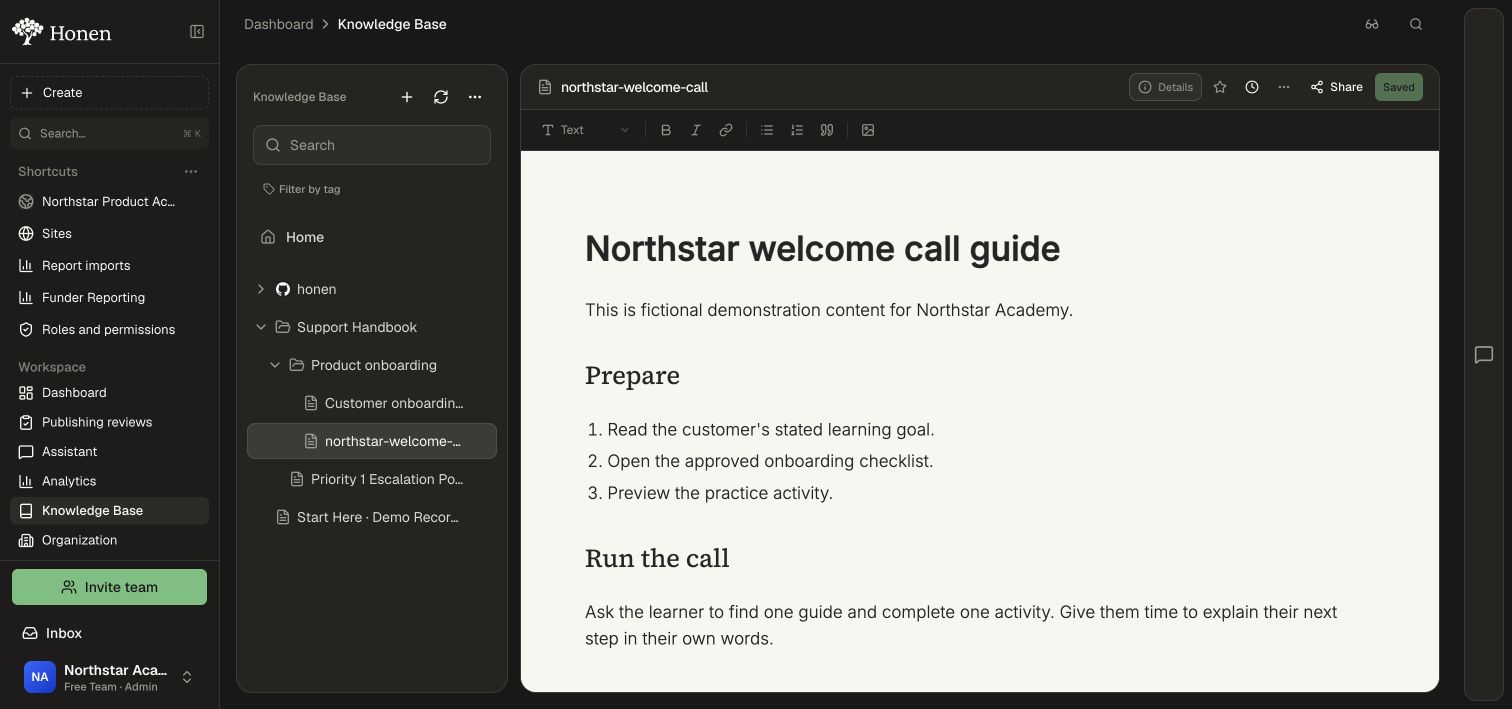
The example imports northstar-welcome-call.md. Honen uses the filename for the document’s label and renders its Markdown headings and numbered list. The imported document opens in the normal editor with a Saved status.
A file upload is a copy. Updating the file on your computer does not make it a linked source. Use a connected source such as GitHub when you want later source changes to sync.
Supported file formats
| Format | Extensions | Import result |
|---|---|---|
.pdf |
Extracted document text and supported source images, including scanned pages. | |
| Word | .doc, .docx |
A readable Knowledge Base document. |
| PowerPoint | .ppt, .pptx |
Extracted presentation content and source images. |
| Markdown | .md, .markdown |
Rendered headings, lists, links, and other Markdown content. |
| Plain text | .txt |
Readable text paragraphs. |
| Images | .png, .jpg, .jpeg, .webp, .gif |
Text extracted from the image for a searchable document. |
| Video | .mp4, .webm, .mov |
Searchable transcript; recorded procedures can also provide visual workflow material. |
For Google Sheets, Excel, and other supported cloud file conversions, use Google Drive, OneDrive, or SharePoint. Use GitHub sync for HTML documentation and repository-relative screenshots. Local datasets, code, and archives can be attached directly to a course for the assistant to inspect; see Turn documents and recordings into a course.
Import one web page
- In the destination folder’s add menu, choose Add from Web link.
- Keep Just this page selected.
- Paste the page’s URL into Page URL.
- Choose Add and review the imported result.
This mode imports only that page; it ignores links on the page. Use an accessible page containing the content you want to teach. A page requiring a separate login may not be fetchable.
Import a section of a website
Choose This whole section when several linked pages belong together.
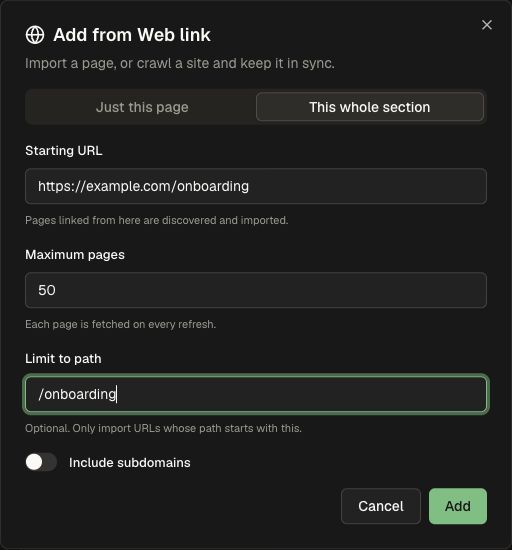
- Set Starting URL to the section’s entry page.
- Set Maximum pages to the amount you intend to import. Website refreshes fetch discovered pages again, subject to the configured page limit and processing budget.
- Set Limit to path, such as
/onboarding, to restrict discovery to that URL path prefix. - Enable Include subdomains only when those subdomains belong in the collection.
- Choose Add, wait for the import, and inspect the resulting folder.
Replace example.com with the source you want your team to learn from. A focused path keeps the imported collection easy to navigate.
Record a procedure
Turn a demonstration into a reusable source for training and answers.
- Open the destination folder’s add menu and choose Record walkthrough.
- Choose Record your screen, then select the browser tab, window, or screen containing the task.
- Narrate the key decisions while performing the procedure. Include the audio source offered by your browser when you want it in the recording.
- Choose Stop, then review the clip. Use Re-record if you want another take.
- Choose Save to Knowledge Base. Open the resulting source and refine its extracted steps and screenshots for the audience.
Add a YouTube transcript
- Choose Add from YouTube from the add menu.
- Paste the video’s address into Video link, then choose Add.
- Open the imported document and review its transcript before attaching it to a course.
This gives your team searchable text from the video. For a procedure where the visible interface matters, use a recorded walkthrough or original screenshots alongside the transcript.
Connect an existing document system
Choose Add an integration to open Content sources. Connect the system you use, then return to the Knowledge Base add menu to choose documents or folders. The connected account must be allowed to read the selected content.
Follow the provider's complete import-to-course workflow:
- Google Drive, OneDrive, and SharePoint for cloud files and shared libraries.
- Notion and Confluence for wiki pages, databases, and spaces.
- Document360 for maintained help-center articles.
- Granola for meeting notes and transcripts.
For repository-managed Markdown, HTML, and screenshots, follow Sync documentation from GitHub.
Check the result
Read the imported body and open its images. Keep the source folder focused on a topic, add tags, and select only the intended documents when attaching course materials or configuring an Agent. See Organize and use source material.
A native website source is checked less frequently than most document-system sources: its scheduled refresh interval is at least six hours. Use Refresh when you need to check sooner, then inspect the status and resulting content. See Integrations and MCP for sync limits and recovery.
Build a course from the imported page, video, or recording
- Open Create → Attach → Add from knowledge base.
- Browse the destination folder, select the imported document checkboxes, and choose Add selected.
- Wait for the attachments to become ready, then describe the audience and the workflow to teach. For a web page, name the relevant procedure; for a YouTube transcript, name the explanation to reuse; for a recording, ask for the demonstrated steps and visual references.
- Answer the setup questions, review the outline, and choose Approve & Build.
- Open Review & edit. Compare the lesson with the imported source and try its activities in Preview.
Use Turn documents and recordings into a course for format-specific briefs and review steps. A YouTube transcript supplies source text; an uploaded or hosted Video activity supplies a player. See Create and edit media when learners should watch the video itself.