
Keep your documentation in a GitHub repository and bring it into Honen as a linked Knowledge Base folder. Markdown, HTML, and referenced repository images travel together.
Connect GitHub
- Open Knowledge Base and its Content sources page.
- Choose Connect beside GitHub Documentation.
- Authorize the configured GitHub App. The app must be installed on the repository you want to read. Organization policy may require an owner to install it.
- Return to Honen after the connection succeeds. The GitHub Documentation card shows Connected and the account name.
A GitHub App installation can limit access to selected repositories. Folder selection inside Honen limits what is imported; it does not reduce GitHub’s repository-level permission.
Link a documentation folder
- In Knowledge Base, open the + menu.
- Choose Add from GitHub Documentation.
- Open the repository and browse to the folder containing your docs.
- Select the folder and review the selection count.
- Choose Add selected once. The new folder initially shows Syncing…; wait for Synced with GitHub Documentation, then open a document and check its images.
For a repository with documentation under docs/honen/, open the repository, open docs, and select honen. Open the selected folder to inspect its categories while keeping the parent folder as the single selected item.
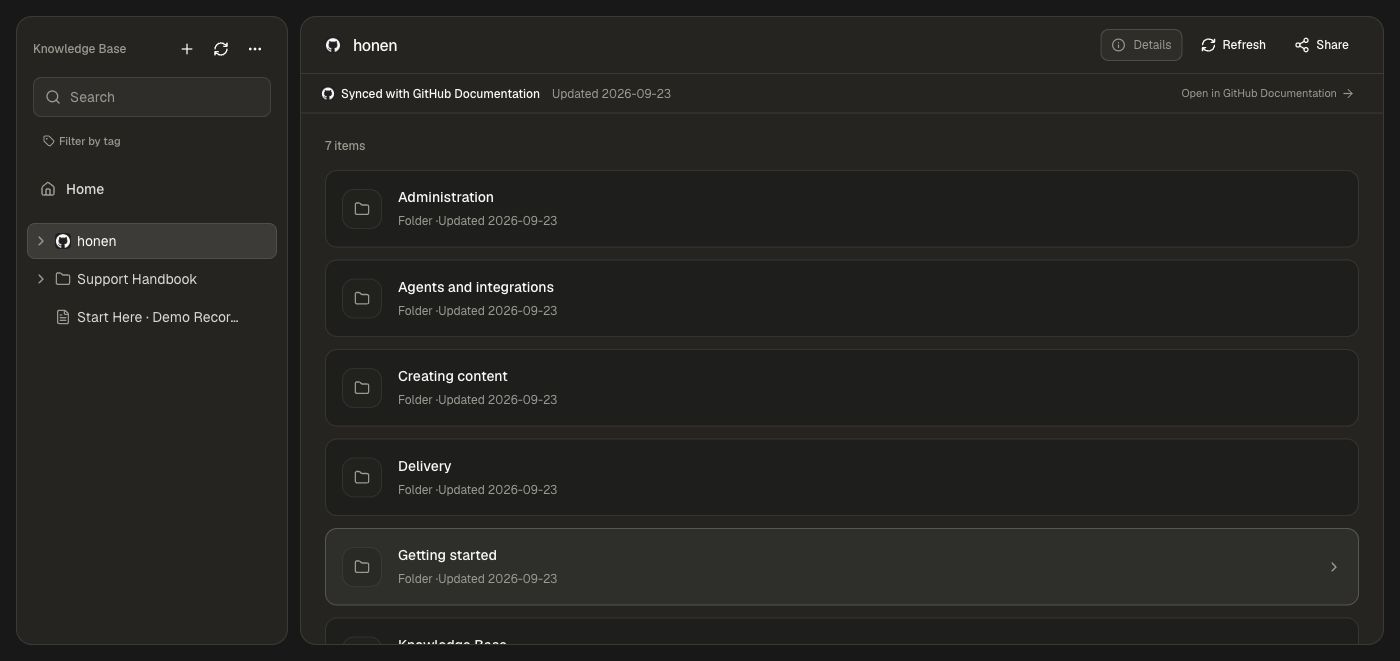
Choose the documentation subtree instead of the whole monorepo. Subfolders containing supported documents become Knowledge Base folders. Image-only folders supply assets without becoming empty documentation sections.
Write Markdown with images
Store assets in the repository and use paths relative to the document:
# Create a course
1. Open Create and describe your learning goal.

Reference-style images are also supported:
![The course creation composer][composer]

[composer]: ../images/create-course.png
Use a frontmatter title or an H1 for the document’s name. Standard Markdown content is supported; MDX components are not executed as a React application.
Order pages in an academy
Add order to the YAML frontmatter at the top of each Markdown file:
---
title: "Create your first course"
order: 10
---

# Create your first course
Lower numbers appear first within the same folder in the academy sidebar and in the previous/next reading sequence. Leave gaps (10, 20, 30) so you can insert a page later. Pages without order follow ordered pages alphabetically. Existing sidebar_position or weight values are also recognized; order takes precedence when more than one is present. Section order is set under Navigation order and labels in the Site editor.
For an HTML guide, place <meta name="academy:order" content="25"> in its <head>. The importer uses it for the same ordering and leaves it out of the rendered article.
Link to another document in the repository
Use local file paths for links between your guides. Resolve each path from the folder containing the current document, just as you would in GitHub:
[Add course materials](../Creating%20content/attach-course-materials.md)
[Upload first](../Creating%20content/create-your-first-course.md#1-add-your-source-material)
[File formats](documentation-file-formats.html)
Inline links, reference-style Markdown links, and HTML <a href="..."> links can point to synced documents. Keep spaces URL-encoded (%20) and preserve the file's exact case. Commit the target document as well as the page linking to it.
Honen resolves these links using the synced repository, branch, and file path. In the Knowledge Base, they open documents the viewer may read. On an academy, they open documents selected for that site's published documentation. Headings can be addressed with a #fragment; explicit HTML anchors are preserved too.
Local links resolve to synced pages that the reader can access. For academy cross-links, include and publish the target page, then open the link in the public academy. External web links continue to open their original destinations.
For working examples, open Documentation file formats or Add sources to a course.
Import HTML
Use semantic HTML: headings, paragraphs, lists, tables, code blocks, and image tags. For example:
<h1>Create a course</h1>
<p>Open Create and describe your learning goal.</p>
<figure>
  <img src="../images/create-course.png" alt="The course creation composer" />
</figure>
Honen imports the document content. Scripts, page styling, and interactive website behavior do not become part of the Knowledge Base page.
Where images are stored
For referenced repository images, Honen resolves the path, downloads the image through the connected GitHub account, and uploads it to the workspace’s Knowledge Base image storage on Google Cloud Storage (GCS). The saved document points to Honen’s image URL. Readers do not need repository access to view images that are published with an academy page.
Unchanged image bytes are reused. Replacing a screenshot triggers a refresh even when the document text stays the same. Commit supported, accessible image files alongside the documentation and review them on the synced page before publishing.
Keep docs current
Commit changes to the connected branch. Honen checks linked sources on its sync schedule. Open the linked folder and choose Refresh when you need to check a change immediately. Wait for its sync status to settle, then inspect the affected document. Open in GitHub Documentation on a folder and Open original on a document take you back to the source. This is a one-way connection: edit the repository to make durable source changes.
Source updates can also inform linked course revisions. They do not approve or publish a course update automatically.
Build training from repository documentation
- Open Create → Attach → Add from knowledge base.
- Browse the synced repository folder, select the guides for this learning outcome, and choose Add selected.
- Wait for the source attachments to be ready. Explain which product workflow to teach, who will learn it, and whether to reuse the repository screenshots.
- Answer the setup questions, review the outline, and choose Approve & Build.
- Open Review & edit. Verify the product steps, images, and answer keys against the synced documentation, then try the course in Preview.
For an existing course, attach documents through Materials → Add from knowledge base → Attach selected. After a repository change syncs, use Refresh from KB on the material and revise the affected lesson. Follow Build and maintain source-backed learning.
Tips for a smooth setup
- Repository missing: check the GitHub App installation, selected repositories, organization approval, and the connected account’s access.
- Folder missing: it must contain supported documentation files. A folder containing only code or images is not a documentation folder.
- Image missing: check path spelling and case, commit the image, and verify the account can read it. Prefer repository-hosted assets over external authenticated URLs.
- Document link is not clickable: commit and sync the target, check the relative path and branch, and ensure the target is included in the academy or available to the Knowledge Base viewer.
- Old content: check the connected branch, refresh status, and most recent source revision. A disconnected account cannot keep syncing.