
Build an assistant that answers from a specific set of approved documents. This walkthrough uses Northstar Onboarding Guide, a fictional demo Agent, and the Product onboarding folder.
1. Name the Agent and describe its job
Open Agents → Create agent. In Overview, enter a name, a short description, and your Instructions. Tell it what to answer, which sources to use, and how to handle missing information.
Answer onboarding questions using only approved demo documentation. Cite the source for factual answers. If the source does not answer a question, say what is missing. Do not change content or contact people.
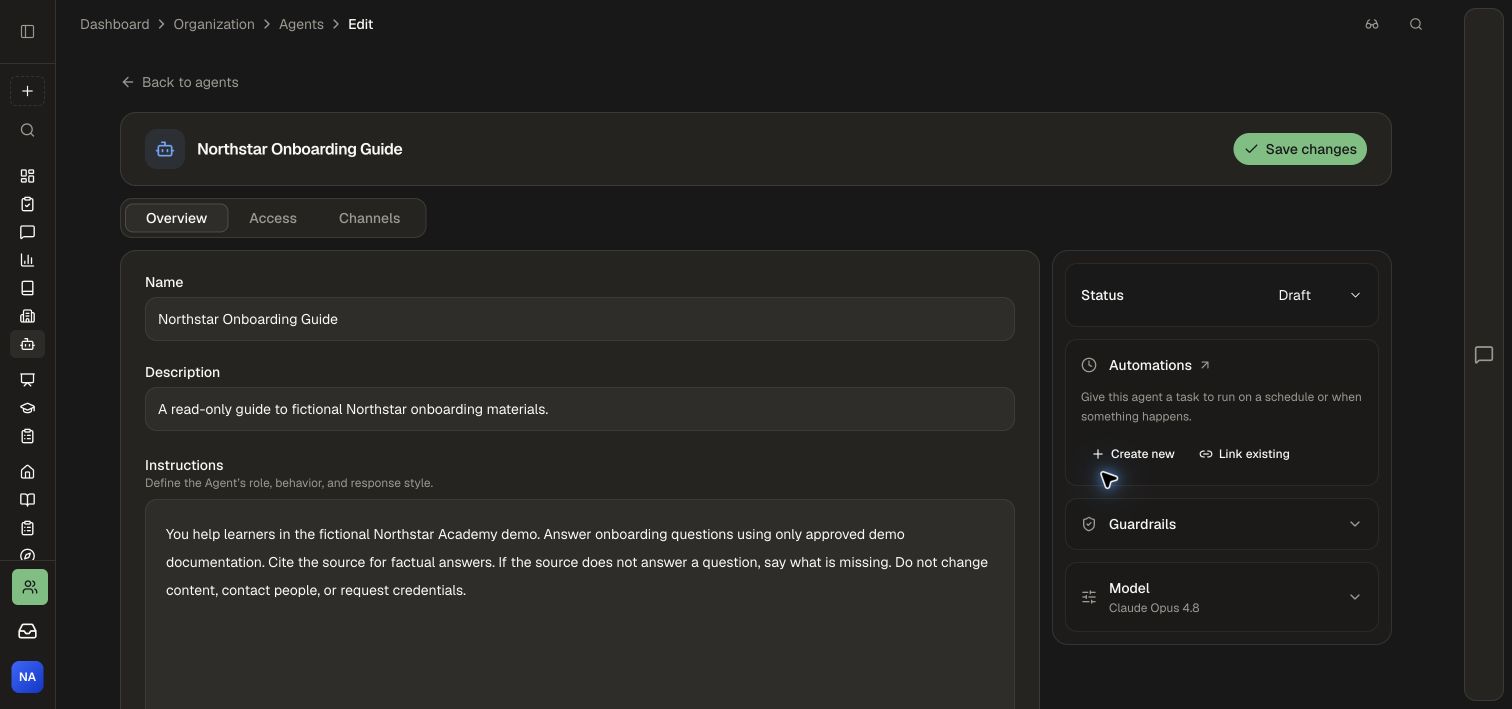
The screenshot shows the example after creation, with Status → Draft. Expand Guardrails for additional limits and Model to review the selected model. Never put credentials into either instruction field.
2. Choose the access policy
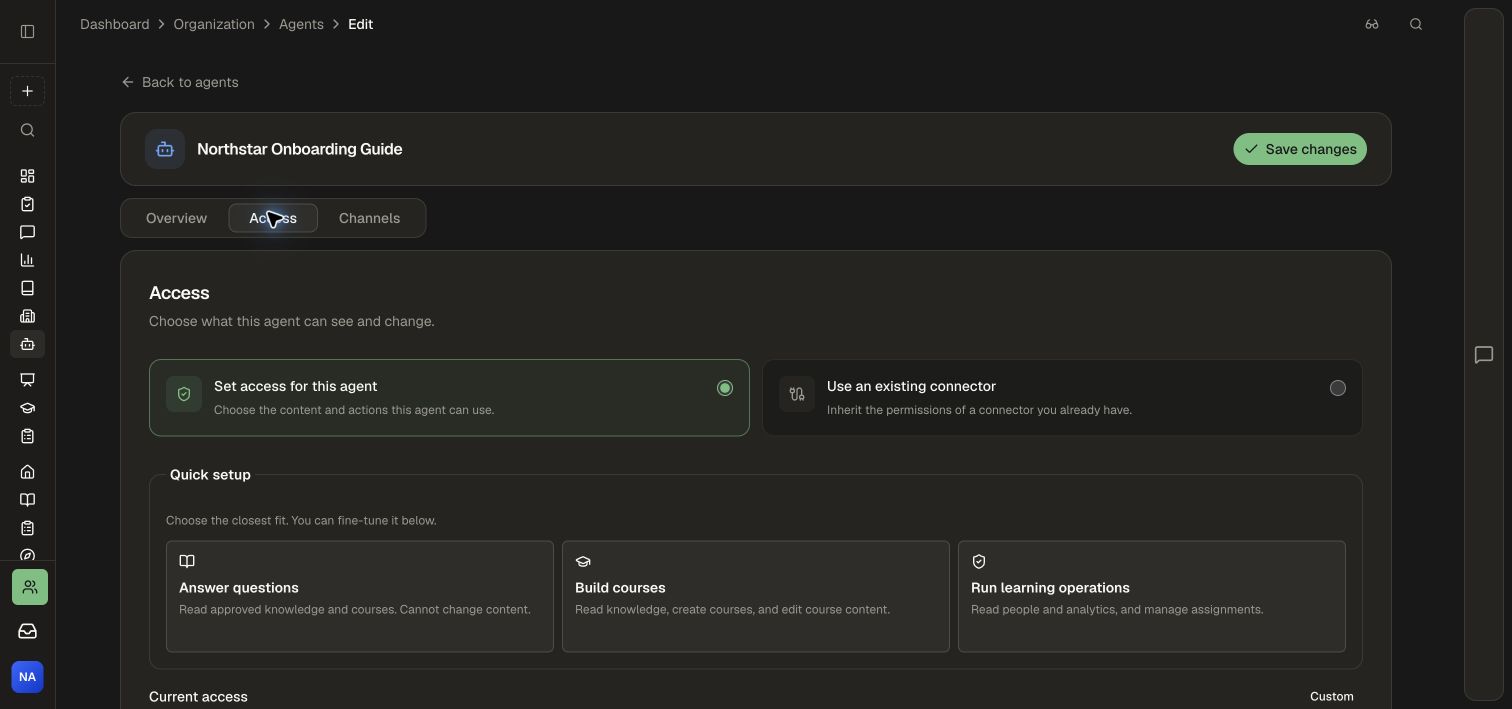
Open Access → Set access for this agent. The presets provide starting points: Answer questions, Build courses, and Run learning operations. For a document-only guide, expand Customize permissions and keep Knowledge Base → Read.
Under Folders / documents, select the approved folder. Our example selects Product onboarding. A folder includes its children and future files added inside it. Selecting an individual document includes only that document.
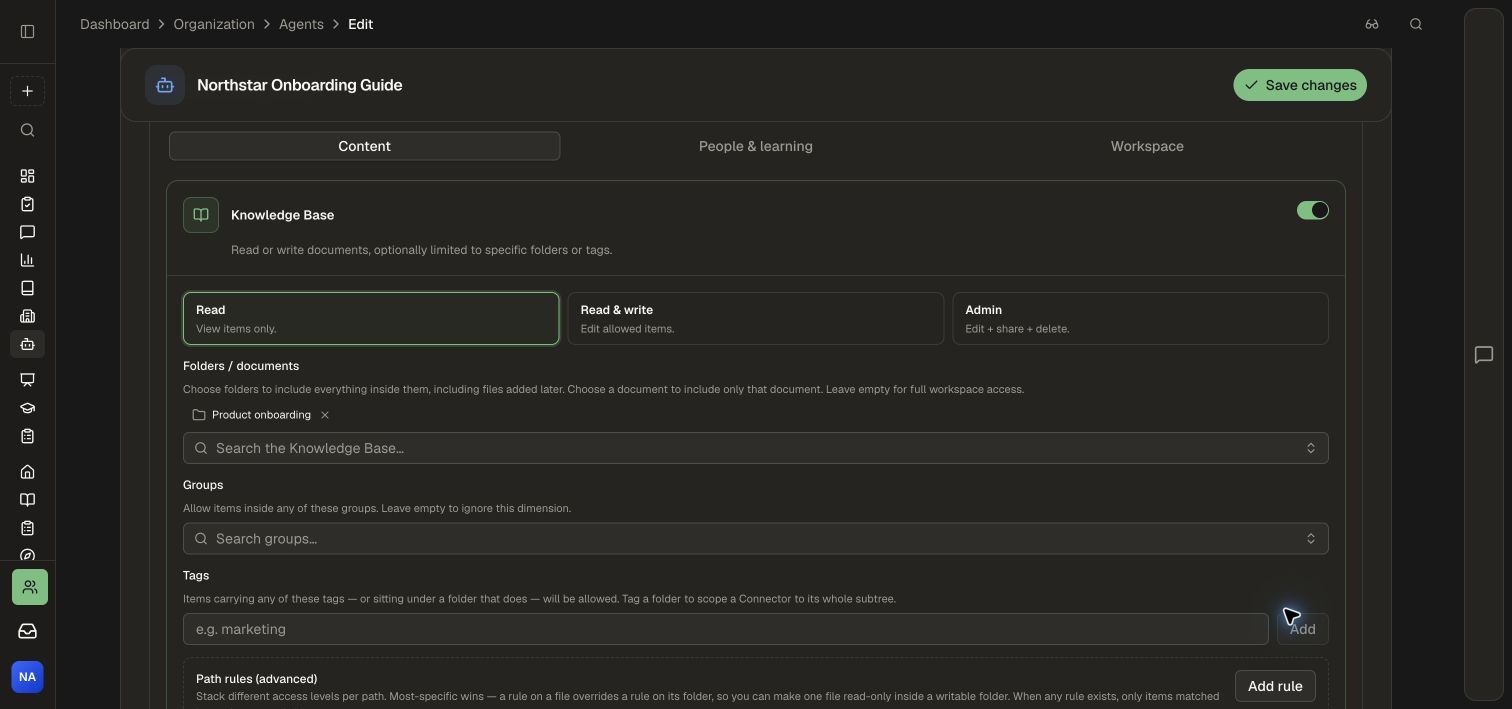
With no document, folder, group, tag, or path restrictions, enabled Knowledge Base access covers the workspace. An empty folder selection alone is not a restriction. A name or instruction mentioning a folder does not restrict access by itself; select the folder in this control.
Turn off Courses and Course Creator if they are unnecessary. Review People & learning and Workspace too. In the example, People, Analytics, Assignments, Groups, Radar, Explore, Workspace settings, and Integration audit are off. Workspace Assistant is required for the Agent to run its approved tools.
3. Review channels
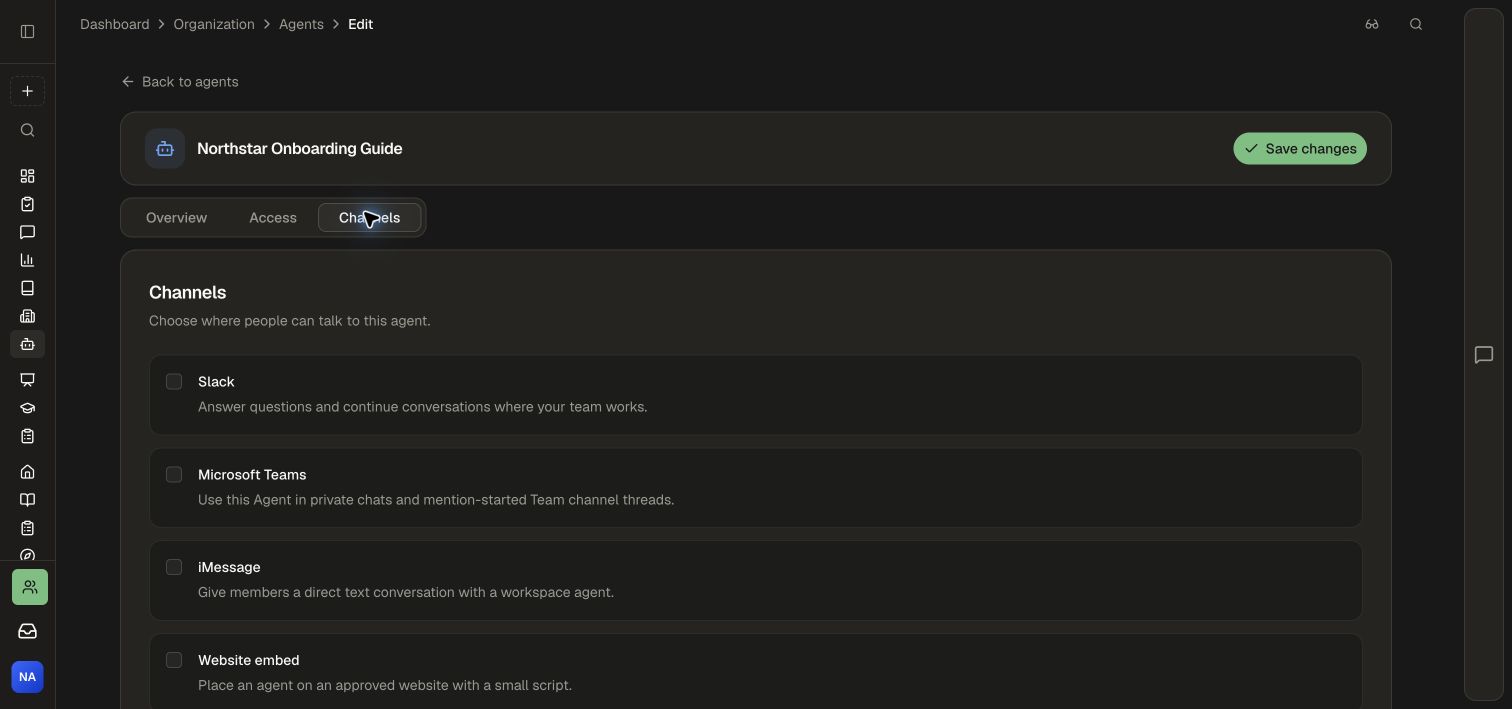
Open Channels. Honen offers Slack, Microsoft Teams, iMessage, and Website embed. Leave them unchecked while preparing an internal draft. Channel setup is completed after saving the selected channel.
4. Create and verify the draft
Choose Create agent. A confirmation page shows the Agent was created and whether channels need setup. Open Edit agent settings, set Status → Draft, and choose Save changes if you are still preparing it.
Reopen Access to verify the selected folder and read-only permission survived saving. The saved draft is ready for a controlled automation test. Configure a channel when you are ready to offer it to your audience.
If something looks wrong
- Answers mention unrelated material: check the folder allowlist and any inherited connector; instructions alone are not the access policy.
- A folder is missing: confirm the workspace and your permission to that Knowledge Base item. Clear the picker search to browse available items.
- The Agent cannot edit a course: a read-only document guide intentionally lacks course editing access.
- No chat channel is available: creating the Agent does not finish a channel's separate connection and deployment setup.
Then run a small automation test or inspect existing Agent logs. For identity and channel differences, read Agents.