
Open a generated reading in the direct editor to refine wording, formatting, and media. The screenshots show the fictional Northstar onboarding course.
1. Open the reading
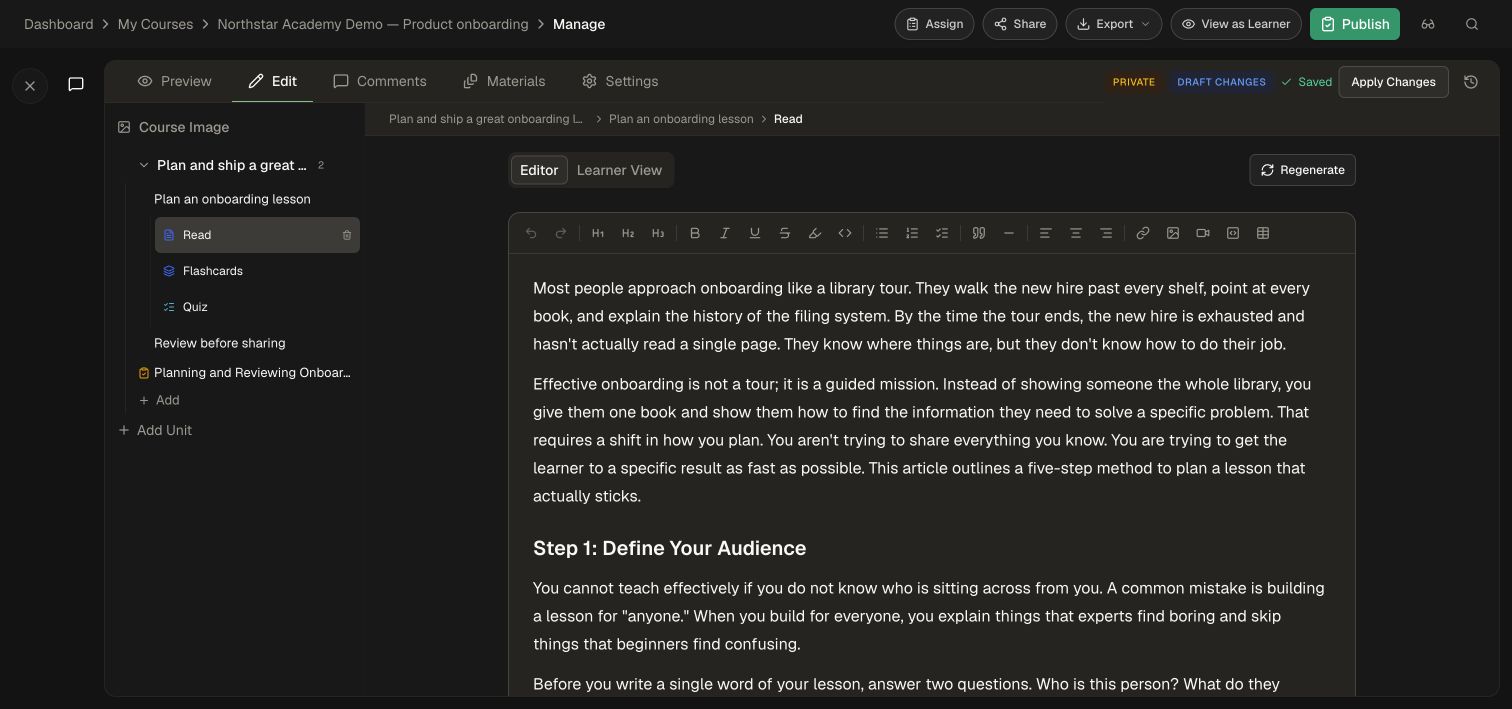
- In the course editor, select Edit.
- Expand the unit and topic in the left course tree.
- Select Read below the topic.
- Stay on the Editor tab to edit; use Learner View to check the presentation.
2. Refine the content
- Place the cursor in the reading and edit the relevant passage.
- Select text before applying heading levels, bold, italics, lists, or links from the toolbar.
- Use Undo when correcting a recent editing mistake.
- Check the preview after changing structure, tables, or media.
The toolbar also provides Insert Video, Insert embed, and Insert Table. Choose the content type that fits the explanation, then follow its dialog.
3. Add an image
- Position the cursor where the image belongs.
- Select Insert Image in the toolbar.
- Choose Upload for a local image or From URL for an image link.
- Follow the dialog and wait for the image to appear in the reading.
- Verify the image and surrounding text in Learner View before applying the course changes.
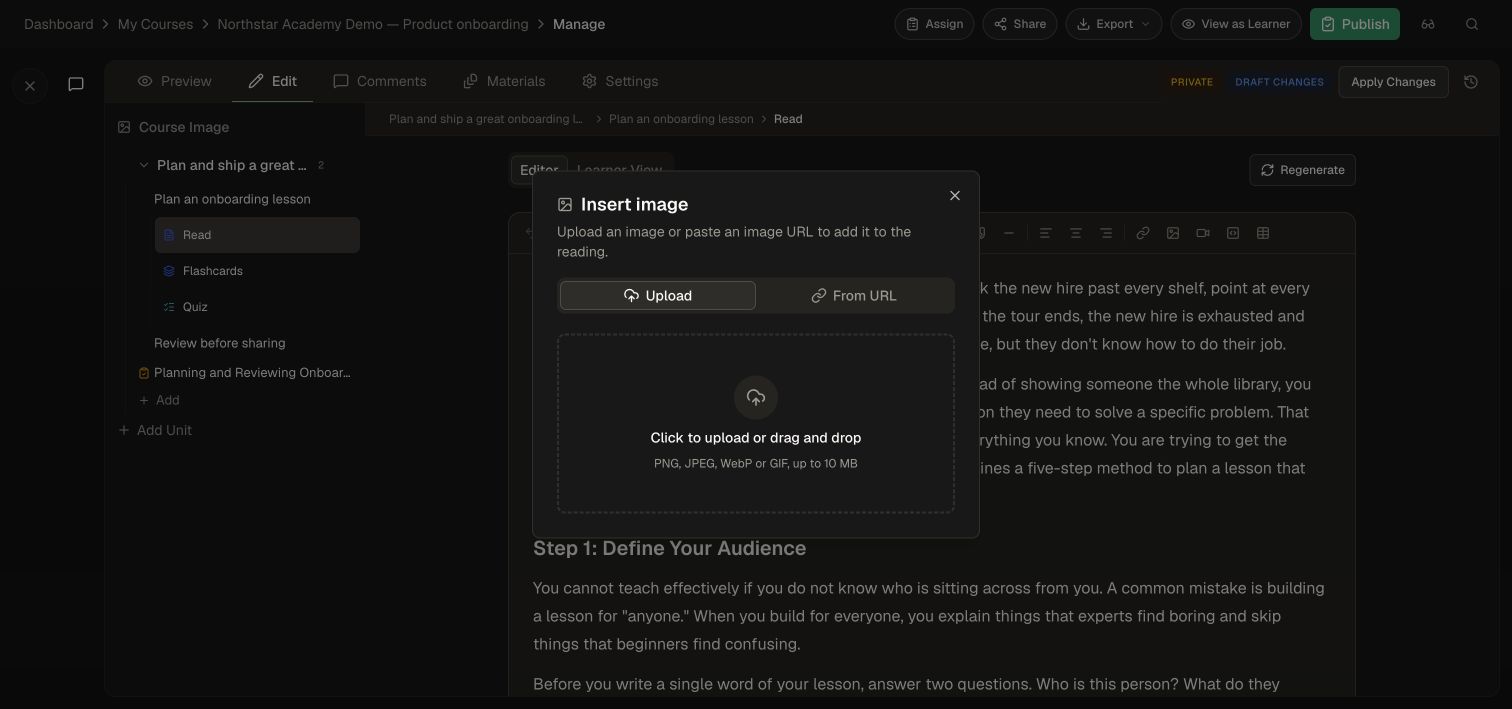
The upload dialog accepts PNG, JPEG, WebP, or GIF up to 10 MB. Use screenshots that show the relevant task without unrelated account information.
4. Adjust an existing generated image
An existing image exposes separate actions: Edit lets you request changes to the existing image, Redo requests a new generated image, and Replace lets you upload your own file. Inspect the result before keeping it. Edit image caption changes its caption. Use the caption to explain what learners should notice in the image.
After an edit, wait for the saved state, verify it in Preview, and use Apply Changes when ready. See Edit and review a course.
Preview and apply
Open Learner View to review the reading’s text, images, tables, and embeds together. When the lesson is ready, use Apply Changes and follow Publishing and review to share the update.