
Open a topic, study its content, and move between lessons. The examples use the fictional Northstar onboarding course.
1. Enter the course
- Open a course you can access from My Courses or its assigned link.
- Choose a topic from the course outline.
- If a topic start screen appears, review the learning goals and choose an available format.
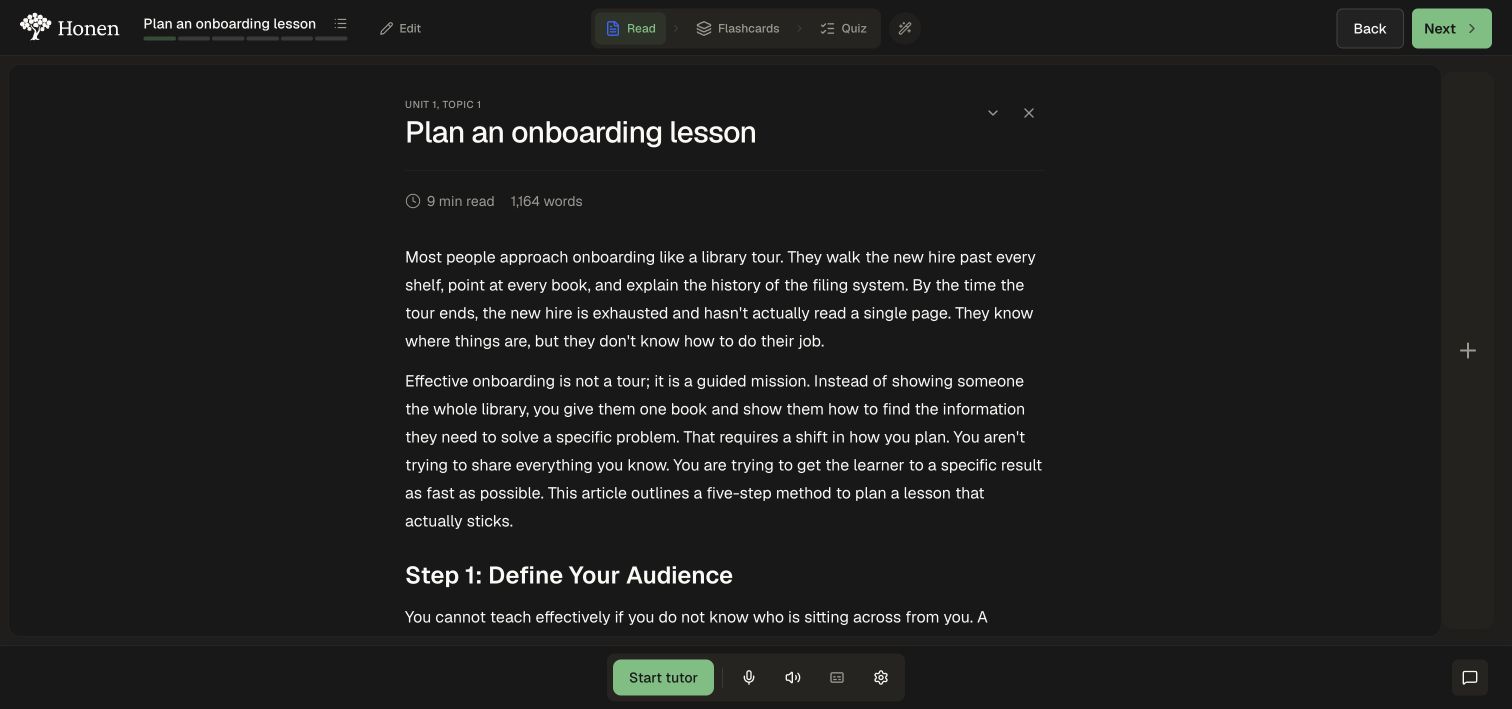
- Select Read to open the reading.
Course authors can also use View as Learner from the editor. That view has author controls ordinary learners may not see.
2. Work through the topic
- Read the content and inspect its images and examples.
- Complete any interactive elements in the reading.
- Use the format buttons to practice with Flashcards or Quiz, when available.
- Use Next to move onward after the work is complete.
Available formats depend on what the author generated. The demo includes reading, flashcards, and quiz; a topic does not necessarily include every format.
3. Use the lesson plan
- Select the topic title or lesson-plan icon in the top bar.
- Expand the relevant unit.
- Select a topic or unit test.
- Read any remaining-work message near Finish the course.
- Close the lesson plan to return to the current activity.
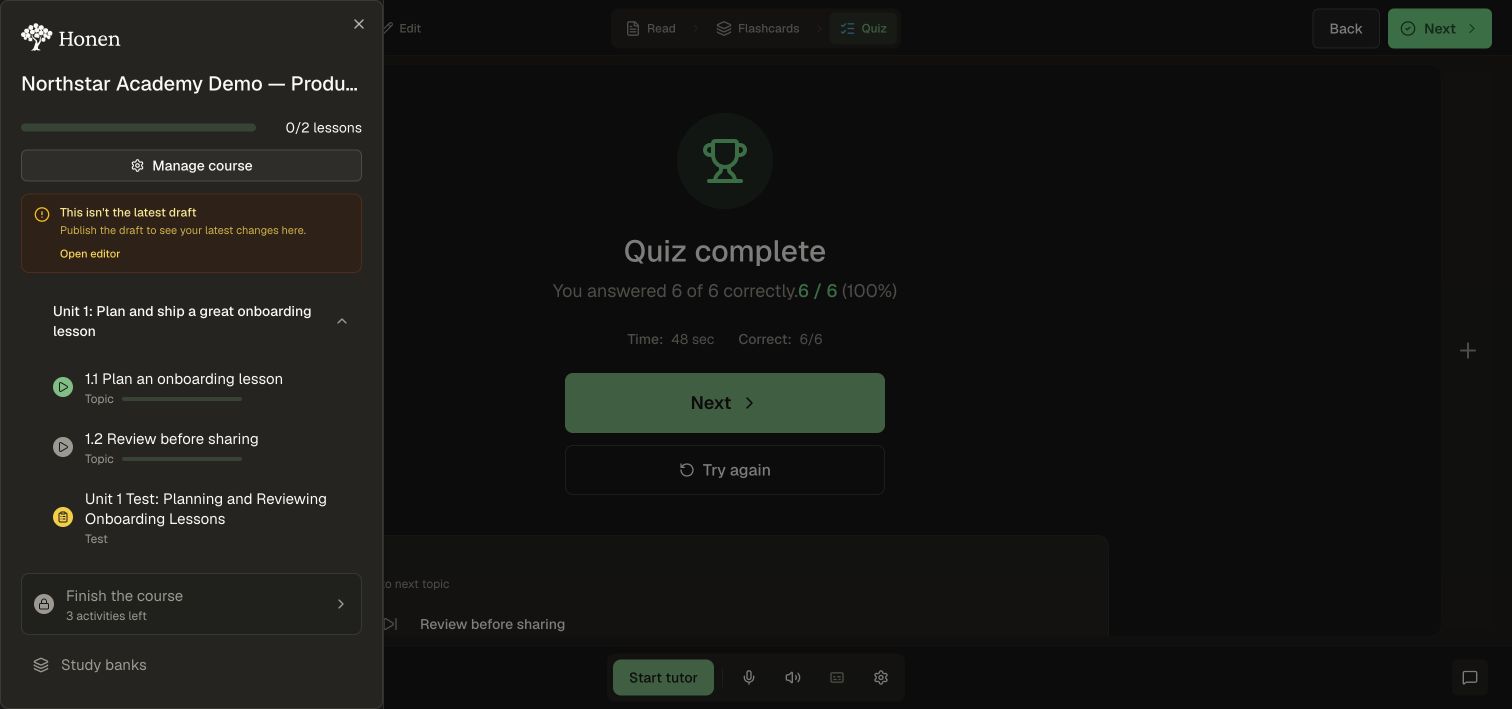
In an author's learner view, a warning can appear when the live learner version differs from the latest draft. Use the editor's Preview to inspect draft changes.
Continue with flashcards, a quiz, or the tutor.