
Connect your organization's identity provider so learners can enter Honen using their existing sign-in. Honen offers presets for Google Workspace, Microsoft Entra ID, Okta, Auth0, and Keycloak, plus Generic OIDC.
You need Manage integrations permission in a team workspace and someone who can register an application in the identity provider.
1. Register Honen with your provider
- Open Organization → Integrations → Identity & SSO.
- Under OpenID Connect, copy the OIDC callback URL.
- In your provider, create a confidential web application using the authorization-code flow.
- Register the copied callback as the application's redirect URI. Use the exact value shown in your workspace.
- Include the
openid,profile, andemailscopes. Configure the provider to supply a verified email and a stable subject identifier. - Obtain the application's issuer URL, client ID, and client secret. Assign the intended test user or audience in the provider.
For the Honen production host, the callback is https://honen.com/api/auth/sso/oidc/callback. Copying it from the screen keeps your setup aligned with the environment you are using.
2. Add the connection in Honen
- Choose Add OIDC connection.
- Enter a Connection name, such as “Northstar workforce.”
- Select the matching Provider preset.
- Enter Issuer URL, Client ID, and Client secret from the provider application.
- Review Scopes, which starts with
openid profile email. - Choose Default member role and whether to use JIT provisioning.
- Review Allow account-wide session requests according to your identity rollout plan.
- Choose Add connection.
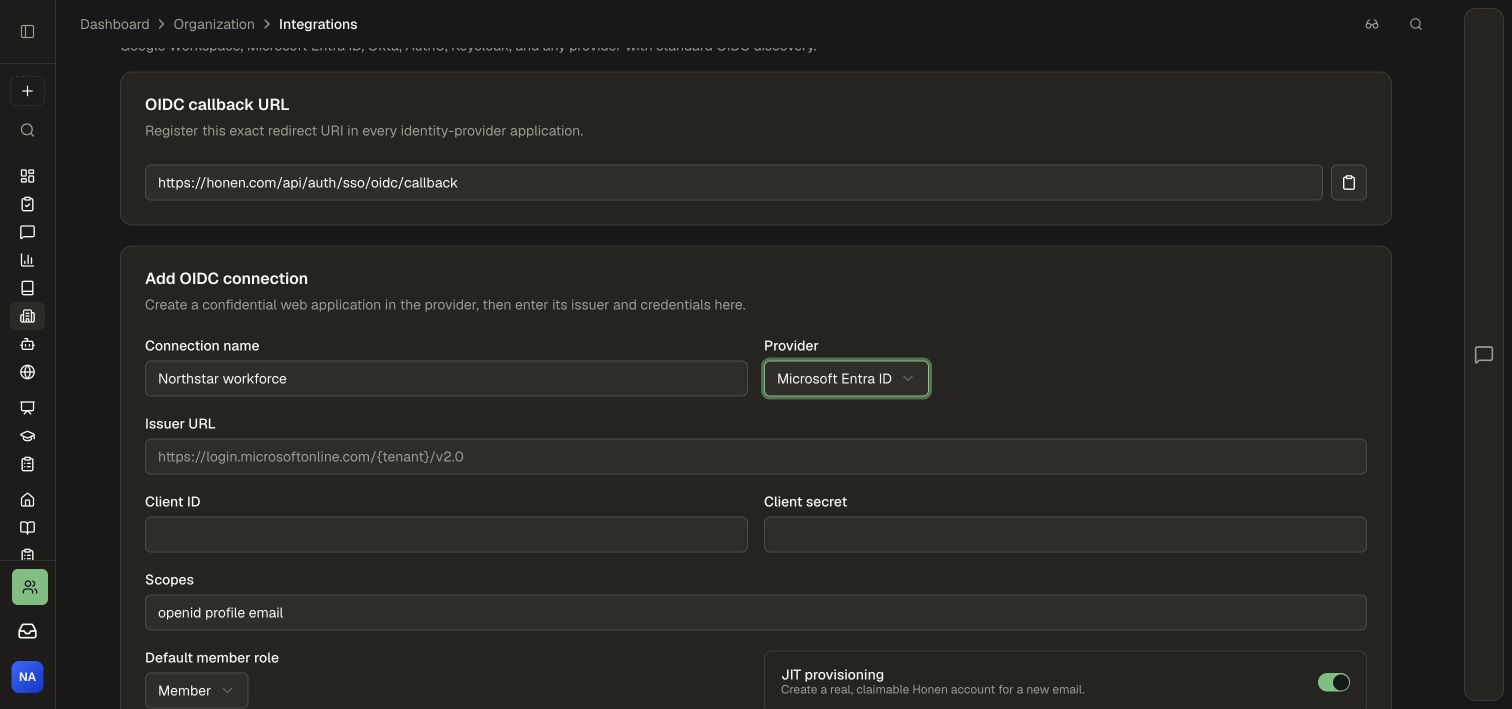
The screenshot shows the setup fields before credentials are entered. Supply the values from your own provider application when configuring your connection.
Provider issuer examples
| Provider | Issuer form |
|---|---|
| Google Workspace | https://accounts.google.com |
| Microsoft Entra ID | https://login.microsoftonline.com/{tenant-id}/v2.0 |
| Okta | The exact issuer from the chosen Okta authorization server |
| Auth0 | The issuer for your Auth0 tenant or configured custom domain |
| Keycloak | https://{host}/realms/{realm} |
| Generic OIDC | Your provider's exact discovery issuer |
Use the exact issuer advertised by the provider. For Entra ID, use the organization's tenant-specific issuer. The provider's discovery document supplies the authorization, token, and public-key endpoints.
3. Test the complete learner sign-in
- In the saved connection card, choose Test sign-in.
- Sign in as the intended provider test user.
- Complete Honen account linking if prompted for an existing account.
- Confirm the intended Honen workspace and member role.
- Open a course assigned to that learner and return to the workspace.
- Check the connection's Last login information.
Test both a new learner and an existing Honen account when both will be part of your rollout. Coordinate this with your identity administrator so the provider's application assignment and Honen's access policy match.
4. Maintain the connection
- Enable or pause sign-in: use the switch on the connection card.
- Rotate the client secret: create the replacement in your provider, choose Rotate secret in Honen, enter Replacement client secret, and select Save secret. Test sign-in again before retiring the old provider secret.
- Adjust account-wide requests: use the connection's Account-wide requests setting according to the approved rollout scope.
- Retire the connection: plan the replacement sign-in route, then use Delete when that connection should be removed. Review active-session handling as part of your offboarding process.
Review SSO and identity to plan provisioning, account linking, and session scope. For a portal that signs its own launch assertions, use Signed JWT.