
Build a small, maintained library before generating courses or sharing an Agent. This walkthrough uses the fictional Northstar Academy · Demo workspace and a Product onboarding folder.
1. Choose the workspace and folder
Open the workspace switcher and confirm the team you intend to edit. Choose Knowledge Base in the dashboard navigation. Use the + beside the Knowledge Base title to add an item at the root, or the + beside an existing folder to add inside it.
Choose New folder, enter a descriptive name, and create it. In this example, Product onboarding sits inside Support Handbook. Open the new folder before adding its documents.
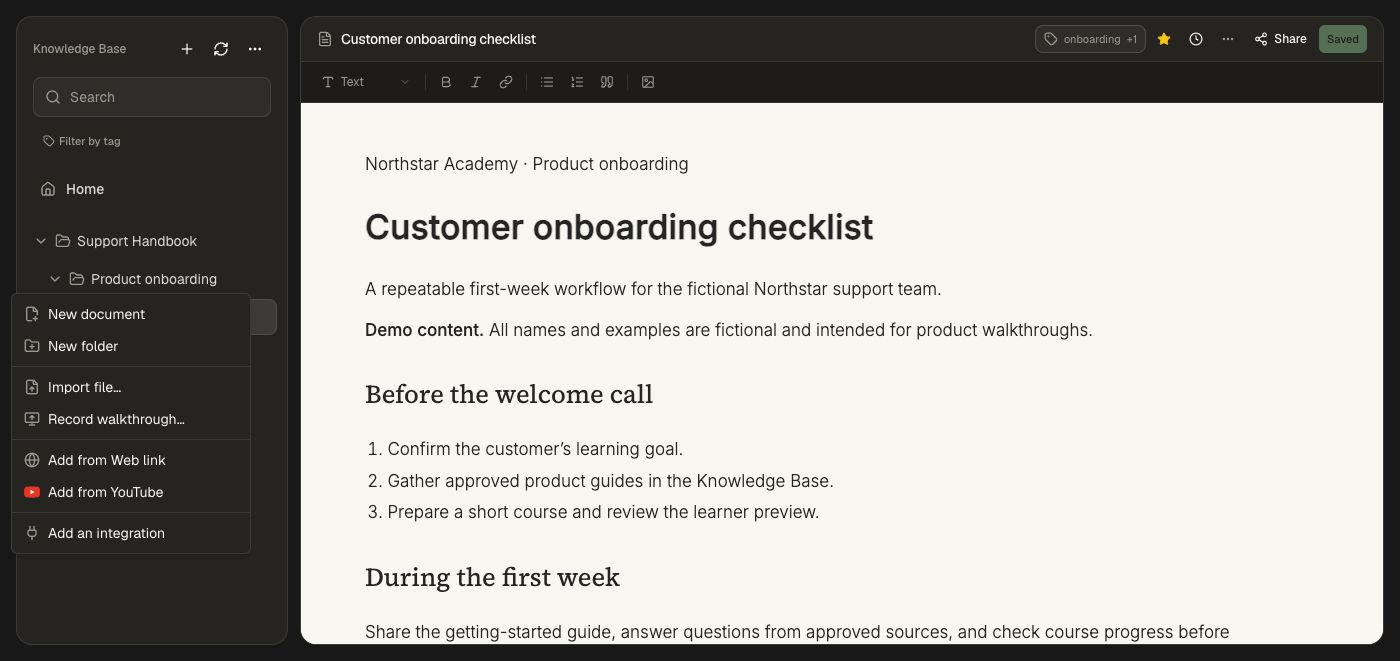
The same menu includes file imports, walkthrough recording, web links, YouTube, and connected sources. A connected source appears here after you connect it through Add an integration.
2. Create a document
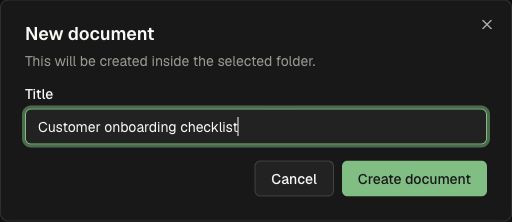
Choose New document, enter Customer onboarding checklist, then choose Create document. The dialog confirms that the document will be created inside the selected folder.
The new document opens in the editor. Replace the starter content with your guide. Use short headings, numbered actions, and a clear completion condition. The formatting toolbar supports block styles, bold, italic, links, lists, quotes, and images.
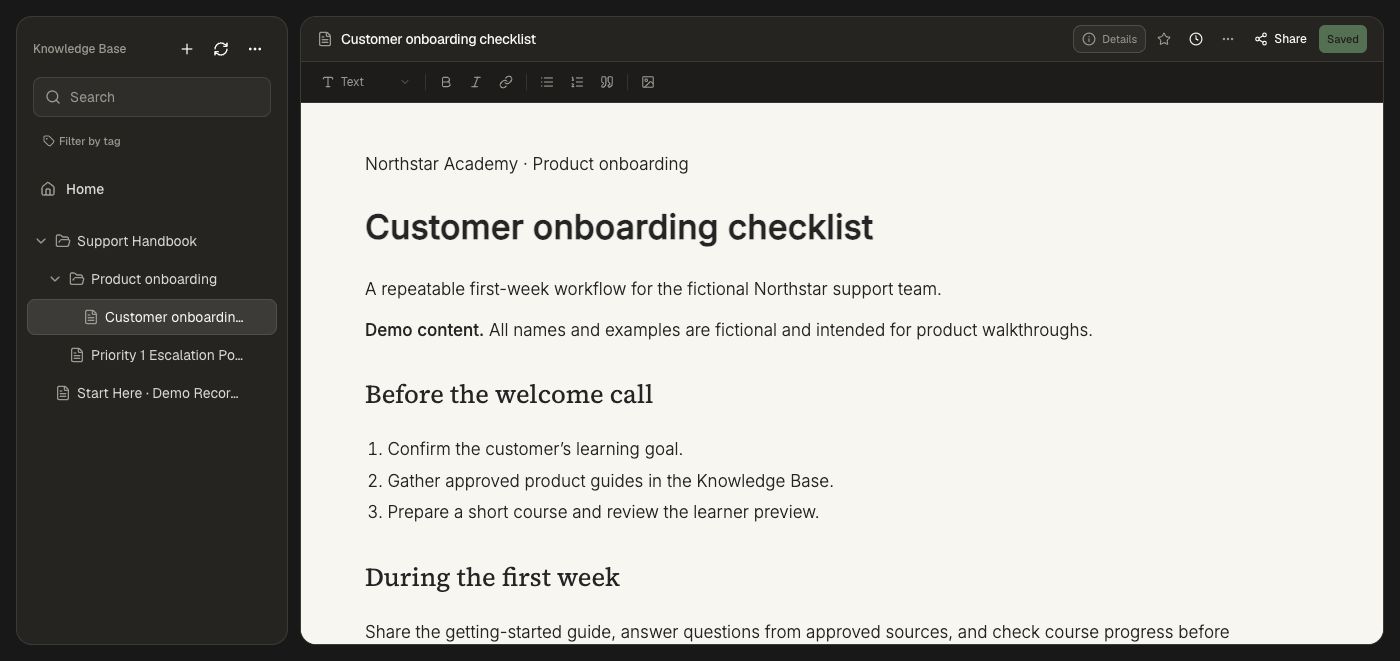
Wait until the status reads Saved before leaving. The example contains a first-week checklist and a definition of done, so it can serve as source material for both a course and an Agent.
3. Add tags
Open Details → Add tags, or More actions → Add tags. Type a tag and press Enter or a comma to add it. Choose an existing tag when appropriate, then Save tags. Tags are lower-cased.
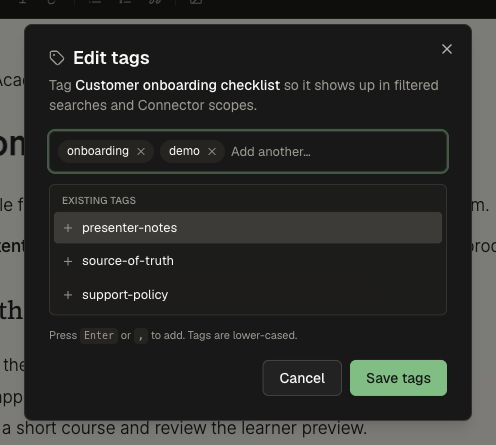
Use Filter by tag in the sidebar to narrow the library. Tags also help define Connector scopes; keep their meaning consistent across your team.
4. Find frequently used material
Select the star beside the document title to add it to favorites. Open Home to find recent documents and favorites. Use the sidebar search to find a document by its title. Folder expansion controls let you browse the hierarchy without opening each document.
5. Review a previous version
Open Version history beside the document title. Select a revision on the left, then use Preview to read it or Changes to inspect differences. The current revision is labeled Current.
A source revision and a published course revision are separate. Review the material before using it to update learner-facing content.
6. Reuse the source
For a course, open Create or the course editor’s materials controls and select the relevant Knowledge Base documents. These materials are version snapshots. When Source doc updated appears, Refresh from KB replaces the source material snapshot. It does not rewrite authored lessons or questions; ask the course editor to revise affected content, review the changes, and publish through the configured workflow.
For an Agent, choose this folder in its Knowledge Base access policy. Instructions describe its job; the access policy determines which material it can read. See Create an Agent.
For an academy, open the Site editor’s Content → Docs, enable documentation, and select the intended folders. The Site’s access settings determine who can see those documents. See Publish an academy.
Give each team a clear home
Organize folders around departments or shared topics: Product, Engineering, Customer Success, Legal, and Operations. Keep learning templates and reusable authoring guidance in a separate Learning & Development folder.
- Create a folder for each knowledge area and a subfolder for each focused topic.
- Open its sharing controls and grant the appropriate workspace, group, or named people access.
- Choose Viewer, Editor, Maintainer, or Admin according to the work each person needs to do. Give subject-matter experts responsibility for their area.
- Keep connected documents edited in their original system and Honen-authored documents maintained in Honen.
- Schedule an Agent automation to review selected sources or identify affected courses. Grant proposal access when the task should prepare a course update for human review.
Use Source-backed learning to carry approved material into courses and refresh it as your organization changes.
Maintain connected material at its source
For GitHub and other linked systems, edit the original source and refresh the connection. Local changes to synced material can be replaced by a later source update. See Sync documentation from GitHub.