
Set a consistent coaching approach for the AI tutor. Guardrails describe the boundaries the tutor should hold and what it should do instead, such as prompting a learner to attempt a task before offering the next hint.
Manage workspace Guardrails in Organization → Guardrails with Manage AI rules permission. These settings address learner-facing tutor behavior; Rules address authoring and generation.
1. Start from the library or write your own
- Open Organization → Guardrails.
- Select Library to browse ready-made options, then Add the one you want to adapt. Open it to review and edit its instructions.
- To write one from scratch, select New guardrail.
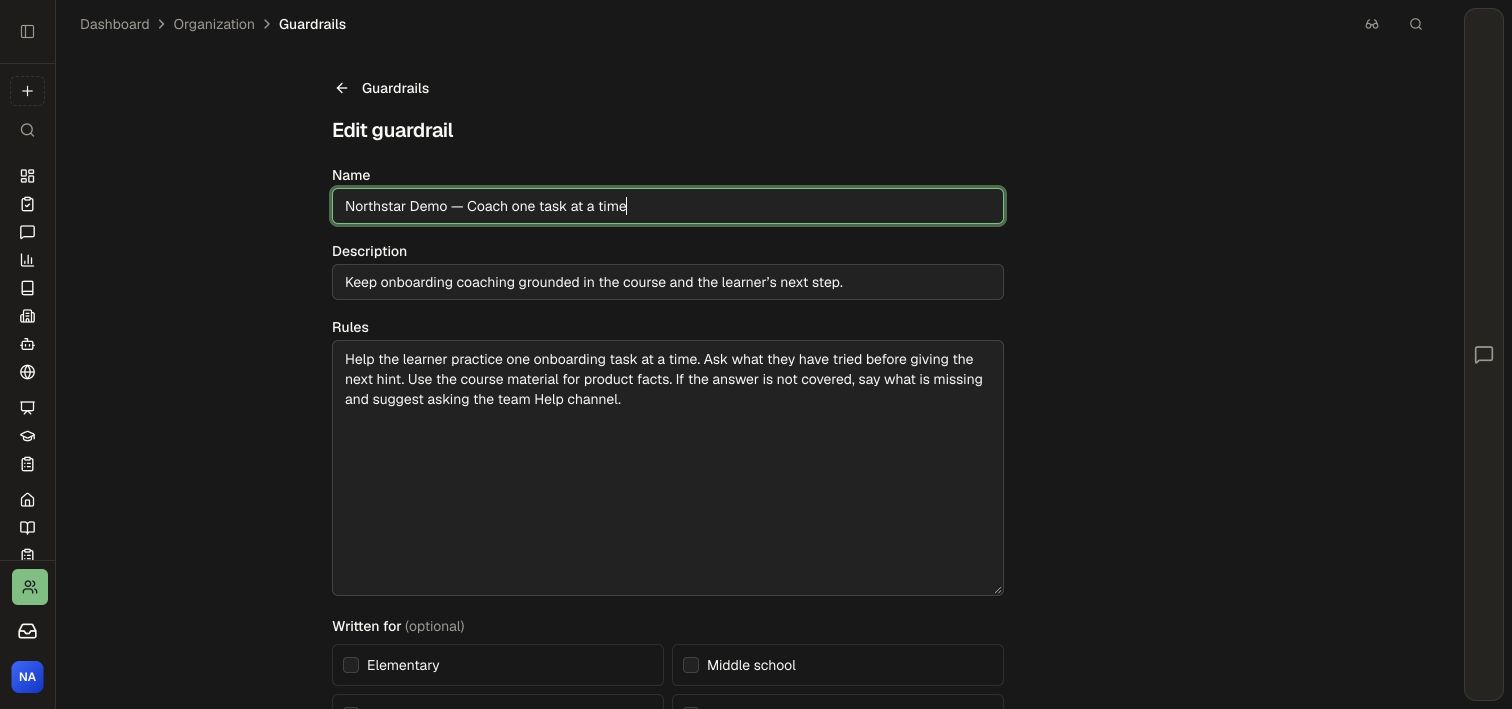
- Enter a Name, a one-line Description, and the Rules the tutor should follow.
- Optionally choose a Written for audience, such as Workforce or Higher ed.
2. Choose its scope
- Leave Apply to every course off when authors should choose the guardrail in individual course settings.
- Turn it on when every course in the workspace should inherit it.
- Use Enabled to activate it, or leave it off while preparing the guidance.
- Select Create, or Save changes when editing.
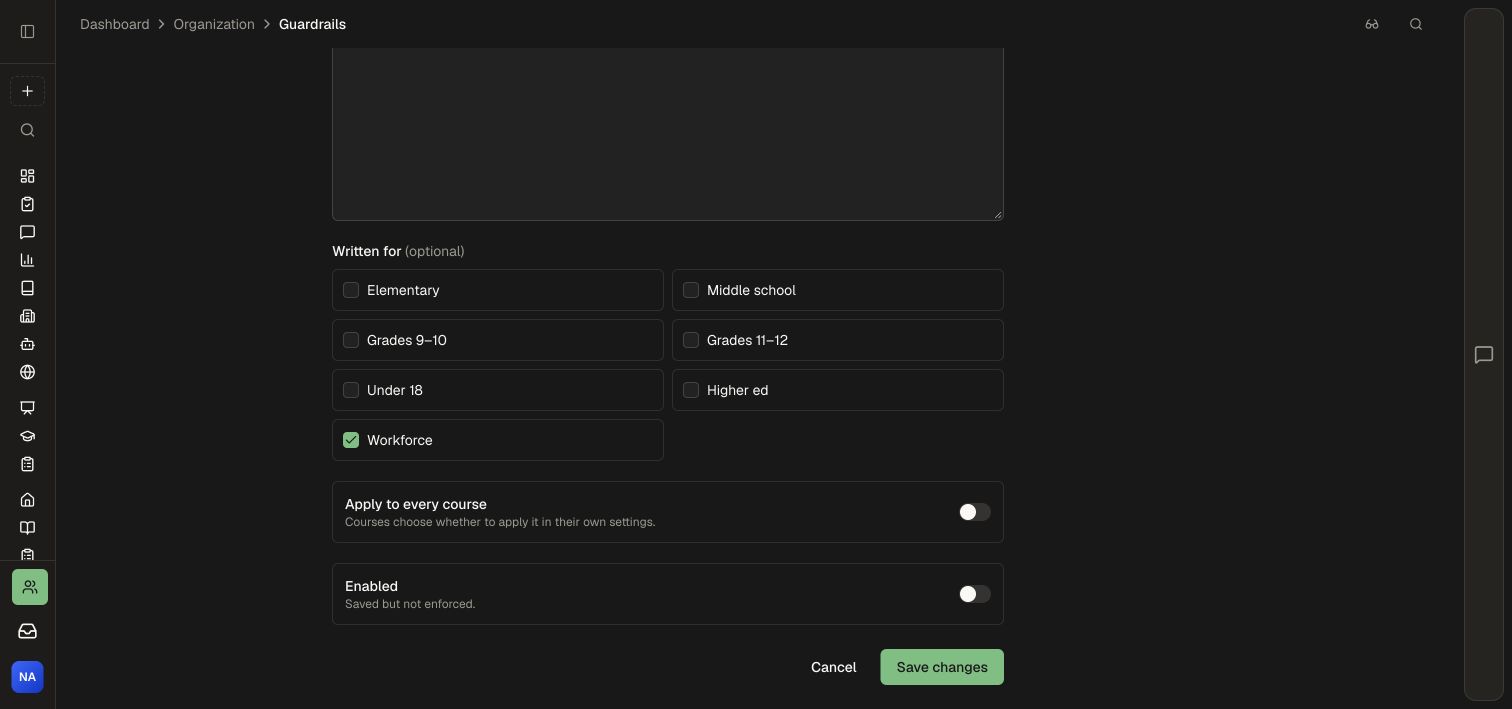
The audience label describes who the guidance was written for. Course selection and Apply to every course determine where it is used.
3. Select optional guardrails on a course
- Open the course editor's Settings → Guardrails.
- Review the guardrails inherited from the organization. Required workspace guardrails appear locked on.
- Select any optional guardrails appropriate to this course.
- Open the learner preview and try a short tutor conversation that exercises the intended coaching behavior.
The course's guardrail switch controls its optional selections. Required workspace guardrails remain in force. Guardrails follow the course's authoring organization when the course is shared elsewhere.
Maintain the guidance
Open a guardrail's edit control to update its rules. Use the enabled switch to pause it, or More actions → Move up / Move down to organize the list. Deleting a guardrail stops it applying to courses that use it; turn it off when you want a reversible pause.
Keep guidance concise and concrete: name the boundary, describe the helpful alternative, and test a representative conversation. See Configure course settings for tutor settings and AI tutor for the learner experience.