
Make a focused change to a draft, verify it in Preview, then apply the revision. You need course editing access.
1. Open the course editor
- Open Organization → Courses and content.
- Find the course and select Edit.
- If the completion screen appears, choose Review & edit.
- Check the course title in the top breadcrumb before editing.
2. Inspect the learner preview
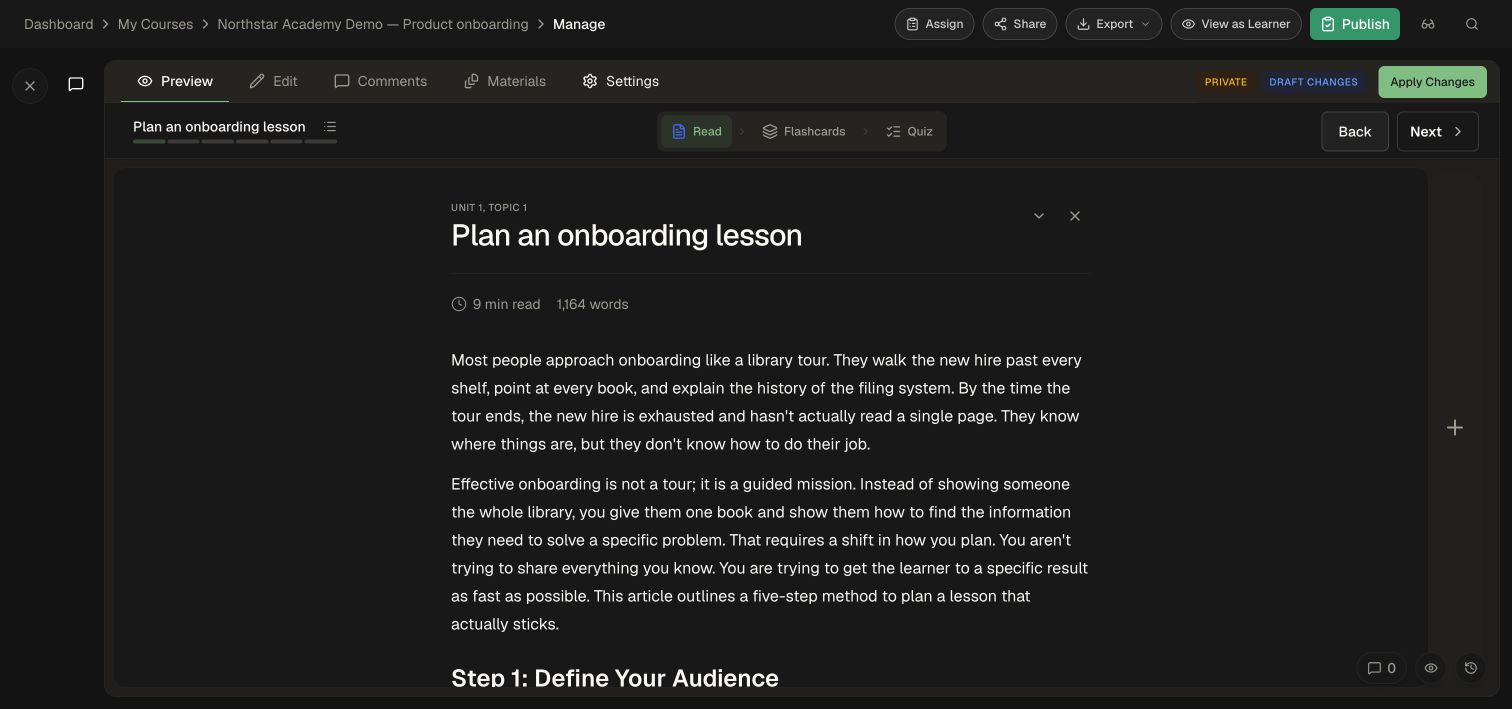
- Select Preview.
- Open the topic you want to change.
- Try its reading, flashcards, or quiz using the format buttons.
- Collapse the Course Editor Assistant if you need more room.
3. Edit a topic directly
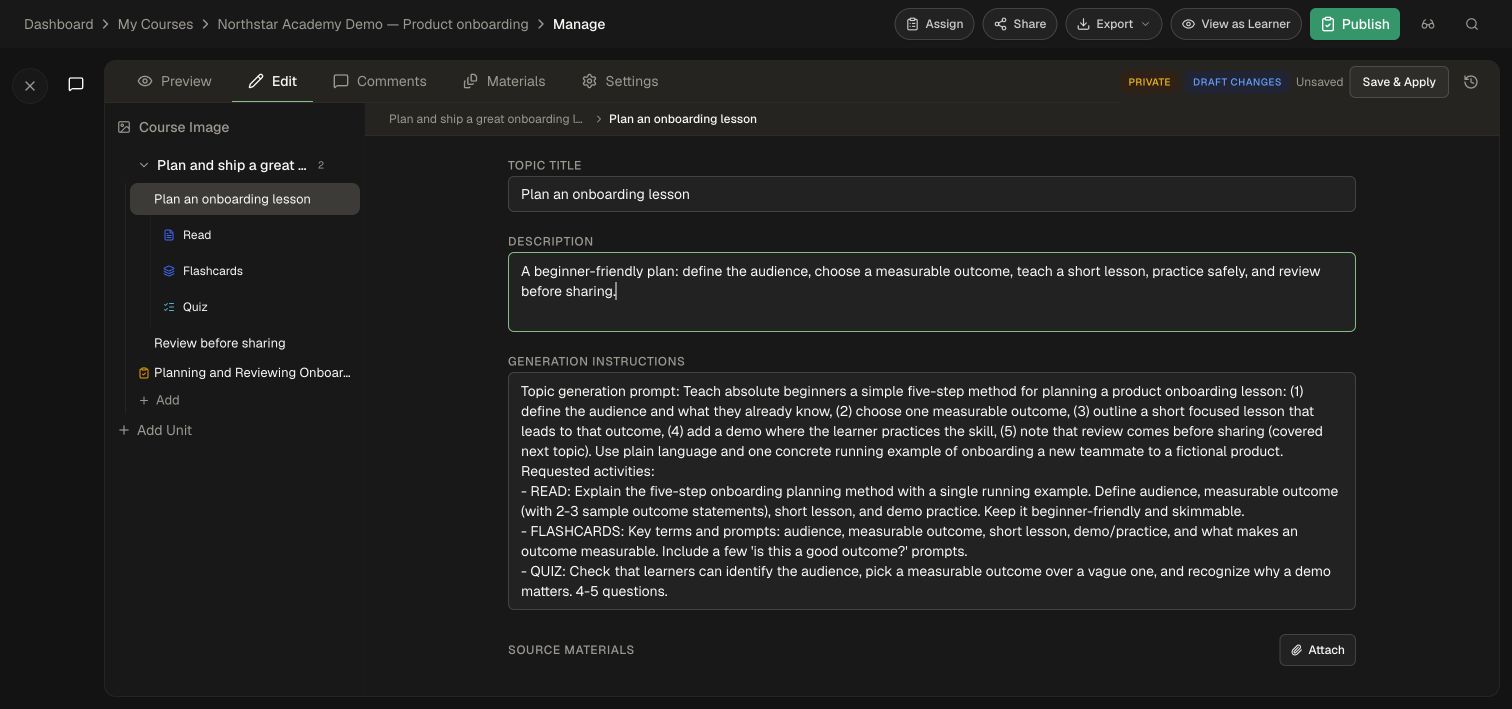
- Select Edit.
- Expand a unit in the left course tree and select a topic.
- Update Topic title, Description, or Learning objectives as needed.
- Use Generation instructions for directions about generated content; changing these instructions alone is not a substitute for checking the resulting activity.
- Wait for the save indicator. The button may show Save & Apply while a change is still unsaved.
A concise topic description helps authors and learners understand its purpose.
For an AI-assisted edit, open Course Editor Assistant and specify the exact topic and change: “Shorten the first reading's introduction and keep the five planning steps.” Review its result before applying.
4. Apply and verify
- Return to Preview and check the changed content.
- Select Apply Changes (or Save & Apply if shown).
- Wait until Applying… finishes. Do not navigate away during the operation.
- Confirm that Draft changes clears and the apply button becomes unavailable when there is nothing left to apply.
- Open Version History to see the saved revision. Use Preview on a version to inspect it before considering Rollback.
The latest Working draft entry lets you inspect the applied revision. Follow Publishing and review when releasing it to a catalog.