
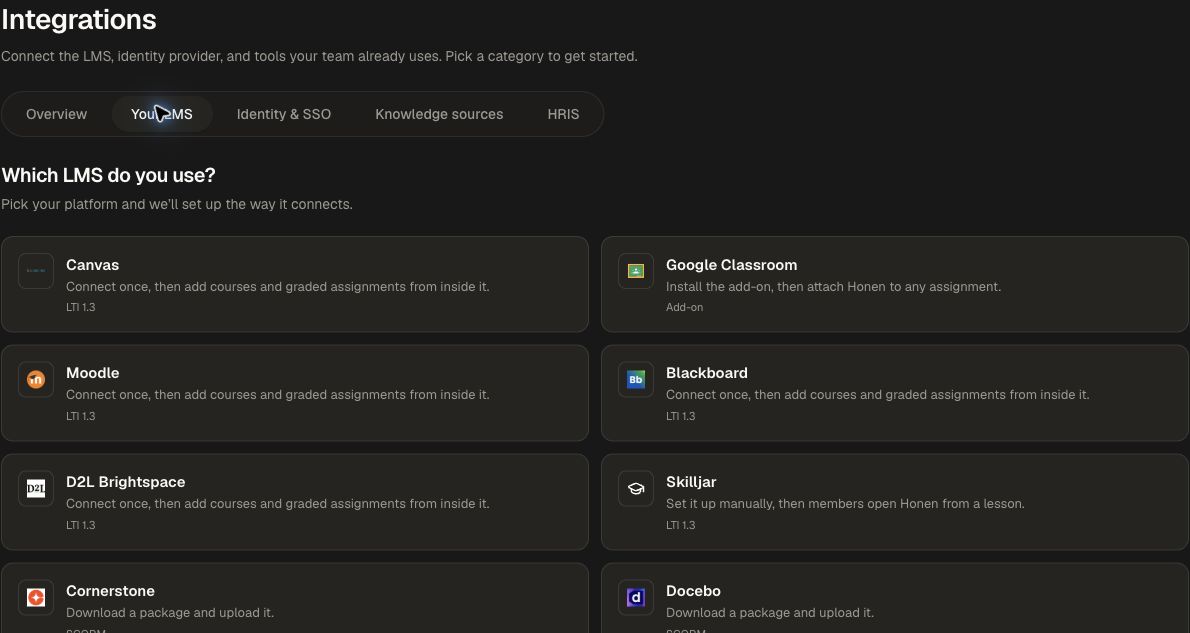
Honen's Google Classroom integration uses a Classroom add-on, separate from LTI. Your institution must make the add-on available and authorize the relevant Google account.
Install the add-on
- Open Organization → Integrations → Your LMS and choose Google Classroom.
- Choose Install add-on to open Honen’s Google Workspace Marketplace listing.
- For an institution-wide rollout, use your Google Workspace super administrator account and choose Admin install.
- Select the organization, organizational units, or groups that should receive the add-on. Review the requested access and complete Google’s installation flow.
- Ask a teacher in that audience to open Classroom and confirm Honen appears in Add-ons.
Attach Honen content
- As a teacher, open the class and choose Classwork → Create → Assignment.
- In the attachment area, open Add-ons → Honen.
- Sign in with the intended account when requested. Choose a complete course or a supported graded activity from a course.
- Attach the content, set points and a due date as needed, then choose Assign.
- Open the assignment as a test student and confirm the attached content launches.
Use the installed add-on to create an attachment with the Classroom launch and grade-reporting flow. Its availability follows your Google Workspace setup and add-on installation.
Validate grades
For a graded activity, configure a positive point value in Classroom. Complete the Honen activity as a test student, then inspect the submission's draft points in Classroom. Honen updates draft points; the teacher is responsible for publishing the grade.
Use Classroom’s student-work review to inspect the attachment and draft grade before returning work to students.
Copies and account changes
When copying assignments, verify the copied attachment and student submission in the destination class. Reconnect if authorization expires or the connected account changes. Use a dedicated test class when preparing your rollout.
Prepare an installed add-on and a Classroom test class so you can verify the complete teacher and learner experience before rollout.
Start at LMS Integrations to compare this add-on with LTI and SCORM.