
Ask for an explanation while keeping the lesson in view. Use text, voice, or both, with separate controls for microphone input and audio output.
1. Open the tutor
- Open a course topic.
- Select Open tutor chat at the bottom right.
- Select Start tutor to begin the session.
- If using text only, use the microphone and audio controls to keep them muted.
For voice, your browser may ask for microphone permission. Only enable it when you want to speak.
2. Ask a focused question
- Type in Message your tutor….
- Ask about the current concept, a confusing example, or a practice step.
- Send the message and read the response.
- Ask a follow-up if the explanation does not resolve the question.
Example: “Explain a measurable onboarding outcome using a fictional task-management example.”
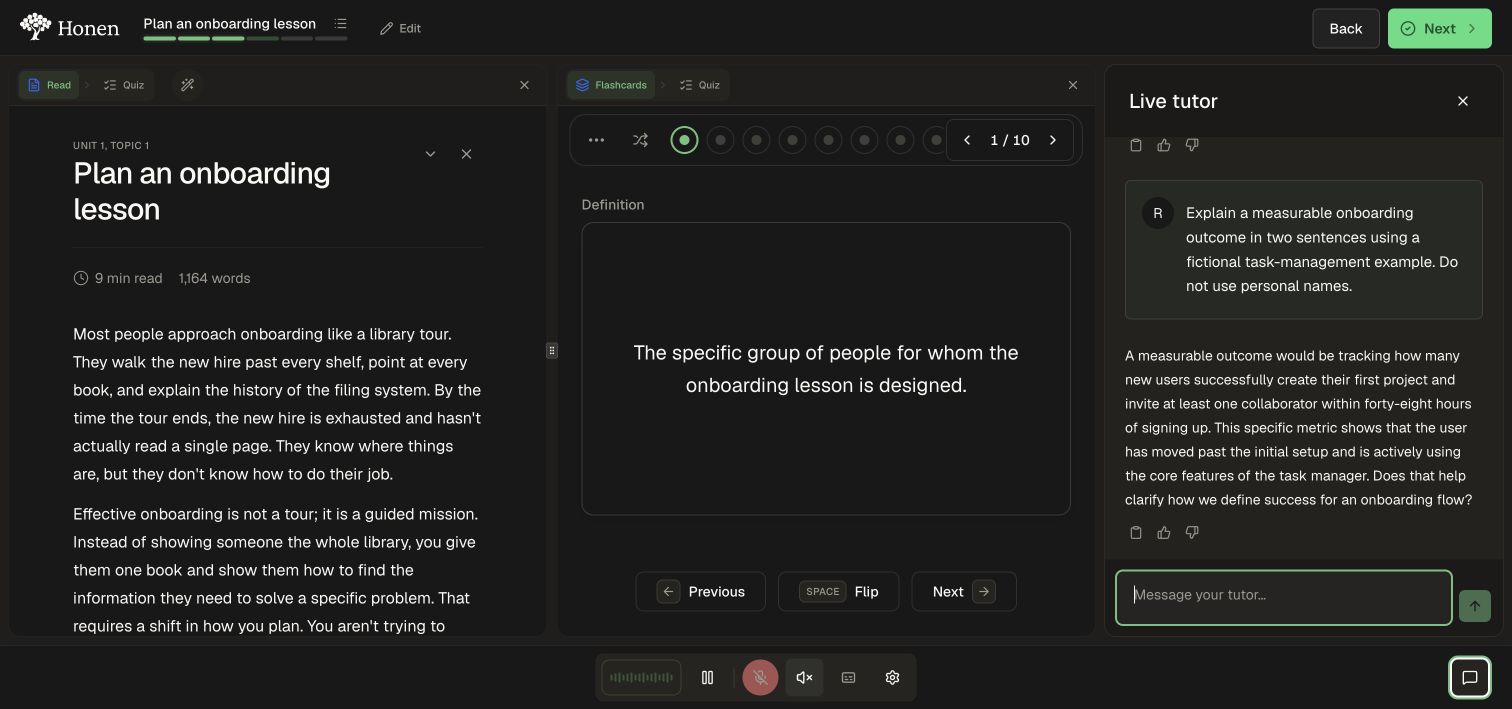
The tutor can help explain the lesson; check critical procedures against the course's approved source material.
3. Manage the session
- Use Pause when taking a break. The interface changes to Tutor paused and Resume.
- Select Resume to continue.
- Use the microphone and audio buttons to control input and output separately.
- Open Tutor settings for the controls available in your course.
- Use Close tutor chat when you want more room for the lesson.
Closing the chat panel and pausing the session are different controls. Pause before leaving the conversation if you are done for now.
Tips for your next step
Select Start tutor to begin the session. Choose your preferred microphone, speaker, and mute settings for voice conversations. Available tools follow the course’s Tutor settings and your access, with test-specific assistance and attachment controls.
Proactive help and optional practice
When the course enables Proactive Tutor, a thought bubble can offer help or acknowledge progress while you learn. Click it to open the same tutor pane. With Adaptive Courses — Beta, the tutor can also suggest optional topics that you accept with Add & start.