
Bring a maintained help center into Honen and use its product articles to teach the workflows customers or teammates need to perform.
Connect Document360
- Open Knowledge Base and choose Add an integration from the add menu.
- In Content sources, find Document360 and choose Connect.
- Create a Document360 API v3 key under Settings → Knowledge base portal → API keys, then enter it in API key. The dialog's Where do I find my key? link opens the provider's setup instructions.
- Choose Connect and confirm the connection is active.
This is a shared workspace connection. A workspace administrator with integration-management permission manages the key, and the Document360 account needs API v3 access. Use the key for the project whose articles belong in your training collection.
Select articles or categories
- Return to the Knowledge Base destination folder and choose Add from Document360.
- Browse the available project/workspace collection and its categories.
- Open a category to inspect its articles. Select individual article checkboxes for a focused course, or select a category to maintain that collection in Honen.
- Check the selected count and choose Add selected.
- Wait for processing. Open the imported documents and review headings, procedures, and screenshots.
The picker searches loaded items. Browse the relevant category and use Load more where available before deciding a particular article is absent.
Build a product course
- Open Create → Attach → Add from knowledge base.
- Select the imported articles that support one product outcome, then choose Add selected.
- Wait for the attachments to become ready.
- Write a brief such as: “Teach new customers to create their first project using these getting-started articles. Preserve the product's control names and use the article screenshots where they clarify a step.”
- Answer the setup questions and review the outline. Check that the sequence follows the real product workflow before choosing Approve & Build.
- In Review & edit, compare every product action and screenshot with the source. Try the learner activities in Preview.
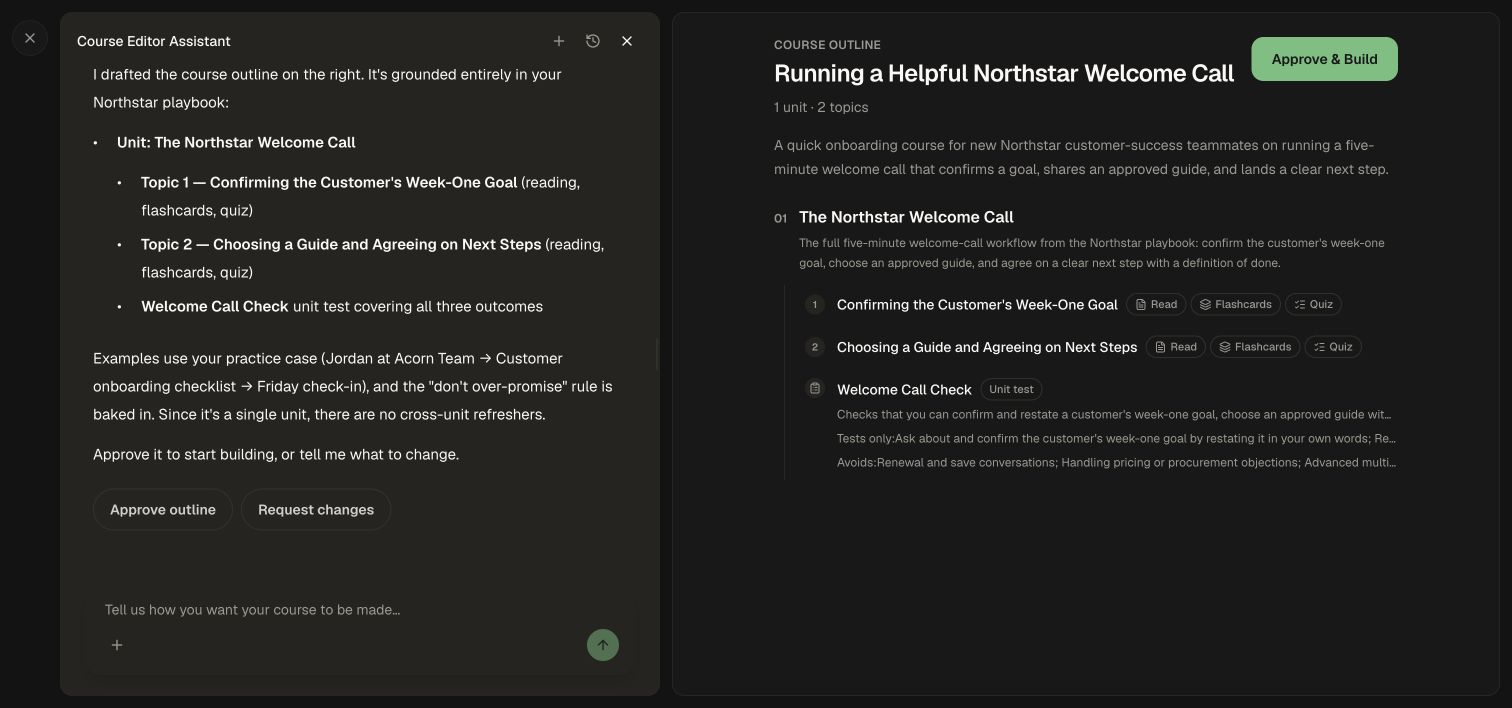
For an existing course, attach the articles through Materials → Add from knowledge base → Attach selected, then request the specific revision you want. Add sources to a course shows the attachment flow.
Refresh after a product change
Update the articles in Document360. Linked content refreshes on its supported schedule; Document360's scheduled refresh interval is at least six hours. Use Refresh on the Knowledge Base item to check sooner, then inspect the changed article.
Refresh the course material with Refresh from KB, update the affected lessons, and review before publishing. Build and maintain source-backed learning walks through that complete revision cycle.