
Start with who needs the content. Share links and assignments serve people you manage in your workspace; a Site gives people outside that workspace a branded place to discover documentation and learning.
| Delivery route | Use it for |
|---|---|
| Course share link | Quickly give an internal colleague or learner access to one course, subject to the course and workspace sharing settings. |
| Assignment | Give named internal learners, students, or groups required or recommended coursework, with completion criteria and an optional due date. |
| Curriculum | Arrange several courses into a learning path with an optional certificate. Offer it to an internal group or feature it on a Site. |
| Catalog | Curate approved courses and paths for a defined audience. Use its access and review settings before showing it in the workspace or on a Site. |
| Site | Publish external-facing product documentation, a developer portal, or a customer or partner academy under your brand. Choose public or sign-in-restricted access. |
| LMS | Deliver Honen learning through a school or organization's existing learning platform. |
A course link can allow access outside the workspace if its sharing mode and workspace policy permit it. Use a Site when an external audience needs navigation, documentation, multiple courses, or its own branded entry point.
1. Prepare a catalog
- Open Organization → Publishing.
- Choose New catalog, or open an existing catalog you manage.
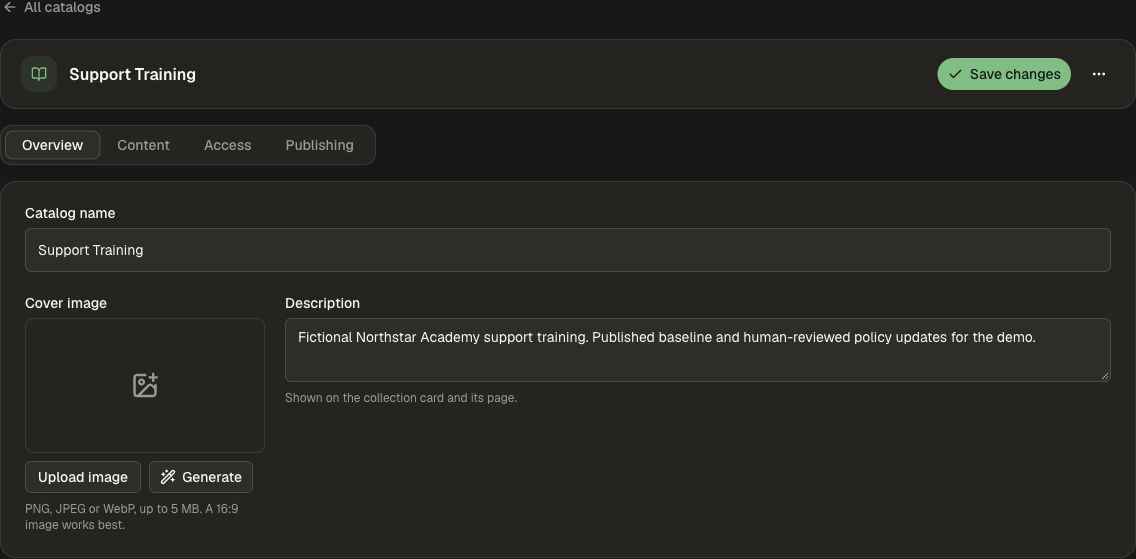
- On Overview, enter Catalog name and Description.
- Add a cover with Upload image or Generate. The UI recommends a 16:9 image and accepts PNG, JPEG, or WebP up to 5 MB.
- Choose Save changes when ready.
2. Add learning content
- Open the catalog's Content tab.
- Use Add curricula for ordered learning paths.
- Use Add courses for individual courses.
- Review each item's status. An In review item includes View request so you can inspect the publication request.
- Use View catalog to inspect the learner-facing collection when available.
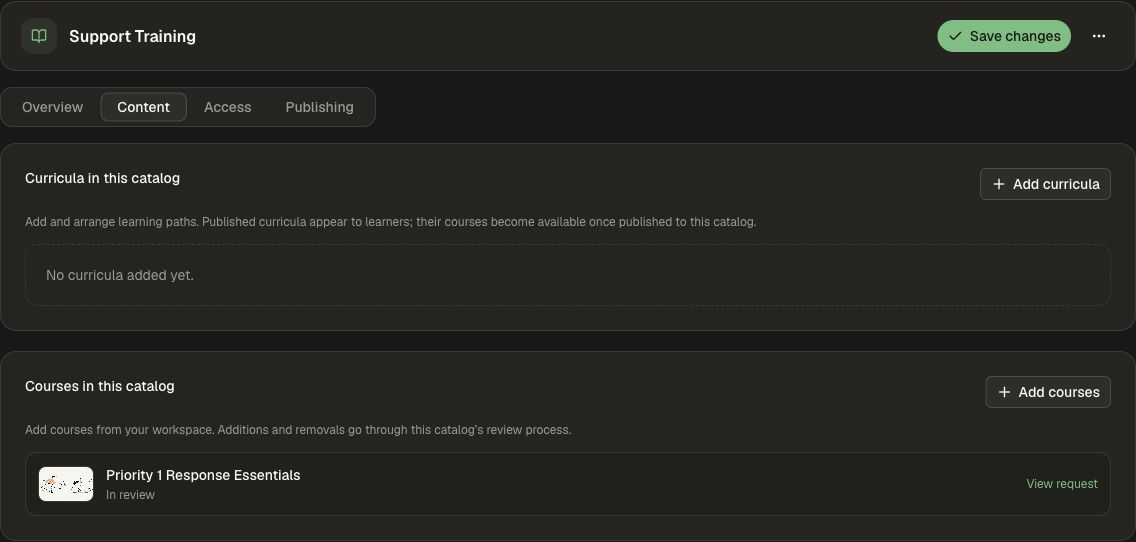
Adding and removing courses follows the catalog's review process. Complete the required review to make the approved release available to its audience.
3. Review audience and publishing policy
Use Access to configure who can view the catalog. Use Publishing to review Catalog available, Review required, reviewers, and Required approvals. Reviewers approve changes; viewing access is configured separately.
Keep internal training in catalogs with the appropriate workspace access. Select only approved, external-facing catalogs and Knowledge Base folders for a customer or partner Site; catalog approval alone does not make internal material suitable for publication.
4. Choose the final delivery surface
For external documentation or an academy, follow Publish an academy, then curate its courses, paths, and documentation. For internal coursework with named recipients and completion criteria, follow Assignments. If learners already work in another learning platform, start with LMS Integrations.
Tips for a smooth setup
If content is absent from a learner-facing catalog, inspect its publication status and audience before adding it again. A Site can display approved releases from selected catalogs, while the same workspace continues to manage authoring and learner administration.